Many iPhones are locked to a specific network. Unlocked iPhones can be used on any network, and are therefore worth more money. There are several ways to check if an iPhone is unlocked, including contacting the carrier, checking the Subscriber Identity Module (SIM) card, or looking up this information by using the International Mobile Equipment Identity (IMEI) number.
Outside the U.S. iPhones purchased from Apple or another reseller, are often unlocked by default, so you can use them with any network. But in the U.S. iPhones tend to be tied to a particular network, which can make moving networks, handing an older handset down to a family member, or selling a used iPhone tricky. Continue reading to learn why you would need to unlock your iPhone and how to do it.
What does it mean for an iPhone to be unlocked?
An unlocked iPhone means that it can be used on any network. It is always a good idea to check a new (or used) iPhone to see if it’s unlocked. If it is unlocked, you can switch carriers freely. You can operate your iPhone on another compatible wireless network if it is unlocked.
- When you buy an iPhone from a carrier, such as AT&T® or Verizon®, you are typically tied to them—the phone is locked—for the duration of your contract.
- When you buy a new iPhone from the Apple® store, it is unlocked by default.
- A used iPhone is unlocked if the person you are buying it from has finished their contract and paid in full.
How to tell if your phone is unlocked
Here are ways to check if your iPhone is unlocked:
Check with your carrier
The most accurate way to find out if your phone is unlocked (or to get it unlocked) is to contact your carrier. When you contact your carrier, you will need to provide a handset’s IMEI. The process can take some time, and you will only be able to get information about your own device—not for a phone you’re interested in buying.
You can also visit your carrier’s website for free to check if your phone is unlocked. You may need to enter your iPhone’s serial number (Go to Settings > General > About and look for the Serial number) as well as the IMEI number.
Check if your phone is unlocked using IMEI
An IMEI number is a number that is unique to the phone. It is a number that cell carriers use to identify a phone on the network. It has nothing to do with the SIM but rather identifies the phone itself and can be used to check if it’s connected to a certain network.
An iPhone IMEI check is a great tool to prevent stolen devices from being activated and to see if you are free to use a previously-owned phone with your network of choice.
How to find your iPhone IMEI number
Find your IMEI number in Settings:
- Go to Settings > General and tap About.
- Scroll down to find the IMEI number.
Find your IMEI number before setting up your iPhone:
- Turn on your iPhone. You’ll then see "Hello" in many languages.
- Tap the Info button, in the bottom-right corner of the screen to see the IMEI number.
If you don’t have your device, you can still find your IMEI number:
- Go to account.apple.com in a web browser.
- Sign in to the Apple Account that you use on your iPhone.
- Choose the Devices section from the menu.
- To see the IMEI number, select your iPhone.
Do you have a different device with iOS 10.3 or later that’s signed in to your Apple Account? On that device, go to Settings > [Your name]. Scroll down to see any devices signed in to your Apple Account. To view the IMEI number, tap the name of your iPhone.
Do you still have your iPhone original package? Find the IMEI on the barcode:
Use an online IMEI checker
Once you’ve found your IMEI number, you can see if your iPhone is unlocked by using a free IMEI checker. Follow these steps:
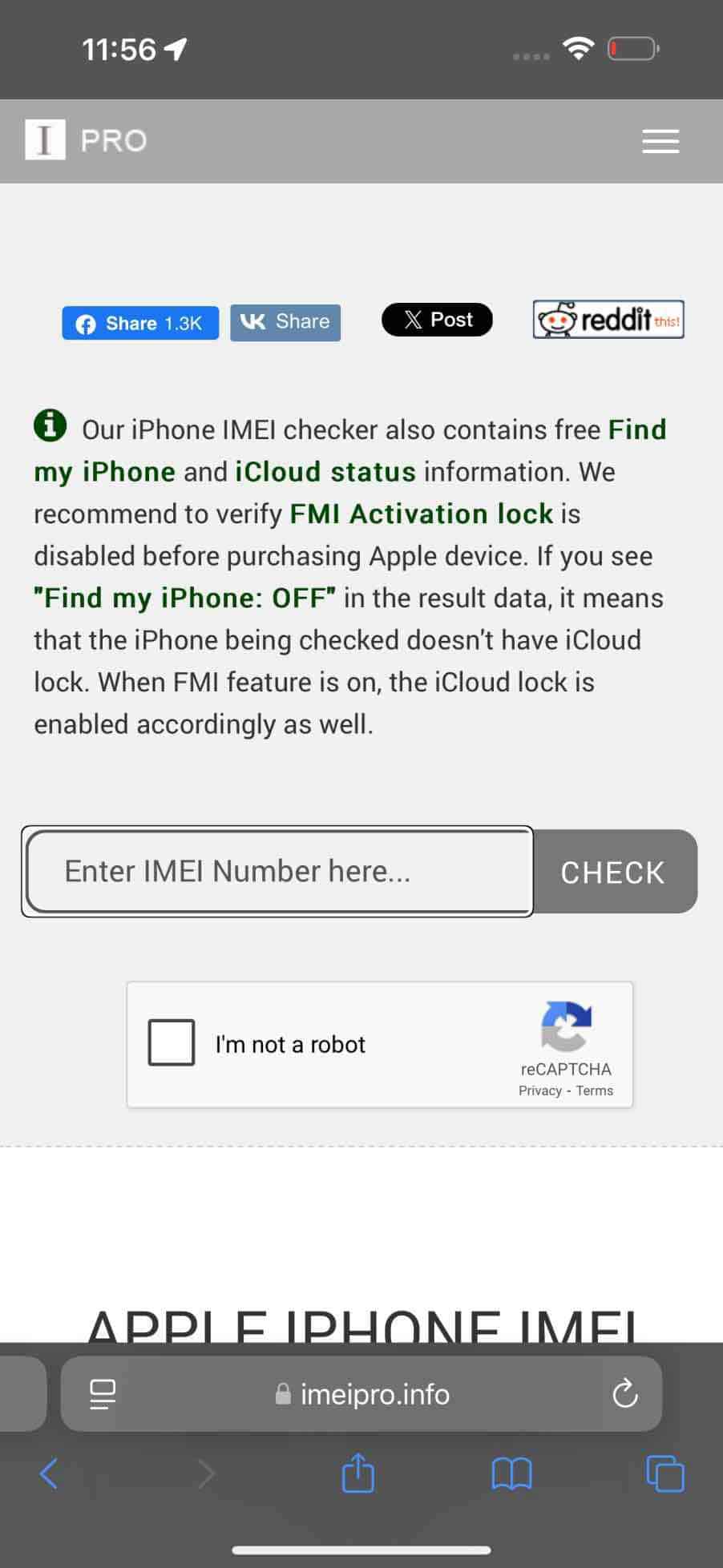
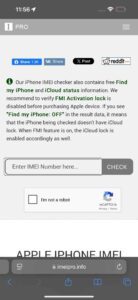
- Open a browser and navigate to the iPhone checker at imeipro.info.
- Below the ad, enter the IMEI number in the search field where it says, "Enter IMEI Number here…"
- Complete the Captcha and then tap or click CHECK.
- Scroll down past the ad to see the results. You’ll want to see:
- Find My iPhone should be OFF — unless this is your iPhone.
- Simlock status should be Unlocked.
- Blacklist status should be CLEAN.
Here are the IMEI Pro website results for my iPhone 14 Pro Max:
| IMEI: | 364329351416785 |
| Second IMEI: | 356824352557653 |
| Brand: | Apple |
| Phone model: | iPhone 14 Pro Max (A2893) |
| Find my iPhone: | ON |
| Simlock status: | Unlocked |
| Blacklist status*: | CLEAN |
Check the settings
Another quick, easy way to find out if your iPhone is unlocked is by checking the Settings app.
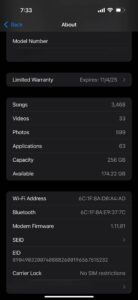
- Go to Settings > General > About.
- Scroll down and find “Carrier Lock” or “Network Provider Lock.”
- If you see No SIM restrictions, this means that the iPhone is completely unlocked.
How to check your SIM card to see if your iPhone is unlocked
You can check If an iPhone is unlocked via a SIM Card. This method involves removing the current SIM card in your iPhone and putting another SIM card to see if it works. Just make sure that the SIM is from a different carrier. If a friend uses another network then ask them if you can borrow the SIM for a couple of minutes. Follow these steps to check that the iPhone is unlocked:
- Turn off your iPhone.
- Locate the SIM tray on the left side or right side of your iPhone.
- Use a SIM card ejector tool (or a paperclip) to remove the iPhone’s SIM card.
To pop open the SIM tray, insert a paper clip or a SIM-eject tool into the hole beside the tray. Push in, toward the iPhone, but don’t force it. - Remove the current SIM card from the tray and replace it with another SIM card from a different carrier.
- Insert the tray into your device.
- Turn on your device.
- Your iPhone will automatically detect the carrier if it is unlocked. if your phone is locked, your iPhone will display a message saying the phone is currently locked. To be 100 percent sure, place a call to see if the call connects. If you can make a call, then your phone is unlocked.