





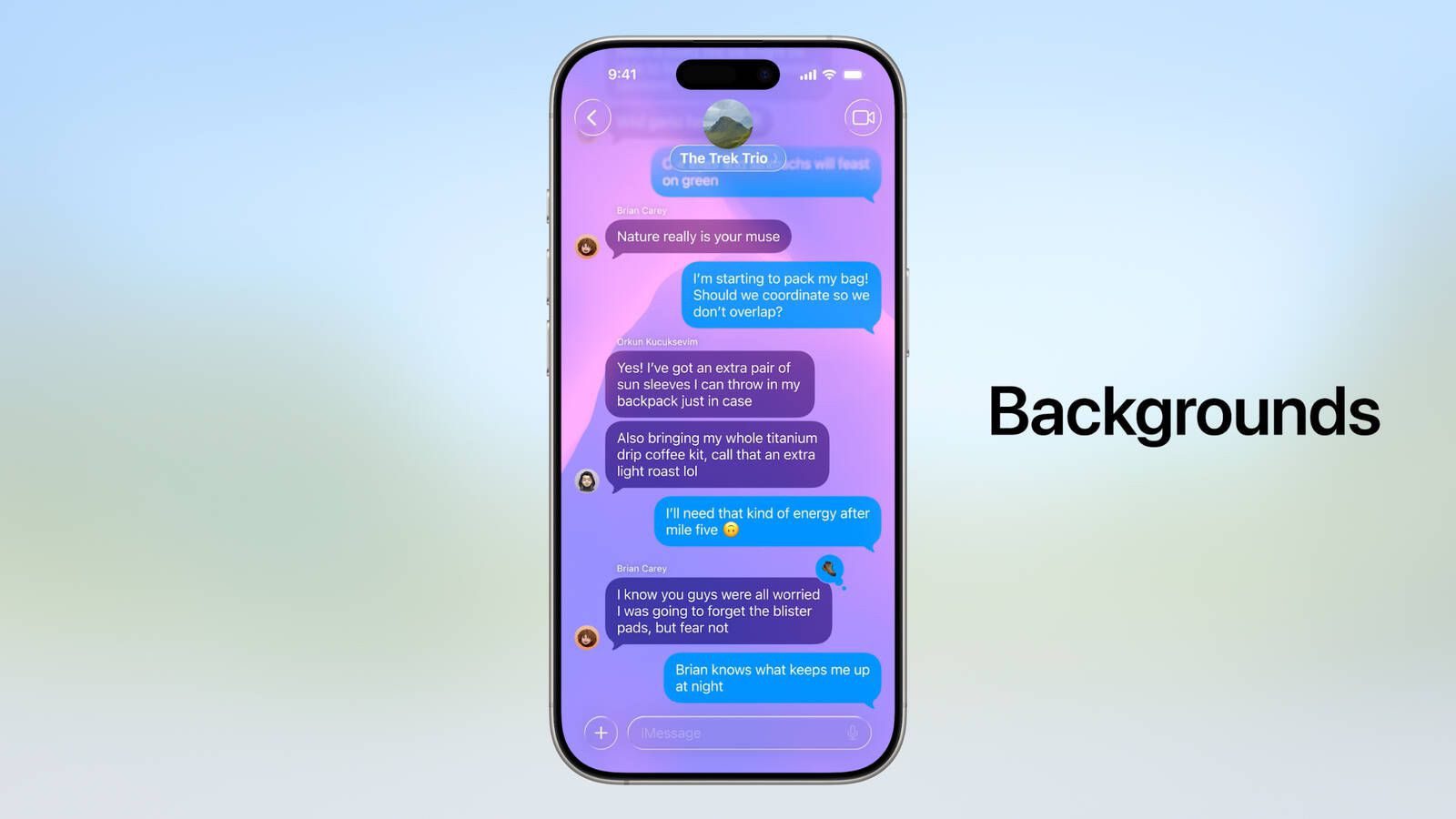
iOS 26 lets you set custom backgrounds in iMessage conversations. You can set an image from the Photos library as your chat background or pick from built-in animations.
If your device supports Apple Intelligence, you can also generate an AI chat wallpaper with Image Playground. Backgrounds are visible to all chat participants, so be kind and don’t use an embarrassing picture thinking you’re the only one seeing it.
Chat backgrounds sync across all your iPhones, iPads, Macs, and Apple Watch updated to iOS 26, iPadOS 26, macOS 26, and watchOS 26. Each chat can have a different background, but there’s no option to set the same background for all chats at once.
Note that SMS and RCS text conversations cannot have a background.
In this guide, I’ll show you how to set a custom iMessage background on your iPhone or iPad running iOS 26.
How to Change iMessage Background on iPhone or iPad
Here’s how to change your iMessage background:
- On your iPhone or iPad, go to the Messages app.
- Open the iMessage conversation you’d like to assign a custom background.
- Tap the name or profile picture at the top of the chat.
- Tap Backgrounds.
- Choose between the following options:
- Photo: Choose a still from the Photos library (tap All to see recent images).
- Color: Use a subtle color wave animation as the chat background. Swipe to view all variations or hit the color dots to pick a custom hue.
- Playground: Generate a custom image with Image Playground from a text description.
- Sky, Water, Aurora: Animated backgrounds in different styles (swipe to view additional ones).
- Suggestions: Recommended Image Playground options and suggested backgrounds from your Photos library.
- Tap on the tick mark (save button) at the top right to confirm, and that’s pretty much it!
And that’s how you can set a custom iMessage background in iOS 26.
To remove a chat background, follow the steps above but pick the “None” option instead.










