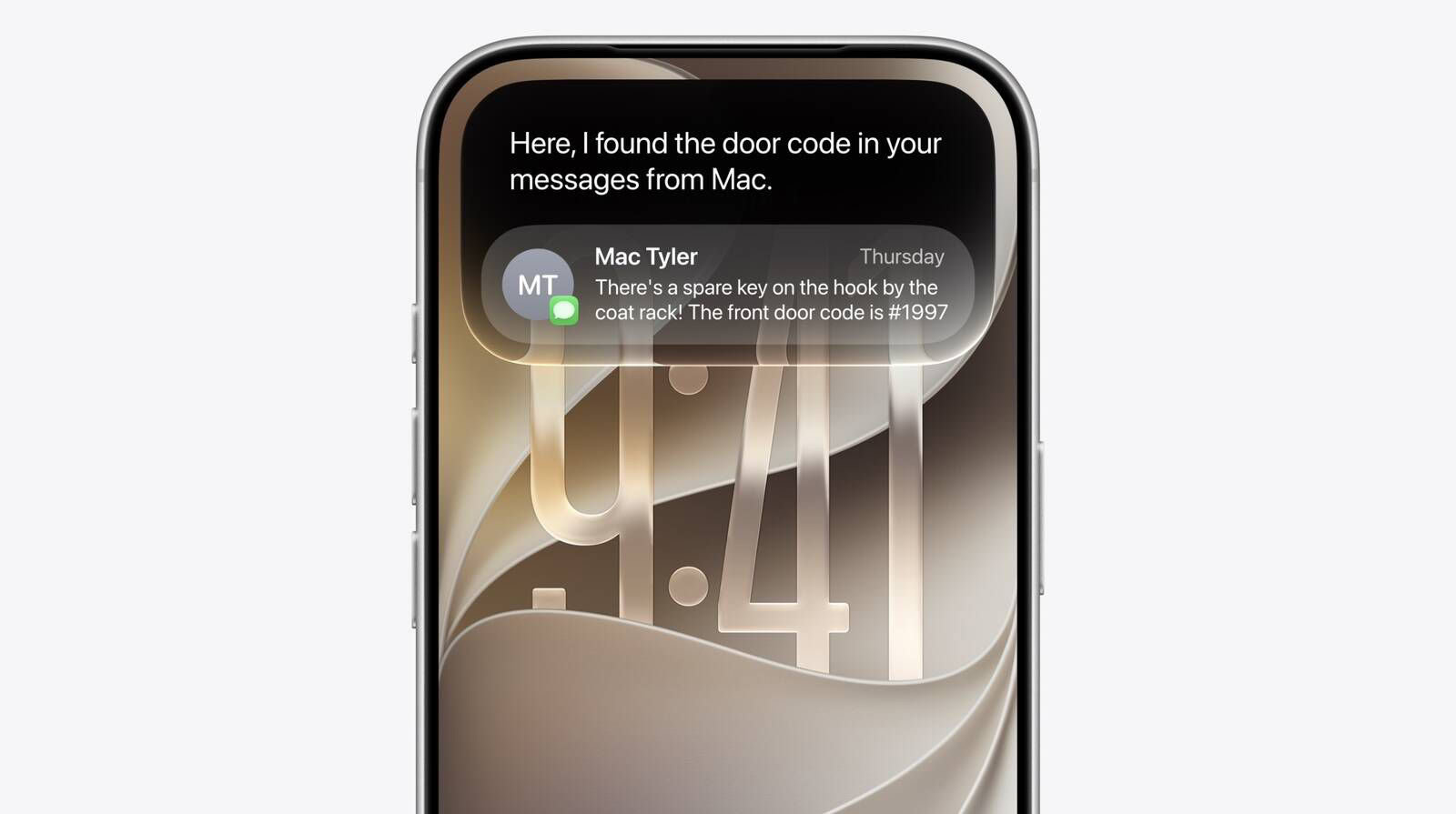
Let’s be honest, AI isn’t for everyone. With growing concerns over AI accuracy issues and storage demands, you may be rethinking Siri AI on your device.
Whether it’s privacy worries, slower performance, or a preference for a simpler smartphone experience, opting out won’t impact your device’s core functionality.
While Siri AI has personal context understanding—you might prefer a more straightforward device.
By disabling Siri AI your iPhone will continue to work just as efficiently — you’ll just be using it without AI features running in the background. Remember, this isn’t permanent.
Plus, if you want to try Siri AI features in the future, you can always re-enable it. Let’s walk through how to turn off Siri AI on your iPhone.
1. Open Settings
Navigate to your iPhone’s Settings menu from your home screen or App Library.
2. Find Screen Time
Scroll down through Settings and tap Screen Time.
3. Select Content & Privacy Restrictions
Go to Content & Privacy Restrictions. Enable the restriction.
4. Go to Intelligence & Siri
Enter the "Intelligence & Siri" menu, and change everything to "Don’t Allow". This disables Siri AI on your iPhone.
5. Enjoy your AI-free iPhone
Your phone will now operate without AI features running in the background. All your regular iPhone functions remain exactly the same, just without the Siri AI. You can always re-enable Siri AI later if you change your mind.
Now that you’ve learned how to turn off Siri AI, why not explore other iOS 27 features?