On iPhone and iPad, one of several accessibility features that has received an update in iOS 26 and iPadOS 26 is Background Sounds. In this article, I’ll show you how to use iOS 26’s new Background Sounds on an iPhone or iPad.
What Are Background Sounds?
Background Sounds is an Accessibility option that allows your iPhone to play soothing background noise, like white noise or rain. The sounds are designed to help you stay focused, stay calm, and help you minimize distractions while you are busy with something.
What’s New in iOS 26?
With iOS 26, Apple added a bunch of new options for the Background Sounds feature.
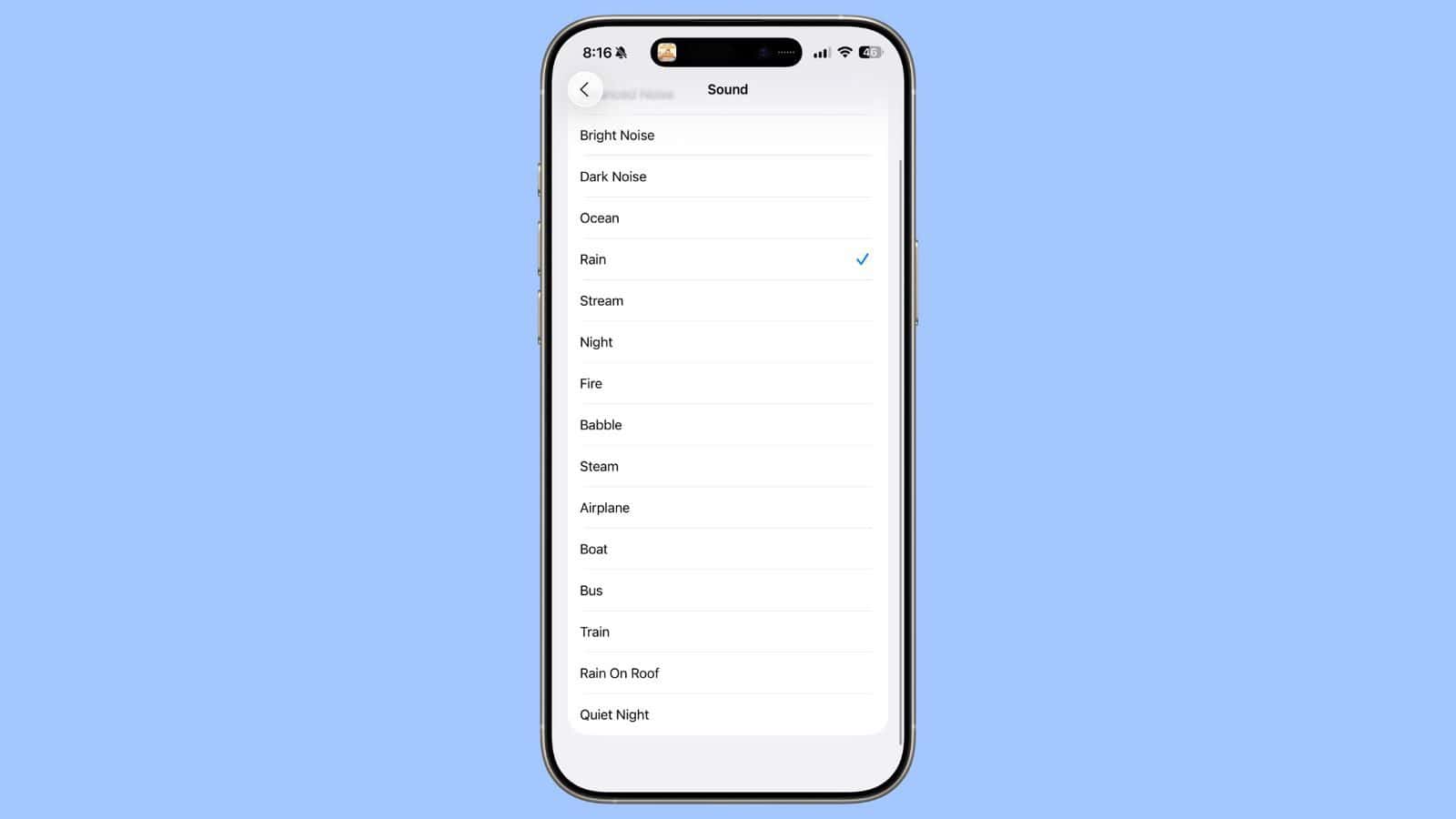
Prior to iOS 26, there were eight Background Sounds options, but now there are a total of sixteen. Here’s what’s new:
- Babble
- Steam
- Airplane
- Boat
- Bus
- Train
- Rain on Roof
- Quiet Night
These join the original eight, which include Balanced Noise, Bright Noise, Dark Noise, Ocean, Rain, Stream, Night, and Fire.
Enabling Background Sounds on iPhone and iPad
The following steps explain how to enable Background Sounds on iPhones and iPads running iOS 26/iPadOS 26 and later.
- Open the Settings app on your iPhone or iPad.
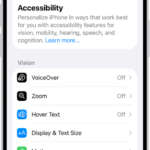
- Go to Accessibility.
- Under "Hearing," tap Audio/Visual.
- Tap Background Sounds.
- Tap the switch to turn on Background Sounds.
- Tap Sound to choose a sound effect.
- Choose from Babble, Steam, Airplane, Boat, Bus, Train, Rain on Roof, and Quiet Night.
- Tap back, then adjust volume levels and whether it plays when media is playing or during screen lock.
Your device will need to download individual sound effects when you play them for the first time, so make sure you have an internet connection, but after that you can play the background sound whether or not you’re online.
Control Center Access
Once you have set the background sound, you can get fast access it from the Control Center. To do this, you need to thave the Hearing item added to Control Center (go to Settings -> Control Center and add Hearing to the included list), then follow these steps.
- Open Control Center by dragging down diagonally from the top-right of your device’s screen.
- Tap the Add button in the top-left corner, then tap Add a Control
- Scroll down, then choose Background Sounds.
- Tap the Background Sounds button to start playing.
See also: 100 new iOS 26 features for iPhone! Do you know them all?