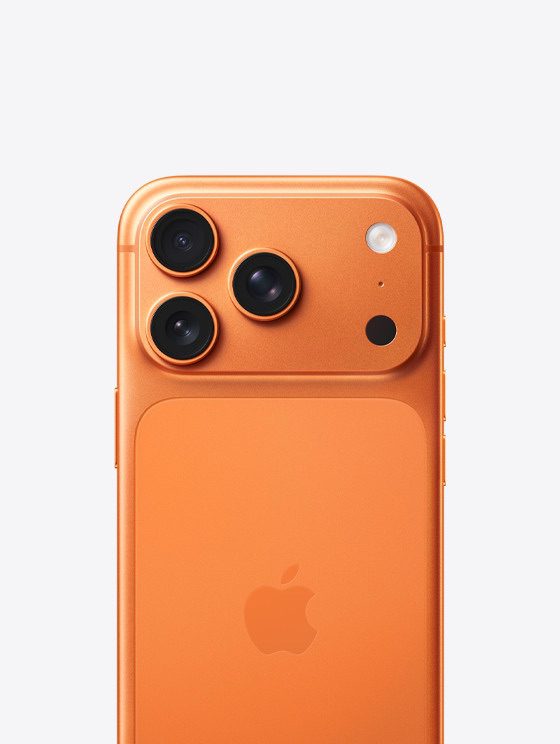
iPhone 17 Pro and iPhone 17 Pro Max feature Apple’s best-ever camera systems with higher-resolution sensors front and back — equivalent to having eight pro lenses in a user’s pocket. Three 48MP Fusion cameras capture sharper and more detailed images. A new 48MP Telephoto camera has a next-generation tetraprism design with a sensor that is 56 percent larger than the previous generation to improve sharpness in bright light and bring more detail to darker shots. The new 4x optical zoom at 100mm offers a classic lens for portraiture, while the 8x optical zoom at 200mm, the longest ever on iPhone, provides longer reach and more creative choice. With the updated Photonic Engine, the image pipeline uses more machine learning to preserve natural detail, reduce noise, and provide significantly improved color accuracy. Digital zoom also increases up to 40x for photos, and users have even more options for customizing their photos with next-generation Photographic Styles, including a new Bright style available in iOS 26 that brightens skin tones and applies a pop of vibrance across the image. So what do you do when your iPhone 17 Pro or iPhone 17 Pro Max camera isn’t working?
Here are the most common problems you might come across with your iPhone 17 Pro camera, along with everything you can do to fix them.
1. iPhone 17 Pro Camera Shows a Black Screen
If you launch the Camera app on your iPhone 17 Pro or iPhone Pro Max and see a black screen, try the following steps to fix it:
- Make sure nothing is blocking the camera lens. You may have put the case on incorrectly or there may be something stuck to the back of your iPhone.
- Try using the official iPhone Camera app, rather than any third-party alternatives. This app is more reliable than the alternatives and more likely to work properly.
- In the Camera app, switch between the front and back cameras to see if both of them are working or not. To do this, tap the camera flip icon on the right side of the screen. If only one camera works, that might indicate a hardware problem.
- Restart the Camera app. To do so, swipe up to the middle of the screen, then close the Camera app by sliding it off the top of the screen.
- Turn off your iPhone by holding the Side button (along with either Volume button, then slide to power off. Wait 30 seconds before pressing the Side button again to restart your iPhone. If that doesn’t work, force restart your iPhone instead.
2. iPhone 17 Pro Photos Are Blurry or Out of Focus
If the photos you take with your iPhone 17 Pro or iPhone 17 Pro Max camera are blurry or out of focus, try these fixes:
- Clean the front and back camera lenses with a microfiber cloth. If you see dirt or debris behind the glass, take your iPhone to an Apple Store or Authorized Service Provider for a repair.
- Remove any metallic or magnetic iPhone cases and camera accessories. They can interfere with the optical image stabilization on an iPhone 17 Pro.
- Keep your hand steady while tapping the shutter button. Sometimes it’s easier to press one of the Volume buttons to take steady pictures instead. Be careful in the dark when the shutter needs to stay open for longer.
3. iPhone 17 Pro Camera Flash Isn’t Working
Although most photos look better without a flash, sometimes you need that extra light for dark environments. When your iPhone 17 Pro or iPhone 17 Pro Max camera flash isn’t working, try these tips:
- Test the LED flash on your iPhone 17 Pro by turning on the flashlight from the Control Center.
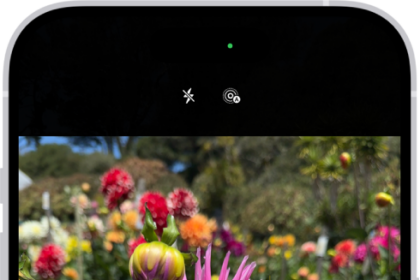
- Make sure you set the flash to On or Auto in the Camera app. To do this, tap the lightning bolt icon on the left side of the screen to see your flash options (you can’t use the flash for panoramic photographs or time-lapse videos).
- Be careful when using the flash for long videos or in hot environments. If your iPhone gets too hot, it might disable the flash entirely until it has cooled down again.
4. iPhone 17 Pro Photos Are Flipped the Wrong Way
This problem can often happen when you turn your iPhone 17 Pro or iPhone 17 Pro Max horizontally to take a landscape-oriented photo. After snapping the picture, it flips back to portrait orientation in your photo library. Try these tips to fix it:
- Open Control Center on your iPhone and tap the lock icon with a circle around it to turn off Rotation Lock.
- To open Control Center, swipe down from the top-right corner on your iPhone 17 Pro.
- Before snapping a photo, take a moment to make sure that the icons in the Camera app have rotated to their new horizontal orientation. If not, rotate your iPhone back and forth until they do so.
- You can always edit your pictures later from the Photos app, or other third-party iPhone image editing apps.
- If you’re wondering why your selfies always appear mirrored, that’s simply how Apple designed the front-facing camera. The camera works like a mirror, but the photo flips over as if someone took it for you.
5. The Camera App Is Missing or Keeps Freezing
If you can’t find the Camera app on your iPhone 17 Pro Home screen, or if the app freezes when you switch between cameras, it may be due to your iPhone restrictions. You can check this out from the Screen Time settings:
- Go to Settings > Screen Time > Content & Privacy Restrictions.
- If Content & Privacy Restrictions is turned on, tap on Allowed Apps and enter your Screen Time passcode if you have one.
- Make sure you turn the Camera app on; the toggle should be green.
6. General iPhone 17 Pro Camera Software Fixes
If you experience any other oddities with your iPhone 17 Pro or iPhone 17 Pro Max camera not working, it’s a good idea to try some general software troubleshooting tips. Test your iPhone 17 Pro camera again after each of the tips below.
- Close all the apps on your iPhone.
- Restart your device.
- Update iOS by going to Settings > General > Software Update.
- Go to Settings > General > Transfer or Reset iPhone > Reset > Reset All Settings. This doesn’t delete any of your content—such as photos or apps—but it does reset all your iPhone settings.
- Finally, factory reset your iPhone and set it up as a new device. This erases everything and is the last resort, but should resolve any software issues that stop your iPhone 17 Pro camera from working.
7. General iPhone 17 Pro Camera Hardware Fixes
If you’ve tried everything above and your front or back iPhone 17 Pro camera is still not working, you might have a hardware problem instead. Try the troubleshooting steps below to fix it:
- Double-check that the camera is not obstructed by a case or sticker.
- Make sure there are no smudges, dirt, or debris on the camera lens. Smudges and fingerprints should wipe away easily with a microfiber cloth.
- Contact Apple Support to arrange a hardware repair at the Apple Store or at an Apple Authorized Service Provider.
Get Back to Taking Great Photos With Your iPhone 17 Pro
These tips cover the most common reasons your iPhone 17 Pro camera might not be working. If you didn’t see your exact issue, hopefully the general tips helped you fix the camera anyway. Otherwise, you may need to speak to Apple about a hardware repair.