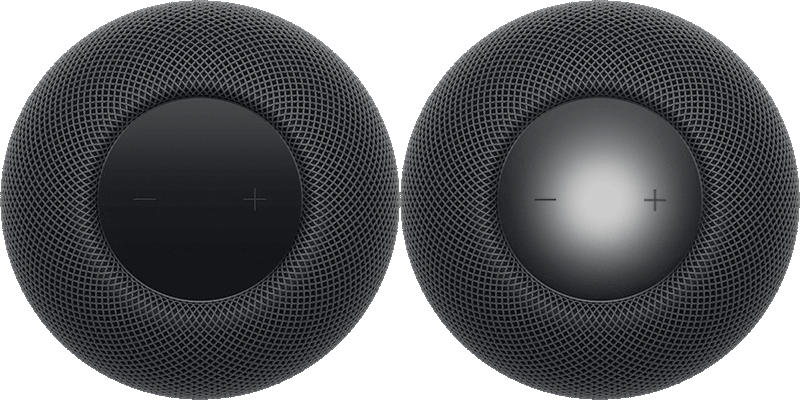
Security and privacy are fundamental to the design of HomePod. Nothing you say is sent to Apple servers until HomePod recognizes “Hey Siri” or “Siri,” or until you touch and hold the top of HomePod before a request. All communication between HomePod and Apple servers is encrypted, and anonymous IDs protect your identity.
You can turn off “Siri” or “Hey Siri,” turn off Location Services, which Siri uses for local information like traffic and weather, and delete your Siri history. And before you sell HomePod or give it away, you should remove it from the Home app.
Here’s what you need to know about HomePod privacy and security.
Turn off “Siri” or “Hey Siri” on HomePod
Say “Hey Siri, stop listening.”
When “Siri” or “Hey Siri” is turned off, touch and hold the top of HomePod to activate Siri. To turn “Siri” or “Hey Siri” back on, see Change HomePod settings.
Turn off Location Services on HomePod
Siri uses your HomePod location to provide local information such as traffic, weather, and nearby businesses.
- Open the Home app on your iPhone or iPad.
- Tap the More button, then tap Home Settings.
Note: If you have more than one home, you see settings for your current home (based on your location). To edit a different home, tap Homes, then tap the home you want to edit.
- Scroll down and then turn off Location Services.
Note: Location Services settings apply to all the HomePod devices in the Home.
Delete Siri history from HomePod
A history of your Siri interactions is stored on your HomePod, and may be used to personalize your Siri experience, Apple says.
You can delete any Siri interactions currently associated with your HomePod.
- Open the Home app on your iPhone or iPad.
- Tap your HomePod, then tap the Settings button.
- Tap Siri History, then tap Delete Siri History.
Remove HomePod before selling it or giving it away
Before you give HomePod to someone else, you should remove it from the Home app.
- Open the Home app on your iPhone or iPad.
- Tap HomePod and then tap the Settings button.
- Do one of the following:
- If you’re near HomePod: Tap Reset HomePod, then tap Remove Accessory.
- If you’re not near HomePod: Tap Remove Accessory.
A spinning red light on HomePod indicates it’s resetting.

This guide is for HomePod software version 27 or later.
See also