Over the last few years, Apple has brought a range of features to its iPhones that give you more power to customize your Lock Screen. That’s no different in iOS 26, and the latest version of Apple’s operating system gives you more ways to customize your iPhone’s lock screen. This guide highlights all the new iOS 26 Lock Screen features.
With the iOS 26, you can move your lock screen widgets, increase the size of your clock and give your lock screen wallpaper a 3D spatial effect.
Liquid Glass
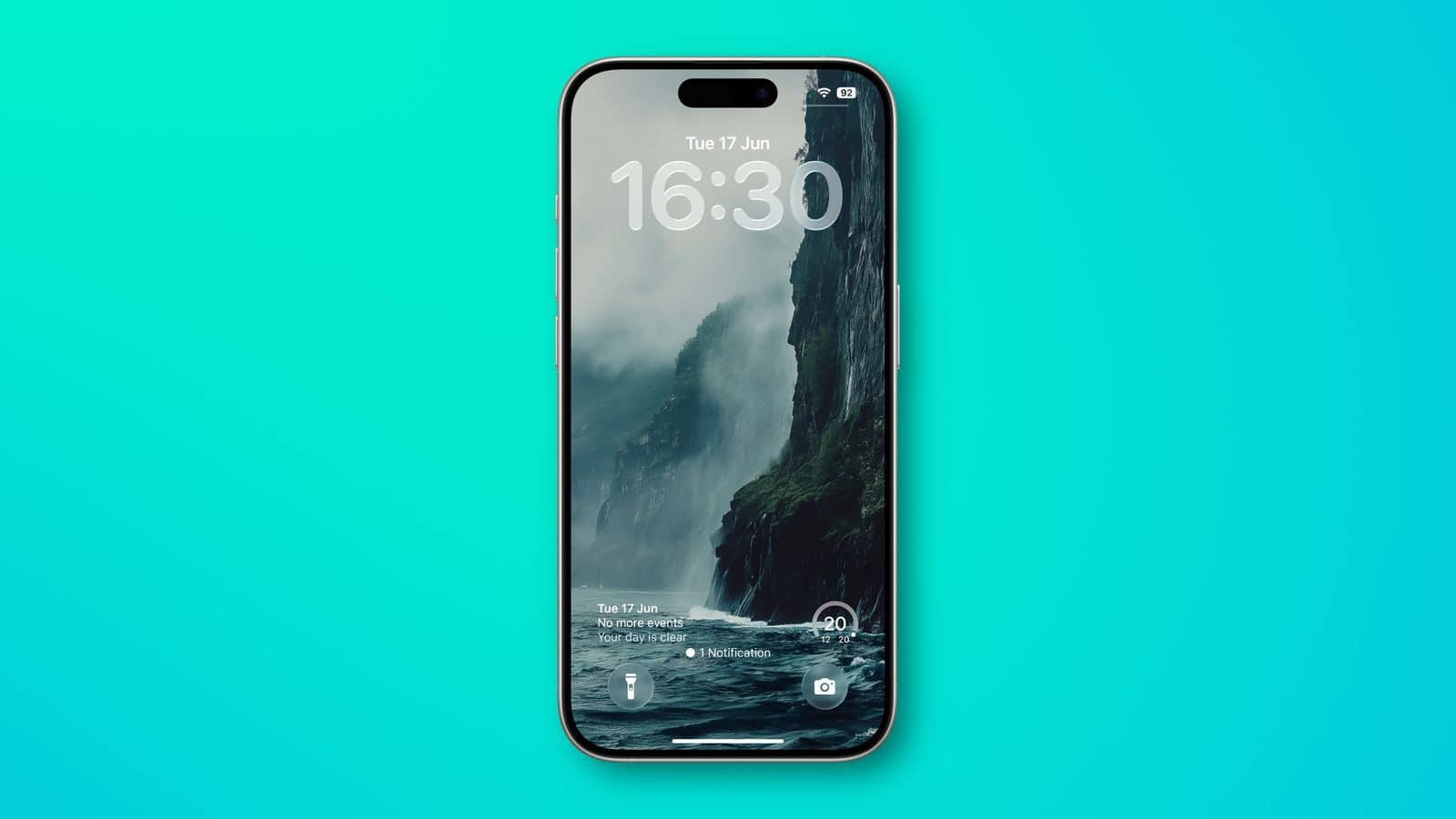
The two customizable control buttons on the Lock Screen are larger and have a floating, glass-like appearance like the other Liquid Glass interface options in iOS 26. The clock has a frosted glass appearance with the new "Glass" option, using lighting effects to make it look like glass in the real world.
See also: How to change iOS 26 Lock Screen Clock to Liquid Glass
Glass can be selected for any of the clock fonts, and you can choose a color to tint the glass. Apple has multiple preset options, or you can select your own.
When you tilt your iPhone, light reflects and glints with the movement, for a realistic glass effect.
Notifications that are on your Lock Screen have a Liquid Glass aesthetic with a frosted glass look that leaves your wallpaper visible behind them.
Lock Screen clock
The biggest change iOS 26 brings to your lock screen is the ability to change the size of your clock. When you’re customizing your Lock Screen, you can grab the corner of the time and drag it down to expand it.
Adjusting the size of the time only works with the first font option, and only with the standard Arabic, Western numbering.
With photo wallpapers, the time can automatically expand to fill in missing space, and it can change based on the image if you have Photo Shuffle set. The subject in photo wallpapers is meant to always be visible, and can overlap the time in unique ways in iOS 26.
There is a Photos watch face for the Apple Watch that also supports time that changes size and position based on the wallpaper.
See also: iOS 26: Change the Clock size on iPhone Lock Screen
Wallpaper
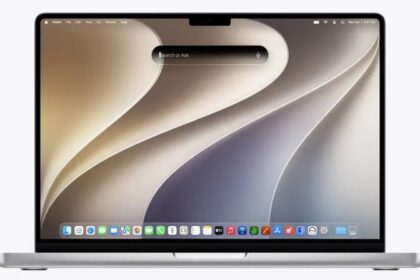
There is a new default wallpaper that was designed for iOS 26. It’s multiple shades of blue, with the same floating glass aesthetic that the rest of iOS 26 features. The wallpaper can subtly shift with iPhone movement.
It’s a small detail, but the icons for selecting different wallpaper categories have been updated to better match the Liquid Glass design.
Spatial Scenes
iOS 26 lets you turn your standard photos into 3D images with eye-catching depth effects.
Apple calls these Spatial Scenes, and they add a degree of interactivity to your favorite images. That’s because they respond to the way you hold your iPhone. When you move your iPhone, Spatial Scenes shift and move along with it, making the images feel alive. Spatial Scenes is a feature in the Photos app too, and it can be added to any image that you’ve taken with your iPhone, including older ones.
Tap on the small icon with a mountain and a sun to activate the Spatial Scenes setting when choosing a photo wallpaper.
I’m pretty fond of Spatial Scenes. Sure, they’re nothing groundbreaking and won’t forever change the way you use your iPhone, but they’re a neat iOS 26 Lock Screen features that can bring a smile to your face if you use the right images. The feature might sound a little pointless if you just read about it, but try it out for yourself and you’ll see why it can be so satisfying.
Widgets
Apple gives you the ability to move widgets on Lock Screen in iOS 26. Lock Screen widgets can be placed on the top of the display under the time, or at the bottom of the display. In earlier versions of iOS, you could only put widgets at the top of the screen. With the adaptive clock and new wallpaper options, widgets can also shift down automatically to ensure the subject of an image is always visible.
See also: How to Move iOS 26 Lock Screen Widgets to Bottom of iPhone
Apple Music
Apple added a new Lock Screen widget for Apple Music search, but there are no other new Lock Screen widget options. What is new, though, is a new full screen Now Playing interface that shows album art. Artwork expands and animates right on the Lock Screen.
Controls get some color
A pretty small change iOS 26 brings to your lock screen is it changes the color of the controls near the bottom of your screen. This change is enabled automatically in iOS 26 so you just have to add a colorful control, or create your own, to bring a pop of color to your lock screen.
Customize Lock Screen in iOS 26
Apple has slowly loosened its grip on your iPhone’s lock screen, giving you more freedom to customize its appearance and how you use it over the years. And iOS 26 is no different.
Being able to expand your clock, move the widget dock to more than one position and being able to give your wallpaper a 3D effect are just a few ways to customize Lock Screen in iOS 26. These features could be improved upon — like giving you more freedom in where you can place your widget dock — but I expect Apple to keep adding ways you can customize your iPhone’s lock screen in the future.