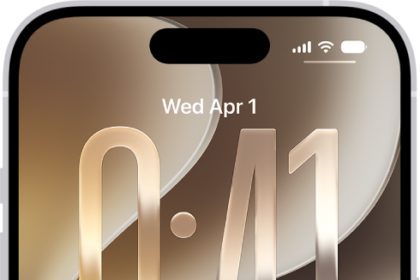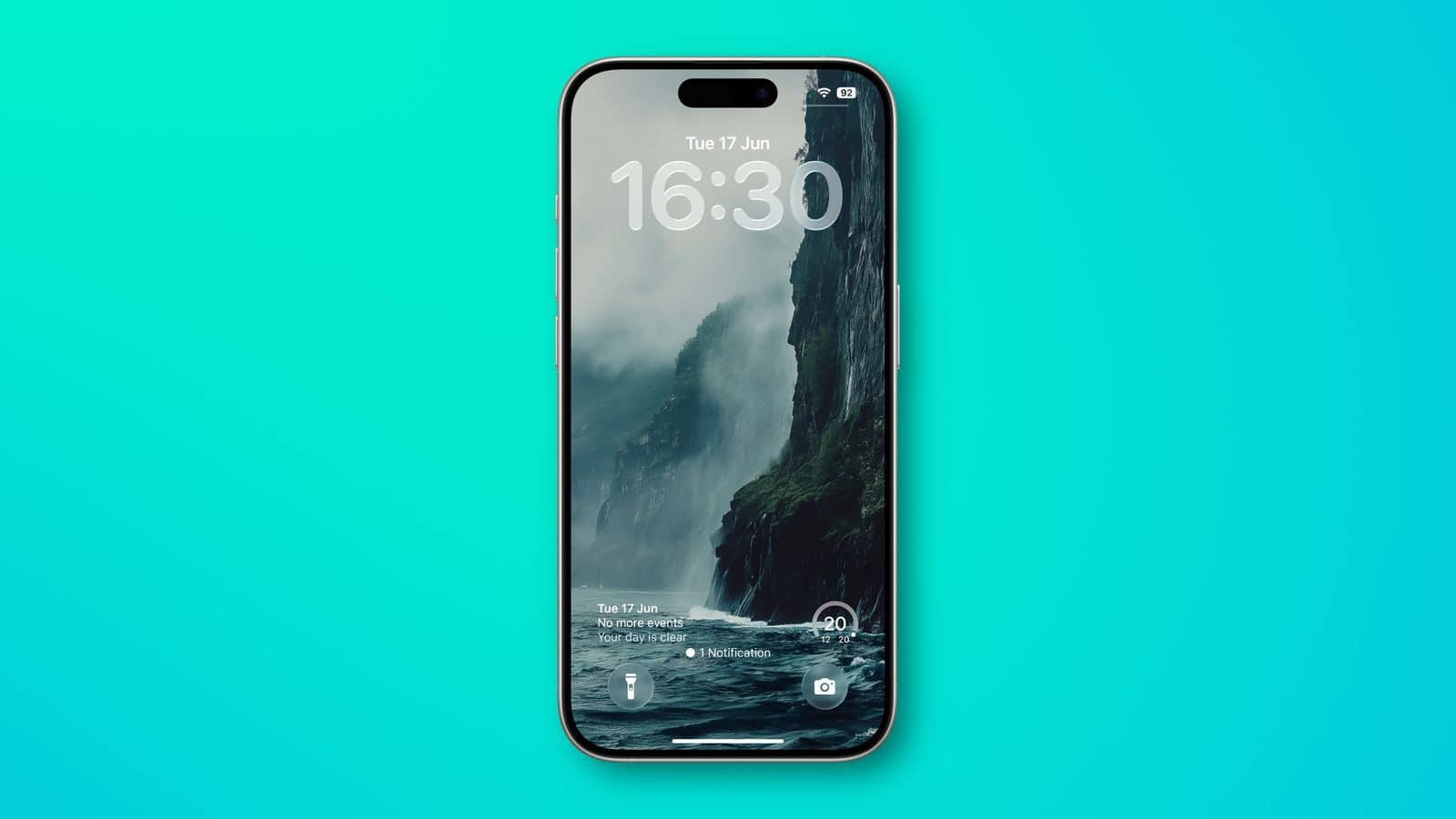
iOS 26 is now available to all supported iPhone models. The biggest change iOS 26 brings to your iPhone is its new visual design that Apple calls Liquid Glass. This is the biggest visual update Apple has brought to your iPhone since the company released iOS 7 in 2013. The redesign makes menus and other visual elements appear translucent, and some elements squish and wiggle when you interact with them. iOS 26 also brings a new clock appearance option to your iPhone Lock Screen.
If you have installed iOS 26 on your iPhone, here’s how to change the clock on your Lock Screen to the new Liquid Glass aesthetic.
Change iOS 26 Lock Screen Clock to Liquid Glass
- Wake your iPhone so the Lock Screen is showing.
- Long press anywhere on the Lock Screen, then tap Customize.
- Tap the time within the square frame.
- Tap the new Glass option to switch from Solid.
- Make any other desired changes to the clock’s color and style, then tap Done to finish.
Widgets that you have on the Lock Screen have the same translucent look as the Glass option, as do the quick access buttons on the bottom. Notifications are also glassy and see through, and you can see hints of your wallpaper behind them. The same aesthetic extends to the Home Screen and Control Center, and can be found elsewhere throughout the system.
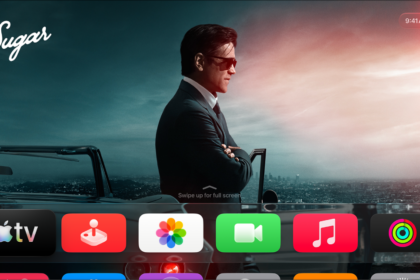
Liquid Glass also features in iPadOS 26, macOS 26, watchOS 26, and tvOS 26. iPadOS 26 looks a lot like iOS 26, and macOS 26 has a translucent menu bar and dock background, plus it uses Liquid Glass for buttons, side bars, navigation bars, and the Control Center.
Apple says that Liquid Glass will be the basis for the next decade of software design.
See also: iOS 26: Change the Clock size on iPhone Lock Screen