You may want to delete a contact from your iPhone. You can delete single contact or multiple contacts. Thankfully, doing so is quite simple. Here’s how to delete a contact on your iPhone.
Delete a contact on your iPhone
You can delete a contact quite easily from the Contacts app or the Phone app.
- Open the Contacts app on your iPhone.
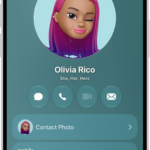
- Tap the contact you want to delete.

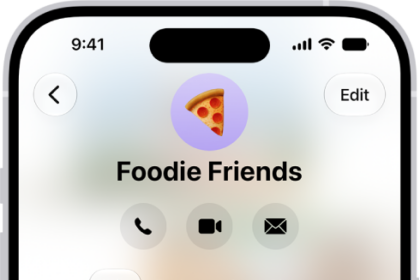
- Tap Edit button in the upper right corner of the screen.

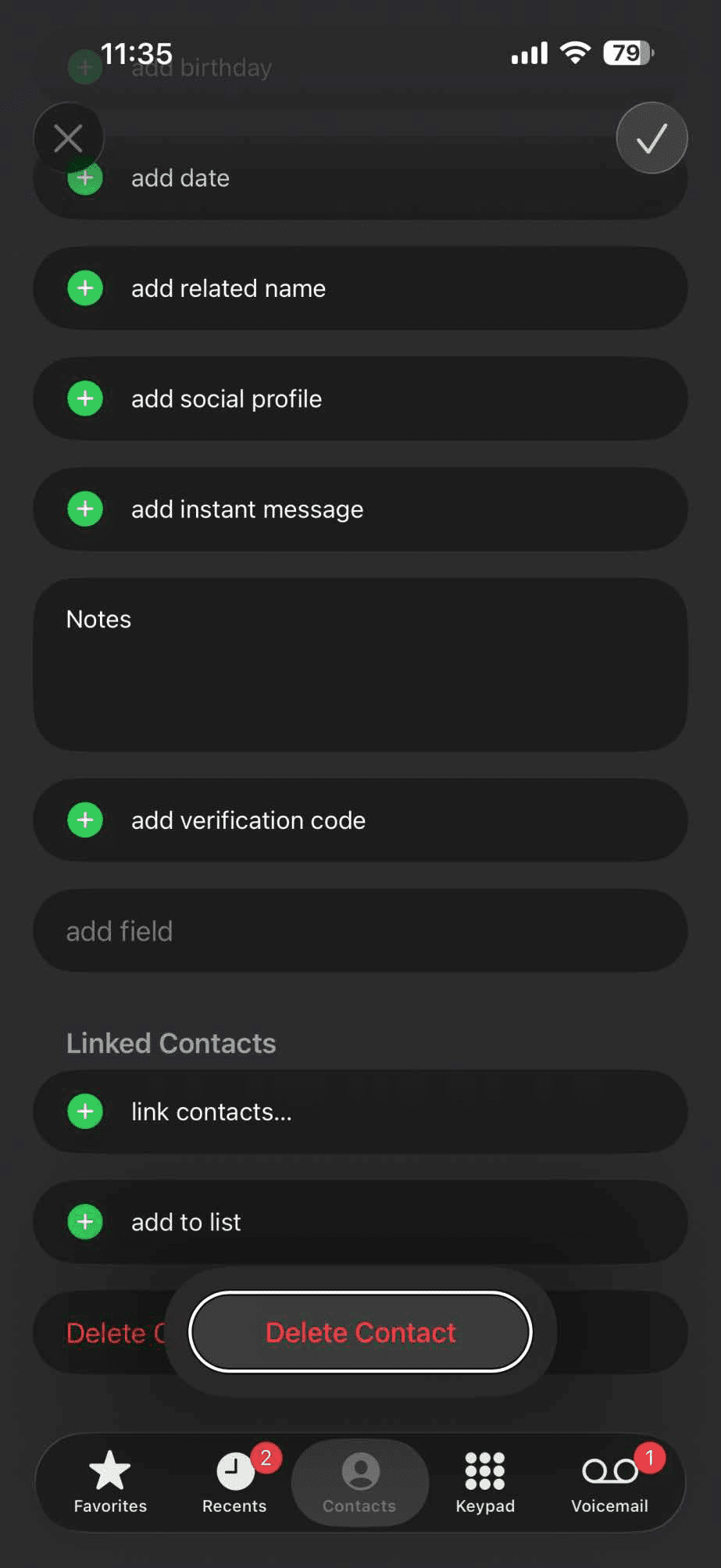
- Scroll to the bottom of the record and tap Delete Contact.

- Tap Delete Contact on the popup to confirm the deletion.

Note: When you delete a contact on your iPhone, it permanently deletes it from your device. If you delete a contact from your email account, you also permanently delete the contact from all devices signed into that email account. If you change your mind during Step 5 of this process, simply tap anywhere outside the Delete Contact confirmation dialog to close it.
Delete Multiple Contacts on your iPhone
You can delete multiple contacts at once on your iPhone.
- Open the phone app on your iPhone, then tap on Contacts. Alternatively, open the contacts app.
- Hold two fingers down and drag up and down to multi-select the contacts you want to delete.
- Tap and hold one name with a single finger to delete multiple contacts from your iPhone.
Tip:
You don’t need to necessarily select multiple contacts in a row. You can jump a few contacts and then keep selecting. The contacts that you have selected previously will remain okay. This way, you can have full control of every single contact that you have selected.
Tap and hold on any of the contacts you’ve selected, let go, then all you have to do is delete.
See also: How to edit contact on iPhone