You may want to edit a contact on your iPhone to change or add more information (such as a mailing or street address). Here’s how to edit a contact on your iPhone.
Edit a Contact on iPhone
You can edit a contact quite easily from the Contacts app or the Phone app.
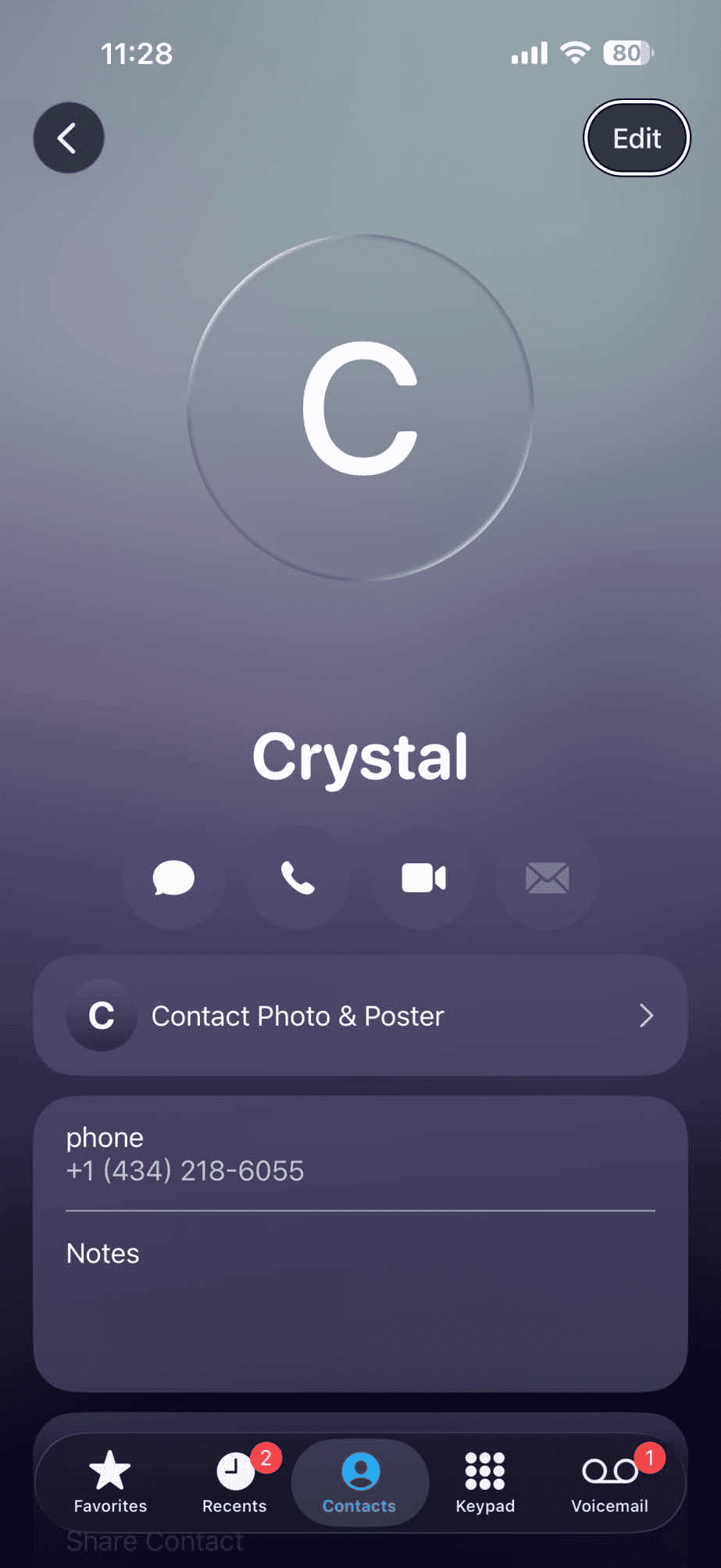
- Open the Contacts app on your iPhone.
- Tap the contact you want to edit.

- Tap on the "Edit" button from the top-right corner.

- Enter or update the contact’s information.
- When you’re finished, tap the Done button.
Tip: If your contact has a name that’s difficult for you to pronounce, consider adding the Phonetic First Name, Phonetic Middle Name, or Phonetic Last Name field (or some combination thereof) to the person’s record so you can spell out the name phonetically.
On models with Dual SIM, when you call or text a contact, iPhone uses the same line you used for your previous communication with this contact by default. To choose a preferred line for phone calls and SMS/MMS message conversations, select the contact, tap default (below the contact’s name), then choose a line.
You can customize how the contacts are displayed in the app by going to the "Contacts" option in the "Settings" app.
To change how your contacts are sorted and displayed, go to Settings > Apps > Contacts.
From here, you can tap the "Sort Order" option to sort your contacts alphabetically by first or last name.