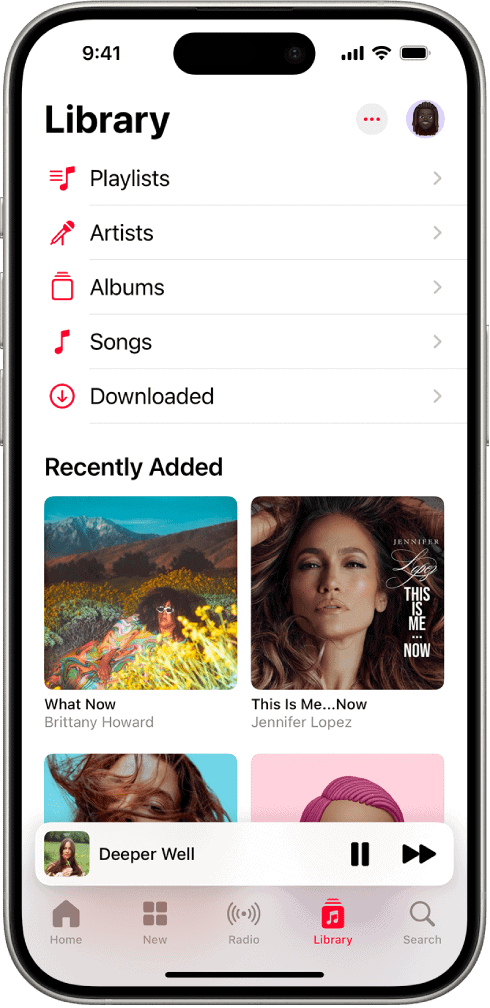
- If Apple Music isn’t playing on your iPhone in iOS 26, try shutting down the app and opening it again, or restart your device.
- If all but a single album/song or two will play, delete it from your Apple Music library and re-download it to get a clean file.
- In some cases, you may need to reset your device’s network settings, or sign out and then back into your Apple account.
Apple Music is an ad-free streaming music service that lets you listen to millions of songs and your music library. As a subscriber, you can listen any time—online or off—and create your own playlists, stream and download lossless and Dolby Atmos music, get personalized recommendations, receive notifications when a favorite artist releases new music, see music your friends are listening to, watch exclusive video content, and more.
In iOS 26, Apple Music includes AutoMix, a feature that transitions from one song to another as the song that’s playing ends. It uses time stretching and beat mixing for a seamless shift, and Apple says that it’s meant to work like a DJ.
In iOS 26, Songs that are in another language can be translated automatically with Lyrics Translation. There’s also Lyrics Pronunciation that helps you pronounce lyrics that are in another language.
In iOS 26, Apple Music playlists can now be pinned to the top of the Music app, with pinned playlists available in a new Home Screen widget as well. In addition, Playlists can be organized into folders.
In iOS 26, When using the Apple Music Sing karaoke feature on Apple TV, the iPhone can be used as a microphone.
Of course, you’ll be able to take advantage of all these iOS 26 Apple Music features if the service is working properly. If Apple Music is not working on your iPhone after iOS 26 update, don’t worry — you’re not alone. Apple Music is a well-made app, but it’s not uncommon to run into errors where the app simply won’t play any music.
What to do if Apple Music is not playing after iOS 26 update
There are a number of easy fixes you can employ to get Apple Music working again. Here’s how to fix Apple Music on your iPhone in iOS 26.
1. Make Sure Your Apple Music Subscription Is Active
You will not be able to download or play songs on Apple Music on your iPhone if you don’t have an active subscription. Has your Apple Music subscription run out, perhaps? With all the subscriptions people have on iPhones these days, it can be easy to overlook renewing something.
Start the Settings app on your iPhone and tap your name. Tap Subscriptions and make sure Apple Music is listed under Active subscriptions.
2. Enable Sync Library
Sync Library does about what you think it would; it syncs your music library across all of your devices. On any device where you use Apple Music or iTunes, if you are signed in with the same Apple account, you can see your entire music library and playlists; also, any changes you make, such as adding new music or creating a new playlist, will show up the same on all of your devices.
If Sync Library is off, you will still have access to the music that you own on your iPhone. Any music that you have downloaded using an Apple Music subscription won’t show up in your Music app anymore. Moreover, you will not see your Apple Music Playlists on your iPhone. In addition, changes you make in Music will not sync across your devices.
You should turn on Sync Library for you to gain access to all of your music on all of your devices.
Make sure your device is signed in with the same Apple account you use for Apple Music. (Settings > Apple Account)
In the Settings app, go to Apps > Music. Make sure the switch next to Sync Library is toggled On.
3. Restart the Apple Music app
The next troubleshooting step to try when the Apple Music isn’t working on your iPhone is to close and reopen the Apple Music app. There’s a good chance that the Music app has crashed, causing it to stop working. Force closing the Apple Music app and opening it again will refresh the app, and make it load all its temporary data again, which can fix common errors.
Before you can close out of the Music app, you’ll need to bring up the app switcher. On iPhones without Face ID, double-click the Home button to open up the app switcher.
On iPhones with Face ID, swipe up from the very bottom of the screen to the center of the screen. When your finger reaches the center of the screen, pause for a moment and the app switcher will launch.
Regardless of which iPhone you own, swipe the Music app up and off the top of the screen to close it.
Now launch the Music app and check if it’s working. If you are still experiencing problems, move on to the next solution.
4. Restart Your iPhone
If closing the Music app didn’t do the trick, try restarting your iPhone. There’s a good chance a different app stopped working in the background, causing your iPhone’s software to crash.
To turn off an iPhone without Face ID, press and hold the power button (also known as the Sleep / Wake button) until slide to power off and the red power icon shows up on the display. Then, swipe the red power icon left to right to turn off your iPhone. The process is similar on the iPhones with Face ID, except you press and hold either volume button and the side button until slide to power off shows up on the display.
Wait about 20 seconds, then press and hold the power button (iPhones without Face ID) or the side button (iPhones with Face ID) to turn your iPhone back on. Let go of the button when the Apple logo appears on the display.
Now open the Music app to see if it’s working. If songs aren’t playing, move on to the next solution.
5. Turn Wi-Fi Off And Back On
Your iPhone needs an internet connection in order to stream Apple Music. It’s possible there’s a connectivity issue preventing your iPhone from connecting to your Wi-Fi network.
Check your internet connection through another app. If pages in Safari will load quickly, for example, then clearly your internet connection is fine.
If your iPhone has no internet connection, try turning Wi-Fi off and back on again.
Start the Settings and tap Wi-Fi. Tap the switch the right of Wi-Fi to turn it off. Wait a few seconds, then tap the switch next to Wi-Fi to turn it on again.
If your Wi-Fi signal isn’t working on any device, you might simply need to restart your router.
6. Connect Your iPhone To A Different Wi-Fi Network
If Apple Music is not working on your Wi-Fi network, connecting your iPhone to a different network. Try a friend’s Wi-Fi network, or use the free public Wi-Fi at your local library or coffee shop.
It’s a good idea to try using your iPhone’s cellular data connection to. If Apple Music works when connected to a different Wi-Fi network or Cellular data, there’s probably an issue with your Wi-Fi network, not Apple Music or your iPhone.
7. Try Cellular Data Instead
If you are unable to download or stream Apple Music on your iPhone over Wi-Fi, try using Cellular Data instead. Open Settings and tap Cellular. Make sure the switch next to Cellular Data is on.
Next, scroll through the list of apps allowed to use cellular data and make sure the switch next to Music is turned on.
if you don’t see Music, tap Show All and scroll through the list to find it.
Open Music and see if it’s streaming or downloading songs. If it’s still not working, move onto the next step!
8. Check If Apple Music Servers Are Down
If Apple Music is still not working on your iPhone, take a quick peek at the status of Apple Music servers. Sometimes, Apple servers will crash or be undergoing routine maintenance, which may prevent you from downloading or streaming music on your iPhone. Check the status of Apple servers and and make sure the dots are green, particularly the one next to Apple Music.
If this dot or many others aren’t green, Apple is experiencing some issues and there’s nothing wrong with your iPhone. The fix here is to be patient — the servers will be back up again in no time.
9. Get The Latest iOS 26 Updates
If Apple Music is up and running at Apple’s end, the next step is ensuring you have the latest iOS 26 update installed on your iPhone. Music is a native iOS app and the only way to update it is to update your iPhone software.
To find out if you have the latest iOS 26 version, open the Setting app on your iPhone and tap General. Now, tap Software Update and select Install Now or Update Now if an update is available.
10. Turn Off Your VPN
I was able to fix Apple Music problem after iOS 26 update by deactivating virtual private network (VPN) on my iPhone. While VPNs are great for protecting your personal identity online, they can cause internet connectivity issues when configured incorrectly. It’s also possible that your VPN is making it appear you’re connecting to the internet from a country with restrictions on Apple Music.
Start the Settings app and go to General > VPN & Device Management VPN. Turn off the switch next to Status to turn off your VPN. You’ll know your VPN is off when the Status says Not Connected.
If Apple Music begins to work on your iPhone after turning off your VPN, then there’s an issue with your VPN, not your iPhone or Apple Music.
11. Reset Network Settings
If a poor Wi-Fi connection is the reason why you are not able to download or stream Apple Music on your iPhone, go ahead and reset your iPhone’s network settings. This will reset all your device’s Wi-Fi, Bluetooth, Cellular, APN, and VPN settings to their factory defaults.
When you connect to a Wi-Fi network after resetting network settings on your iPhone, it’ll be like you’re connecting to that network for the very first time. This completely fresh start will often fix the software problem that prevented your iPhone from connecting to Wi-Fi in the first place. It will also reset any settings you may have changed that could be preventing Apple Music from downloading or streaming on your iPhone.
Note: Before resetting network settings on your iPhone, it’s a good idea to note down all your Wi-Fi passwords, as you’ll have to reenter them after the reset is complete.
To reset network settings on your iPhone, head over to Settings > General > Transfer or Reset iPhone > Reset > Reset Network Settings. Enter your iPhone’s passcode, then tap Reset Network Settings to confirm your decision.
12. Redownload the album/song you’re having trouble with
There’s one more thing you can try if Apple Music is still giving you problems. Try removing the album or song that doesn’t work and immediately re-add it. Sometimes there is a glitch that stops some albums from playing, and usually, deleting it and re-adding it removes the blockage.
To delete an Apple Music song or album, open the Music app, tap "Songs" or "Albums," find the album or tune that won’t play, then hold your finger down on it. When a menu pops up, tap "Delete from Library." Tap "Delete from Library" to confirm.
Then redownload the song or album from the Apple Music library.
13. Reset your Apple account login
If nothing else has worked, your last move before seeking help from Apple is to sign out of your Apple account.
Open the Settings app and tap your name or image at the top of the menu. On the next page, scroll down and tap "Sign Out," then enter your Apple account password to confirm.
Sign back in, and see if Apple Music is now working
If even this doesn’t work, you might need to contact Apple.
14. Contact Apple Support
If Apple Music is still not working on your iPhone, it’s time to contact Apple Support for further help. They may be able to advise you on the next steps to take.
Easily Fixed Apple Music Not Working on iPhone in iOS 26
You’ve fixed Apple Music not working on iPhone issue and you can now start downloading or streaming your favorite songs. Make sure you bookmark this article so you’ll know what to do the next Apple Music isn’t working on your iPhone! If you have any other questions, feel free to leave a comment down below.