Recently, when my Verizon cellular plan changed, my Apple Music stopped syncing on my iPhone 18 Pro, and I didn’t have all of the songs and albums I had downloaded. When I opened my Apple Music, I saw the message, “Sync Library is Off.” Underneath it was “Turn On.” In this article, I’ll discuss what Sync Library does, if you should turn it on and how to turn it off or on on your iPhone 18 Pro or iPhone 18 Pro Max. See Can’t Turn On iCloud Music Library on iPhone 18 Pro.
What does it mean to sync your Apple Music library?
Sync Library does about what you think it would; it syncs your music library across all of your devices. On any device where you use Apple Music or iTunes, if you are signed in with the same Apple Account, you can see your entire music library and playlists; also, any changes you make, such as adding new music or creating a new playlist, will show up the same on all of your devices.
What happens if Sync Library is off?
With Sync Library off:
- You will still have access to the music that you own on your device. Any music that you have downloaded using an Apple Music subscription won’t show up in your Music app anymore.
- You will not see your Playlists.
- Changes you make in Music will not sync across your devices.
Should you turn on Sync Library?
In short, definitely. You will want to have access to all of your music on all of your devices. (If, for some reason, you don’t want the same music on all devices, then, of course, you can choose not to sync.)
There is one thing that Apple cautions you about before making any changes to your Apple Music: Make sure to back up your music library. This is a good idea if you have music that you own on your iPhone 18 Pro, and if you are worried about losing music, you can back up everything.
How to turn Sync Library on or off
On iPhone
- Make sure your iPhone 18 Pro is signed in with the same Apple Account you use for Apple Music. (Settings > [your name])
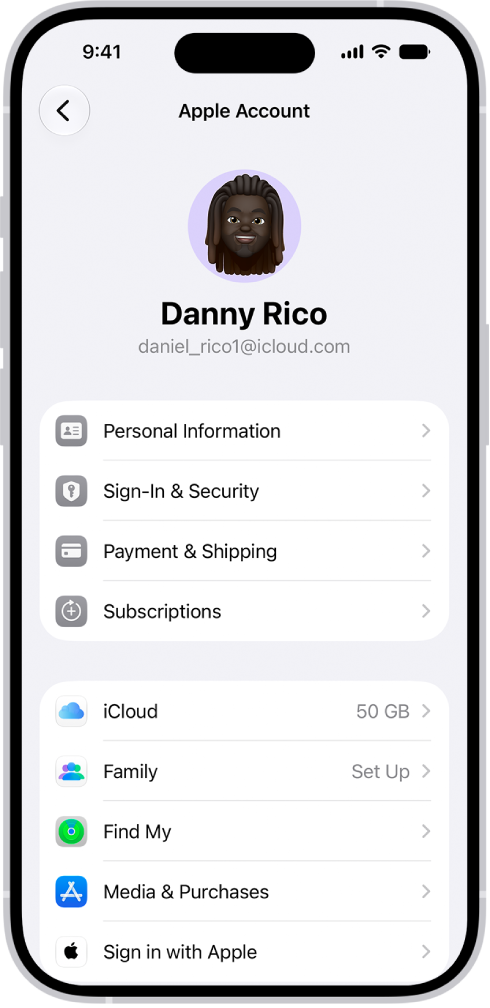
- In the Settings app, tap on Apps > Music.
- Toggle the switch next to Sync Library.