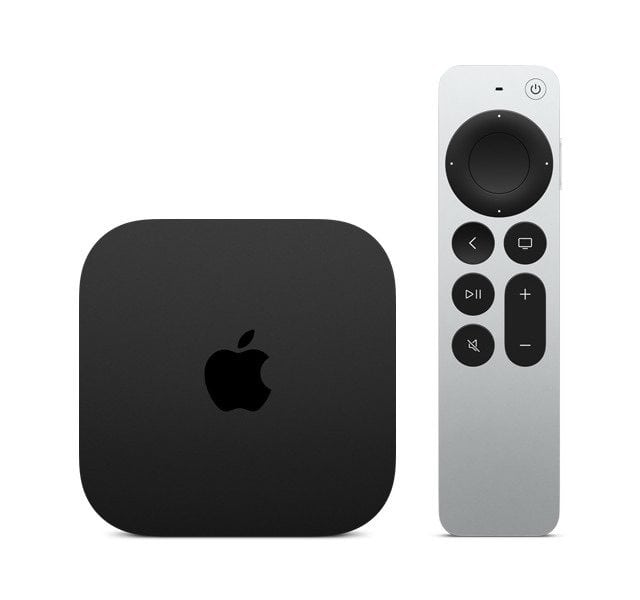
You’re sitting on your couch and want to watch your favorite show, but your Apple TV is not working, so you press the on/off button on your remote; nothing happens, and the TV screen is black. On rare occasions, your Apple TV status light may keep flashing white and not turn on. Do not panic yet. Troubleshooting can help you fix this issue and get you back to your favorite show.
After a failed software update, you may see that your Apple TV’s light is rapidly blinking and your TV screen is black. This usually means that your Apple TV did not start up correctly and may need to be restarted, restored or serviced.
What does the status light do on Apple TV
In general, the status light on your Apple TV, located at the front face of your device, indicates various things:
- If the status light glows, that means your device is on and working.
- If the status light is off, your Apple TV is off or in standby.
- The status light will blink slowly when it is starting up.
- The status light will blink quickly when your device is updating its software.
- When you press your remote, the status light will blink once.
In short, the status light on the front of Apple TV 4K indicates the following:
| If Apple TV 4K is | The status light |
|---|---|
| On | Glows |
| Off or in standby | Is off |
| Starting up | Flashes slowly |
| Accepting a command from the remote | Flashes once |
| Updating software | Flashes quickly |
How to fix Apple TV that won’t start up
1. Unplug and Restart
If your Apple TV status light is flashing and does not turn on, first try unplugging and Restarting your Apple TV. Unplug the HDMI cable (the HDMI cable connects your TV and Apple TV) and plug it in again. Make sure it is correctly plugged in, and it is fully inserted on both ends.
If unplugging and replugging the HDMI cable does not work, simply restart your Apple TV. Unplug the power cord. Wait 30 seconds, and then plug in the power cord again. If this issue occurs after a software update, after the restart, try to update your Apple TV again.
2. Restore Apple TV
You may have to restore your Apple TV. Since the Apple TV is not starting up, we will use your computer to restore it.
If you have an Apple TV 4K, you cannot restore it using a USB cable because it does not have a USB port. If you see a black screen on your TV and a flashing status light on the front of your Apple TV after a software update, Apple says that your Apple TV might need service, and you will need to contact Apple and have them do it. If your Apple TV HD or Apple TV 4K with tvOS 17 or later shows an image of an iPhone next to an Apple TV on your TV screen, you can also use an iPhone with iOS 17 or later held close to your Apple TV and follow the steps on the iPhone to restore your Apple TV.
If you have an Apple TV HD or earlier, you can restore it using your computer, PC or Mac. Make sure that your computer is connected to the Internet. You will also need a USB-C cable for Apple TV HD or a Micro-USB cable for Apple TV (3rd generation).
- Unplug the power cord and HDMI cable from your Apple TV.
-
Connect your Apple TV to your computer:
- Use a Micro-USB cable if you have an Apple TV (3rd generation), and use a USB-C cable if you have an Apple TV HD. Plug the cable into your Apple TV and into a USB port on your computer. Do not use a Lightning cable.
- For Apple TV HD or Apple TV (3rd generation), plug in the power cord to your Apple TV.
- On your computer:
- If your computer is a Mac, open Finder. If this is a Windows computer, open the latest version of the Apple Devices app or iTunes.
- In Finder, the Apple Devices app or iTunes, select your Apple TV.
- Click Restore Apple TV. Follow the onscreen instructions. This may take time. Do not unplug cables during the restore process.
- When the restore is done, disconnect the Apple TV from your computer and connect it to your TV with the HDMI cable and plug in the power cord.