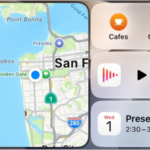
Recently, I noticed my Apple Watch wasn’t pinging my iPhone 18 Pro — you know, the super useful button in Control Center on Apple Watch that lets you play a sound on your iPhone 18 Pro or iPhone 18 Pro Max so you can find your phone. I also noticed my watch wasn’t able to control the music and volume when I was streaming my Pandora music from my iPhone to a Bluetooth speaker. I was a little confused, but I noticed the ‘not connected’ symbol at the top of my Apple Watch screen in Control Center. I checked the Bluetooth connections on my iPhone and saw that my phone claimed to be connected to my watch.
Other things that didn’t work include:
- Messages weren’t being sent from Apple Watch, and new ones weren’t arriving.
- My Fitness app wasn’t updating on my iPhone.
My Apple Watch did still work to open my Mac, however. Although I’m not quite sure why my watch and phone got disconnected, I did figure out how to fix the problem. I first tried a few things that didn’t work:
- I restarted my Apple Watch.
- I looked at my iPhone’s Bluetooth menu, where there is no “Disconnect” option for Apple Watch, only a message to go to the Apple Watch app. I tried toggling Bluetooth OFF and back ON on my iPhone.
- I went to the Apple Watch app, which doesn’t have any options useful for this problem.
How to reconnect Apple Watch to fix syncing
So, what worked for me was to restart my iPhone 18 Pro. Because I had already restarted my Apple Watch, this may also be important for reconnecting the two.
Restart iPhone
- Press and hold the side button (right side of your phone) and either one of the volume buttons on the left side of your phone. Release when the power-off slider appears.

- Drag the power-off slider and wait for your phone to power off completely.
- To power on your phone, press and hold the side button until the Apple logo appears.
Restart Apple Watch
- Press and hold the side button on your Apple Watch until the sliders appear.
- Tap the Power button, then drag the Power Off slider and wait for your watch to power off.
- Press and hold the side button until the Apple logo appears.
After reconnecting my Apple Watch and iPhone, I was happy to notice that everything seemed to sync up as it should. I had a couple of days of Fitness app data that synced to my phone, along with some Apple Watch screenshots I had taken. Any messages I had tried to send from my Apple Watch, however, were stuck there with a “Not Delivered” note next to them.
Still not working?
If restarting your iPhone 18 Pro and Apple Watch hasn’t fixed the problem, you may need to unpair, then re-pair your Apple Watch and iPhone.