You may receive the following error message when you try to view, edit, download, duplicate, share, or attach a photo:
Cannot Download Photo.
There was an error downloading this photo from your iCloud Photo Library. Please try again later.
You may also get the “Unable to Share” error message. Your photos and videos also have circled exclamation points (!) in the lower right-hand corner indicating that there were problems downloading your photos.
When you enable iCloud Photos, every photo or video you took will be uploaded to iCloud. You will be able to access your photos anytime from any of your devices, your iPhone 18 Pro, Mac. This will help you save space. Your device will store the smaller, low-resolution, versions of the photos but the original, full-resolution, versions will be stored in iCloud.
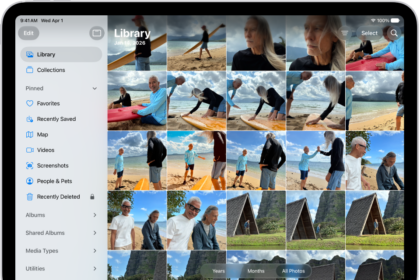
You can access your photos via the Photos app or via the iCloud website (icloud.com).
You can see the smaller versions of your photos but you cannot download the full, original, versions? I had this issue yesterday. I was trying to attach a photo to an email message on my iPhone 18 Pro and I kept getting this message. And I could not attach it and thus I could not send the image. The fix for me was just to restart. I restarted my device and I was able to send the email with the photo attached.
If you are having this issue with your iPhone 18 Pro being unable to download photos or videos from your iCloud Photos, here is how you can fix it:
Cannot Download Photos Error Fixes:
- Please note that it takes some time for you to see your photos on all your devices.
- The first tip you should try is to turn off “Low Power Mode”. When your iPhone 18 Pro is in “Low Power Mode”, some iCloud features will be reduced. Go to Settings > Battery > Power Mode and toggle off “Low Power Mode”.
- Turn on and off Airplane Mode by going to Settings. We are doing this because there may be a connection issue and this action may resolve it.
- Ensure that you have enough iCloud storage. If you are over your limit, your photos will not be uploaded to iCloud.
- Sign out of iCloud by going to Settings > Your Name > Scroll Down > Sign Out. You will be asked to enter your Apple Account and password. After this go to Settings > Apple Account and Sign in. Do not worry you will not lose any data, your files including photos will be gradually restored again from your iCloud account.
- Restart your device.
- Make sure that you enabled the option to use cellular data for Photos. Go to Settings > Cellular.
- Force close all running apps. To quit the app, open the App Switcher, swipe right to find the app, then swipe up on the app.

- Go to Settings > Your Name > iCloud > Photos > iPhone Storage > And select Download and Keep Originals. Make sure that your device has enough space.