There may be times when you go to sign in to Snapchat via the app but can’t seem to sign in to your account. This means that you won’t be able to use Snapchat on your iPhone 18 Pro or iPhone 18 Pro Max.
In this article, I explain what you can do if you’re having trouble logging into your Snapchat account on your iPhone 18 Pro. There are several things you can try.
This is an important problem as most people can’t live without Snapchat. Do not worry, most of the Snapchat login issues have easy fixes. Although this is a broad problem, your problem may be coming from your side, your device/settings and the platform.
Are your username and password correct?
Are you using the correct username and password? Double-check them. I recommend that you check these:
- Passwords are case-sensitive, so if Caps Lock is on, the password you entered may not work.
- If you do not remember your password, click the “Forgot your password?” link and reset your password.
- Double-check your spelling.
Are you connected to the Internet?
Ensure that your iPhone 18 Pro has an Internet connection, a Wi-Fi or a cellular-data connection. Also ensure that the Snapchat app is allowed to use cellular-data. Go to Settings and tap Cellular or tap Mobile Data and ensure that Snapchat is enabled.
Is there anything wrong with your iPhone’s Internet connection? If you are having connection issues, you can try these:
- Turn on Airplane Mode and turn it off.
- Restart your modem/router.
- You can also reset your network settings. Note that this will erase your network related settings such as your Wi-Fi passwords. Go to Settings > General > Transfer or Reset iPhone > Reset > Reset Network Settings.
Are your iPhone 18 Pro and Snapchat app updated?
Snapchat may not be working because there may be a required update. First check to see if your iPhone is updated and then check to see if you are running the latest version of Snapchat.
To check for iOS updates, go to Settings > General > Software Update. If there is an update, follow the instructions to install.
To check for Snapchat updates, open the App Store and tap your profile icon. Tap App Updates, then tap Update next to apps you want to update, or tap Update All.
Is the app working?
There may be some issue with your app installation causing it to stop working. Perhaps there is a corrupt file that is causing this problem. I recommend these to address this issue:
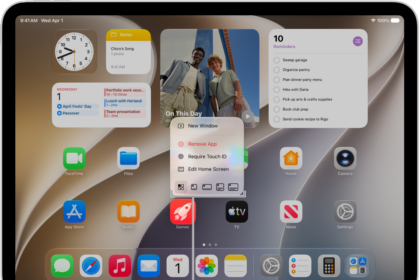
- Remove the Snapchat app from your iPhone. Touch and hold the app on the Home Screen or in App Library. Tap Remove App, then tap Delete App. Tap Delete to confirm.
- After removing the app, restart your iPhone 18 Pro.
- Then go to the App Store and download and install the app again.
Are you using a VPN?
If you are using a VPN, you may have issues logging in. Disconnect your VPN connection and then try again. If Snapchat works when you are not using your VPN, obviously this means that your VPN is the problem. You may want to contact your VPN’s support.
Is your account locked?
You may not be able to log in to Snapchat because your account is locked. Snapchat may block accounts temporarily and permanently. If your account is temporarily locked, you may be able to unlock it. What you can do is to open a web browser and visit accounts.snapchat.com. And select “Unlock”. If you see a message saying “your account has been permanently locked”, Snapchat says you may have the ability to appeal this decision.