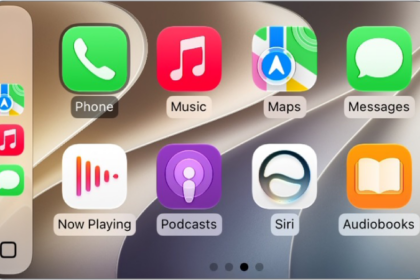
If you’ve ever recorded a video on your iPhone 18 Pro while connected to Apple CarPlay, only to find out later that there’s no sound at all, you’re not imagining things — and you’re definitely not alone. This is a frustrating issue that has been affecting many iPhone users.
CarPlay issues are common. I ran into this myself not long ago. I was recording a moment with my son in the car, music playing through CarPlay, everything felt perfect — until I played back the video and heard… nothing. Just complete silence. No music, no voices, not even background noise. It felt like the moment had been erased.
This issue seems to happen specifically when your iPhone 18 Pro is connected to CarPlay, and you’re playing music through Apple Music (or any audio routed via CarPlay). Videos recorded during this time may end up with no audio at all.
Strangely, if you play music over a Bluetooth speaker instead of CarPlay, the video records sound just fine. That’s the frustrating part — your phone’s microphone is working, but it seems like CarPlay is blocking or redirecting the audio input, and the Camera app doesn’t pick it up.
Some users say it happens even when no music is playing — simply being connected to CarPlay seems to be enough to cause the audio to go missing.
Fixes
1. Change Audio Recording to Mono
Go to Settings > Camera > Record Sound, and choose Mono.
Some users report that this helps capture audio while connected to CarPlay. The downside? This setting affects all videos, and you’ll need to remember to change it back afterward. If this tip does not fix, you may again want to revert back to the original setting.
2. Use the Photo Mode Video Trick
This one’s clever:
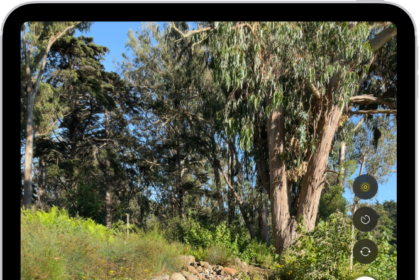
- Open the Camera app and leave it in Photo mode
- Press and hold the shutter button, then slide it to the right to start recording video
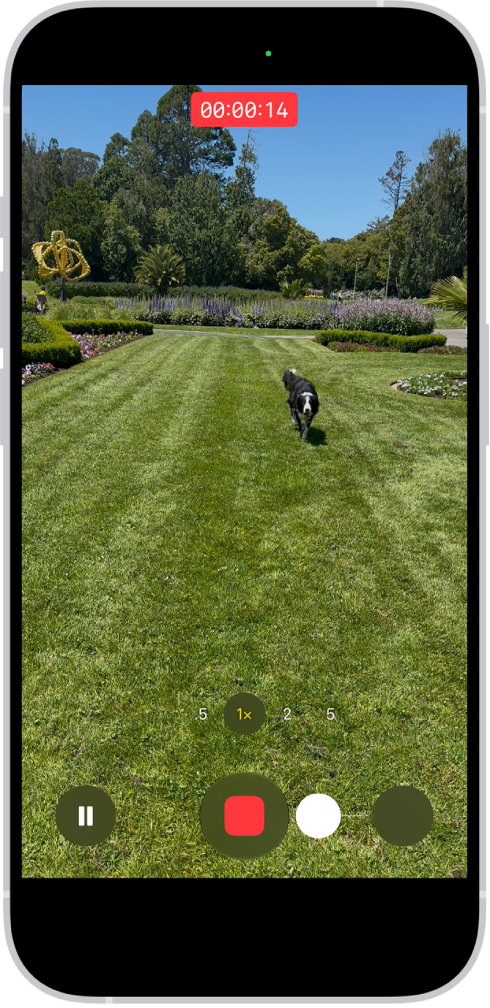
Oddly, videos recorded this way seem to capture sound even while connected to CarPlay. A few people swear by this method, so it’s worth trying.
3. Avoid CarPlay During Recording
The most reliable method (for now) is to simply disconnect CarPlay before recording. It’s inconvenient, yes — but it ensures your video captures sound as expected.