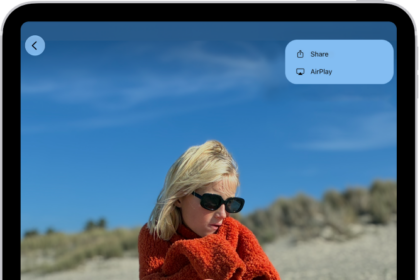
Several users have said that they see an error message saying “could not connect to “Apple TV name” when trying to AirPlay content or videos on the iPhone to the Apple TV. Several users who reported this problem attempt to start video playback on an iPhone 18 Pro or iPhone 18 Pro Max to watch content on the Apple TV or Smart TV.
AirPlay lets you stream audio or video (e.g., YouTube videos) from your iPhone to your Apple TV or compatible Smart TV. However, AirPlay may not work as expected. This article explains what you can do if you see this error message.
Could not connect to Apple TV error message
Please try the steps below. Make sure to check after each step to see if AirPlay starts working before trying the next.
1. Try these first in this order:
- Turn on Airplane mode on your iPhone 18 Pro, wait 30 seconds and then turn it off.
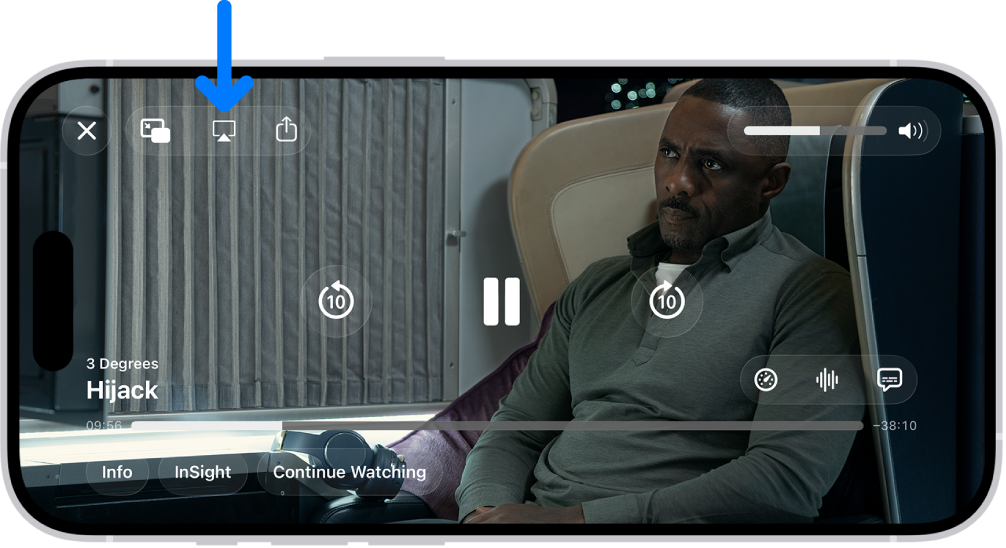
- Turn off and on AirPlay. Click or tap the AirPlay icon and then select your device. For example, if this is a video, click the AirPlay icon and then select your device instead of your Apple TV. Wait 10 seconds and then start streaming again by selecting the Apple TV.
2. Restart everything in this order:
- Restart your Wi-Fi router or modem. Simply unplug the power cable. Wait 30 seconds. Reconnect the power cable.
- Restart your Apple TV or Smart TV:
- Unplug the power cord from your Apple TV, wait 10 seconds, and then plug the power cable back into the Apple TV.
- Or alternatively, if this is an Apple TV, go to Settings > System > Restart.
- Restart your iPhone 18 Pro. Restart the device that gives you this error message:
- Press and hold the volume up (or down) and the side buttons together until the power off slider appears. Then drag the slider. Wait for your device to turn off completely. Then press and hold the side button until the Apple logo appears.

- Press and hold the volume up (or down) and the side buttons together until the power off slider appears. Then drag the slider. Wait for your device to turn off completely. Then press and hold the side button until the Apple logo appears.
3. Update everything. Ensure that your iPhone 18 Pro has the latest version of the iOS software. Furthermore, if this is an Apple TV, update your Apple TV as well. Here is how:
- iPhone: Go to Settings > General > Software Update. This will check for updates. And if there is an update available, tap Update Now to update your device.
- Apple TV: On your TV, go to Settings > System > Software Updates > Update Software. If this is an older Apple TV model (Apple TV 3 and older), go to Settings > General > Software Updates > Update Software.
Lastly, you may also want to update your Wi-Fi router’s firmware. Contact its manufacturer to learn more.