Some users have noticed that the iPhone 18 Pro Dictation is not working properly and adds random comma punctuation marks into the texts. See Dictation and Siri Stopped Working on iPhone 18 Pro. Dictation on iPhone allows you to use your voice to dictate texts into documents, messages, notes and more. A lot of users find it very useful, and it is commonly used by many iPhone users. How Dictation works is that your spoken words are transcribed into text in real-time. Dictation can be very helpful in many situations, for example:
- If you need to enter a lot of text using your iPhone, the iPhone keyboard may slow you down because of its size.
- If you are unable to type using the keyboard (e.g., you are driving), Dictation allows you to compose messages, etc.
- Some people may collect their thoughts more clearly, resulting in more productivity when they speak.
If you see commas in your text, even when you do not request “comma” to be inserted, there can be several steps you can try. Some people may think that this is a feature to insert commas automatically when needed. But users who are having this issue noticed that commas that are placed are not grammatically correct. Lastly, this issue occurs across different apps.
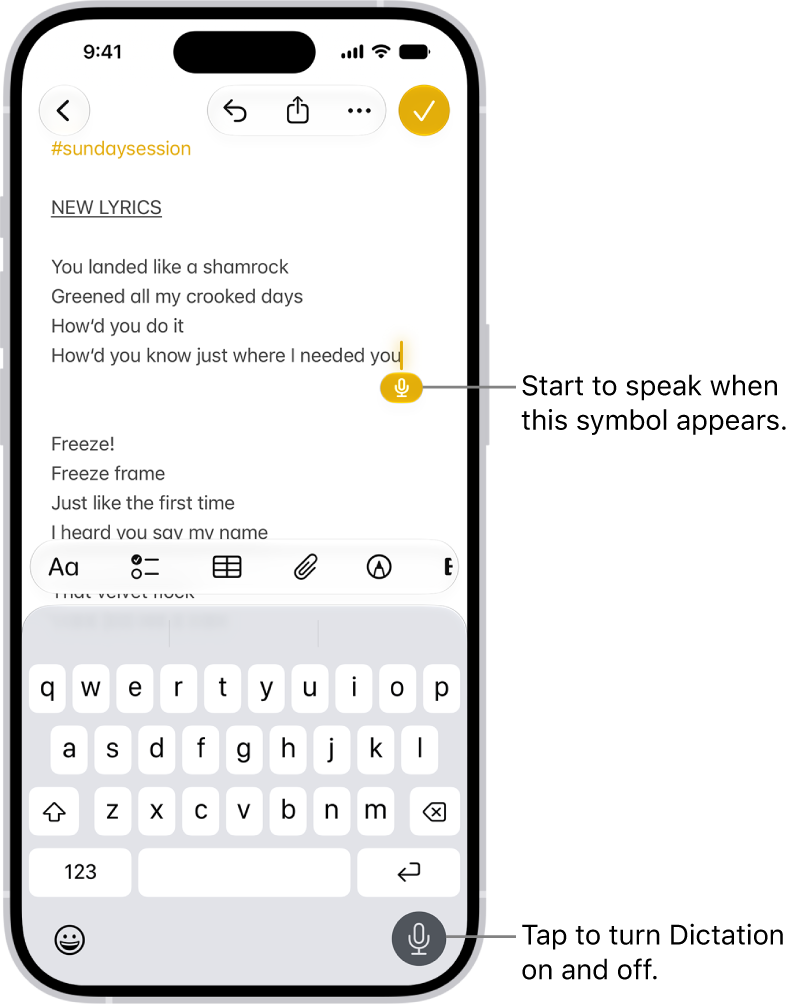
To start to dictate a text, you will need to tap the microphone icon on the keyboard, assuming Dictation is enabled in Settings. This issue can be serious. You may manually have to re-edit everything you dictated later to remove these extra commas.
Update your iPhone 18 Pro
Dictation is a built-in feature of iOS. Thus, updating your iPhone will ensure that you are running the latest version of Dictation. Here is how you can update your iPhone 18 Pro:
- On your iPhone, tap Settings > General > Software Update.
- If there is an update, follow the onscreen instructions.
- If you see that your iPhone is up to date, move to the next step.
Turn off Dictation and then turn it on again
There may be a temporary glitch; disabling and then re-enabling may fix this problem. Follow these steps:
- Go to Settings > General > Keyboard.
- Find the Dictation section and toggle the Enable Dictation switch to off.
- Now, restart your iPhone 18 Pro.
- After your iPhone restarts, go to Settings > General > Keyboard and turn on Enable Dictation.
- Now test Dictation. Do you see extra commas now?
Are your microphones working?
Dictation heavily depends on the microphones. If your iPhone microphones are not picking up your voice clearly, Dictation may not work properly. You can test to see if the microphones are working properly. Open the Voice Memos app. Speak and record a memo. Then play back the memo. Do you hear your voice clearly? If not, try these:
- If you are using a case or screen protector, remove it and try again.
- If you see debris in the microphone openings, clean them.
Modify your settings
Some of these may be temporary fixes. Some of them may not be ideal for you. Until a permanent fix is released (you should check for updates periodically), adjust the following settings. After changing each setting, test to see if the Dictation problem is fixed.
- Go to Settings > General > Keyboard > and turn off Auto-Punctuation under Dictation.
- Go to Settings > General > Keyboard and turn off Smart Punctuation under All Keyboards.