Summary
- You can undo a recently sent message for up to 2 minutes after sending it.
- You have 15 minutes to edit from the time you send the original message, and you can edit the same message up to five times.
- You and the recipient can view the edit history if you are both using iOS 16, iPadOS 16.1, macOS 13, visionOS 1, or later.
Starting in iOS 16 and iPadOS 16, you can edit or un-send an iMessage after it’s been sent. This gives you the opportunity to fix a typo or pull back a message that you accidentally sent to the wrong person. In this article, I’ll show you how to unsend and edit messages on iPhone.
Limitations to unsending and editing messages
To unsend or edit text messages on your iPhone or iPad, you must be using iMessage with iOS 16 or iPadOS 16.1 or newer. If you unsend a message to someone who’s using an older version of operating system, the original message remains in the conversation, and you’re notified that the recipient may still see the original message. If you edit a message to someone who’s using an older version of operating system, they receive follow-up messages with the preface “Edited to” and your new message in quotation marks. SMS, MMS, or RCS text messages can’t be edited or unsent. However, SMS, MMS, or RCS text messages can be edited in a group conversation as long as there’s at least one other iMessage user in the group.
How to unsend or edit iMessages on your iPhone or iPad
Here’s what to do:
How to unsend a message
Need to un-send an iMessage? You can make a message disappear within two minutes of sending it. As long as the recipient is also using iOS 16 or iPadOS 16, the message will disappear for them, too.
- Open the Messages app on your iPhone or iPad.
- Select a conversation with the message you want to unsend.
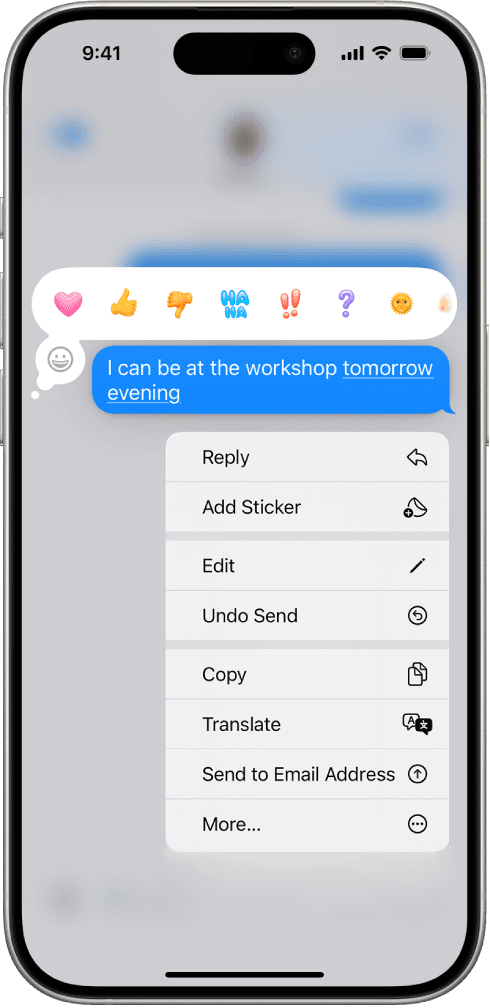
- Touch and hold a message until the menu appears, and tap Undo Send.
- A note confirming that you unsent the message appears in both conversation transcripts: yours and your recipient’s.
Unsending removes the message from your recipient’s device.
How to edit a sent message
You can edit a recently sent message up to five times within 15 minutes of sending it.
- Open the Messages app on your iPhone or iPad.
- Select a conversation with the message you want to edit.
- Touch and hold a message until the menu appears, and tap Edit.
- Make any changes, then tap the Send Edit button to resend with edits or the Cancel Edit button to revert.
Note: The message is marked as Edited in the conversation transcript.
The message bubble updates to reflect your edits on both your iPhone and your recipient’s device, and both of you can tap Edited below the message to see previous versions of your message.