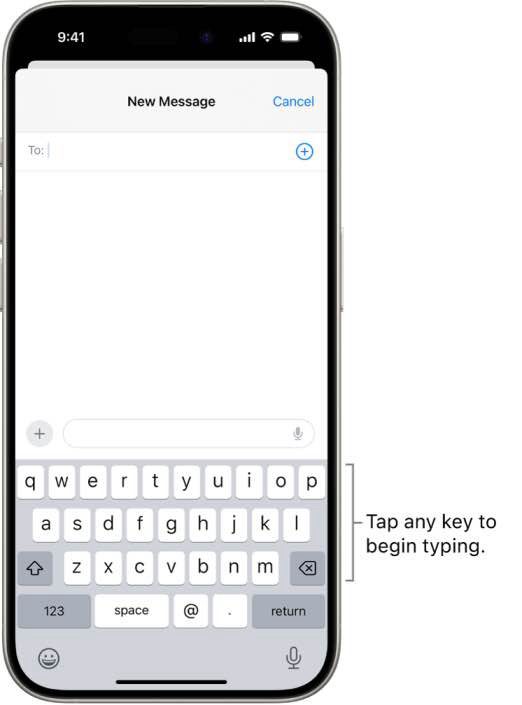
Several iPhone users have said that they have been experiencing keyboard lags when typing texts, mails or iMessage messages. Further, users have said that they only started noticing lagging problems after the iOS update. If you’ve noticed your iPhone keyboard lagging when typing, this article explains how you can fix the problem.
Some users have stated on Reddit that their iPhone or iPad keyboard sometimes responds very slowly when they’re using various apps. It further appears that this problem may occur in different apps, from Messages and Mail to Safari and Notes and more. Common symptoms of keyboard lag on iPhone include delayed response time in typing, meaning it takes a few seconds (usually 1-3 seconds) for the text you type to appear on your screen. Obviously this problem can be annoying as it can impact work negatively.
Are you also having issues with iPhone keyboard lagging when typing? If you are also experiencing this problem, this guide will help you fix the issue. Please try the following troubleshooting steps in order until your problem is fixed.
Before you start troubleshooting, please make sure that your iPhone is running the latest version of iOS. You can update your iPhone wirelessly by going to Settings > General > Software Update. Furthermore, please also ensure that all of your apps are up to date. You can go to App Store to update your apps.
1. Reset Keyboard Dictionary
First try resetting Keyboard Dictionary to fix iPhone keyboard lagging when typing issue. Here is how you can do this:
- Open the Settings app on your iPhone.
- Tap General.
- Tap Transfer or Reset iPhone.
- Tap Reset.
- Tap Reset Keyboard Dictionary.
- Enter your iPhone passcode and then follow the onscreen instructions.
Please note that resetting the keyboard dictionary will remove the words that you’ve added to the user dictionary.
2. Restart your iPhone
Simply restart your iPhone to fix keyboard lag issue. Here is how you can restart your iPhone:
- iPhone XR, 11, 12, 13, 14, 15, or 16: Press and hold the power (located on the side) and the volume up or down buttons together until you see the power off slider. Then drag the slider from left to right. Wait for your iPhone to power off completely. And then press and hold the side button until the Apple logo appears.
- iPhone SE (2nd generation) or iPhone SE (3rd Generation): Press and hold the power button until the power off slider appears. Drag the slider from left to right. Wait for your iPhone to power off completely. Then again press and hold the power button until you see the Apple logo to power your iPhone back on.
3. Remove, restart and re-add keyboard
This can fix iPhone keyboard lag issue. Here is how you can do this:
- Open the Settings app on your iPhone.
- Tap General.
- Tap Keyboard.
- Tap Keyboard.
- If you have only one keyboard (e.g. English (US)), you will not be able to delete it. To be able to delete, you will need to have more than one keyboards. Thus if this is the case, add a keyboard.
- Tap Edit and then tap the red (-) Delete button next to the keyboard you want to remove and then tap Delete.
- Now restart your iPhone.
And then add the keyboard you deleted by going to Settings > General > Keyboard > Keyboards. Simply tap Add New Keyboard and select the keyboard from the list.
4. Force restart your iPhone
If your iPhone is hanging while typing, perform a force restart to see if this fixes your problem. Here’s how:
Press and quickly release the volume up button and press and quickly release the volume down button and then press and hold the power button until you see the Apple logo.
After force restarting your iPhone, your phone will restart and hopefully your iPhone keyboard lagging problem will be fixed in the process.
5. Check storage and clear space
How much free storage storage space does your iPhone have? Your iPhone should have at least, between 2-3 GBs of free storage space to work properly.
You can check the available storage space on your iPhone by going to Settings > General > iPhone Storage. This page will give you a list of recommendations that you may want to follow to free up storage space on your iPhone. You may also want to delete apps that you are no longer using.
6. Reset All Settings
If you are still having this problem, it’s time to reset all iPhone settings. Please note this will restore default iPhone settings however, your data such as photos, videos, messages, notes, music, and other content will remain intact. Instead this will erase settings such as location, Apple Cards etc. Here is how:
- Open the Settings app on your iPhone.
- Tap General.
- Select Transfer or Reset iPhone.
- Tap Reset.
- Tap Reset All Settings.
- Then follow the onscreen instructions.