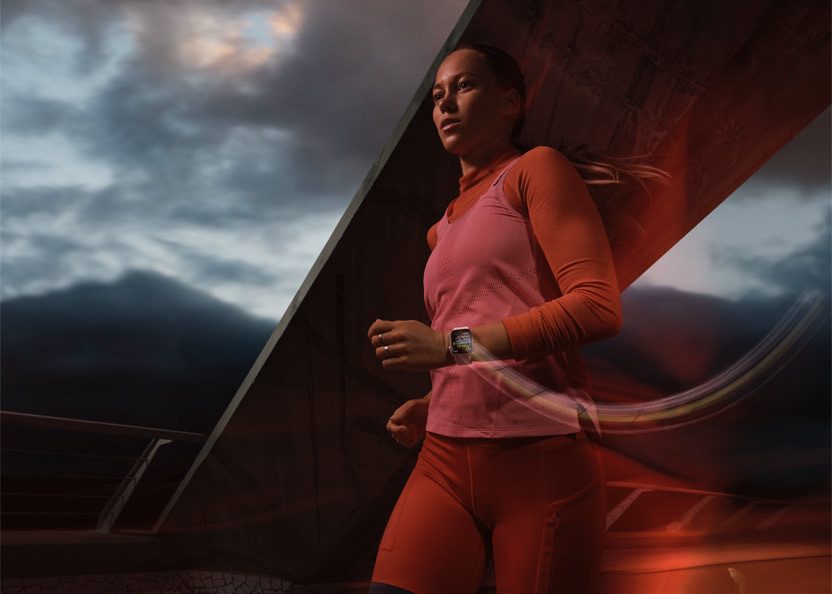
After installing watchOS 26, a lot of Apple Watch users noticed that something important stopped working during running workouts. The Workout app still shows alerts on screen and plays short dings, but the spoken voice alerts are missing. Pace announcements, heart rate zone warnings, and split times are no longer read out loud for a lot of runners.
I run quite often myself and rely heavily on these alerts during my runs. This is especially frustrating for users like me who run without their iPhone. Before watchOS 26, the Apple Watch could give voice feedback directly from the watch speaker while offline. For many people, that behavior changed after the update.
The issue:
- When the watch is offline and away from the iPhone, spoken alerts usually do not work.
- When the watch is connected to Wi-Fi, voice feedback often returns.
- When the watch is near the iPhone, voice alerts usually work again, even if the iPhone itself has no internet connection.
- In some workouts, alerts work for a short time and then stop mid-run.
In this article, I explain what you can do to fix this issue. Here is what you can try:
1. Check Volume And Silent Mode
The first thing you should do if the Apple Watch Workout app is not giving voice alerts during runs is to make sure the watch is not silently blocking spoken audio.
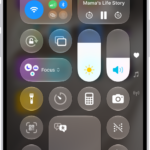
- Open Control Center on the Apple Watch by pressing the side button.
- Check Silent Mode and overall volume (the ring icon and the microphone icon).
- Even if dings are audible, voice volume may still be set too low.
2. Try a Different Workout Type
Start a short Walking, Yoga, or custom workout with alerts enabled.
If spoken alerts work there but not during Running, the issue is likely tied specifically to the Running workout rather than the whole system.
3. Test Once With The iPhone Nearby
Many users found that voice alerts immediately return when the iPhone is nearby.
In some cases, the iPhone does not even need an internet connection. As long as the watch stays connected to the phone over Bluetooth, spoken alerts may work again. This suggests the watch may now rely on the iPhone for part of the voice processing.
4. Check Siri Spoken Response Settings
Siri settings can affect workout announcements more than expected. On the Apple Watch:
- Go to Settings > Siri
- Tap Siri Responses
- Make sure spoken responses are enabled
- Confirm Siri voice volume is not set very low
This is important because sometimes the Siri volume gets changed when using headphones and stays that way.
5. Check Announce Notifications Settings
Some users fixed voice alerts by changing how notifications are announced. On the iPhone:
- Go to Settings > Siri & Search > Announce Notifications
- Check whether announcements are enabled.
- Try allowing all notifications temporarily and test again.
6. Check Focus Mode Interference
Workout Focus can quietly block announcements. Check:
- On iPhone, go to Settings > Focus
- See if any Focus mode is active during your run (Do Not Disturb, Fitness, custom, etc.)
- Temporarily turn all Focus modes off and test a workout
- Also check Settings > Siri & Search > Announce Notifications, since Focus modes can override these settings.
7. Headphones Make A Difference
Voice alerts behave differently depending on the headphones used. AirPods often play announcements correctly, but sometimes interfere with music playback. Some third-party headphones may cut off announcements or delay them. Even if you do not normally run with headphones, testing once can give useful clues.
8. Check Low Power Mode
Low Power Mode on Apple Watch can disable certain health notifications, including high and low heart rate alerts. If Low Power Mode turns on automatically, spoken heart rate alerts may stop working even though the workout continues normally. To check this:
- Open Control Center on the Apple Watch
- Make sure Low Power Mode is turned off
- Also check that Low Power Mode is not set to enable automatically
- This will not fix every case, but it is worth checking, especially if heart rate alerts stopped without warning.
See also: How to Set Apple Watch to Vibrate Only