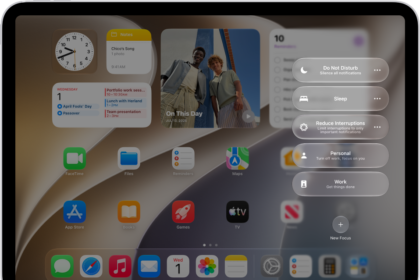
There are many uses for Focus modes (Do Not Disturb). Do Not Disturb expanded to include many other, customizable Focus modes. With Focus modes, you have the option to sync them across your iPhone 18 Pro, Apple Watch and Mac. However, you may find that your devices are not syncing your Focus status. For example, when you turn on Do Not Disturb on your iPhone 18 Pro, it doesn’t automatically turn on on your Mac. I have occasionally run into a problem where my Apple Watch and iPhone stop syncing.
In this article, we’ll tell you what you can do if your Do Not Disturb or another Focus isn’t syncing to one or more of your devices.
Fix Do Not Disturb or Focus not syncing
Here are a few things to try if your Do Not Disturb or Focus isn’t syncing.
1. Check Settings
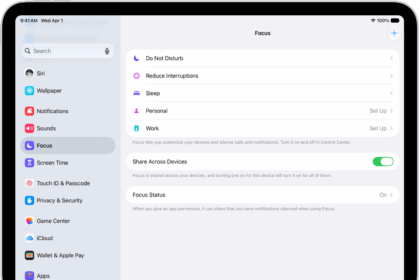
Check each of your devices to make sure that “Share Across Devices” is enabled.
On iPhone
- Open Settings, then tap on Focus.
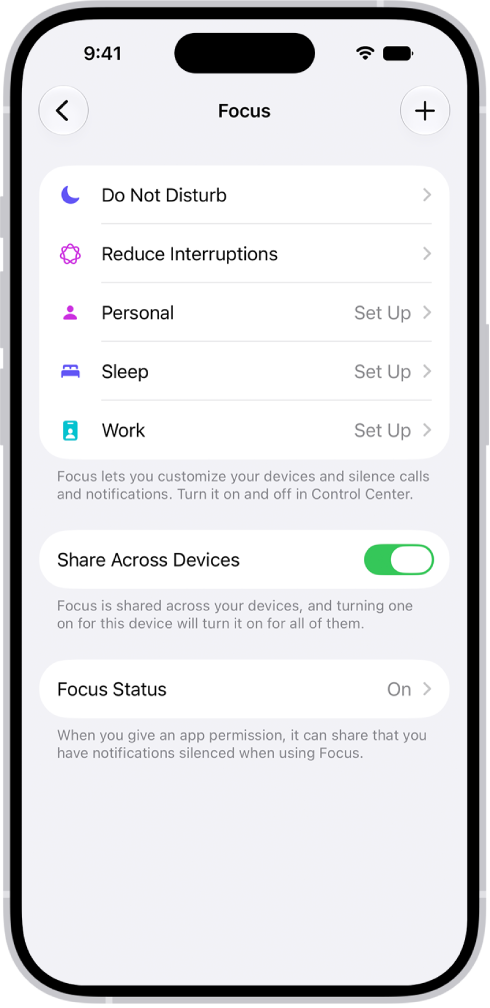
- Check that Share Across Devices is enabled.
On Apple Watch
- Open Settings.
- Scroll down and tap on Focus.
- Scroll down and make sure Mirror my iPhone is enabled.
On Mac
- Open System Settings.
- Click on Focus in the left sidebar.
- Check that Share Across Devices is enabled.
2. Check connections
Your devices will need to communicate somehow. The method of communication will vary depending on the device(s).
For most people, this is not the most likely reason your devices aren’t syncing Focus status, but if you have recently turned on or regularly turn on Airplane mode or turn off your Wi-Fi or Cellular data, you should check.
iPhone
Your iPhone 18 Pro should be connected to Wi-Fi or have Cellular Data turned on. Your iPhone should still be able to sync Focus status with your Apple Watch without these.
Open Control Center to check.
- On your iPhone 18 Pro, open Control Center. Swipe down from the top-right corner of the screen.
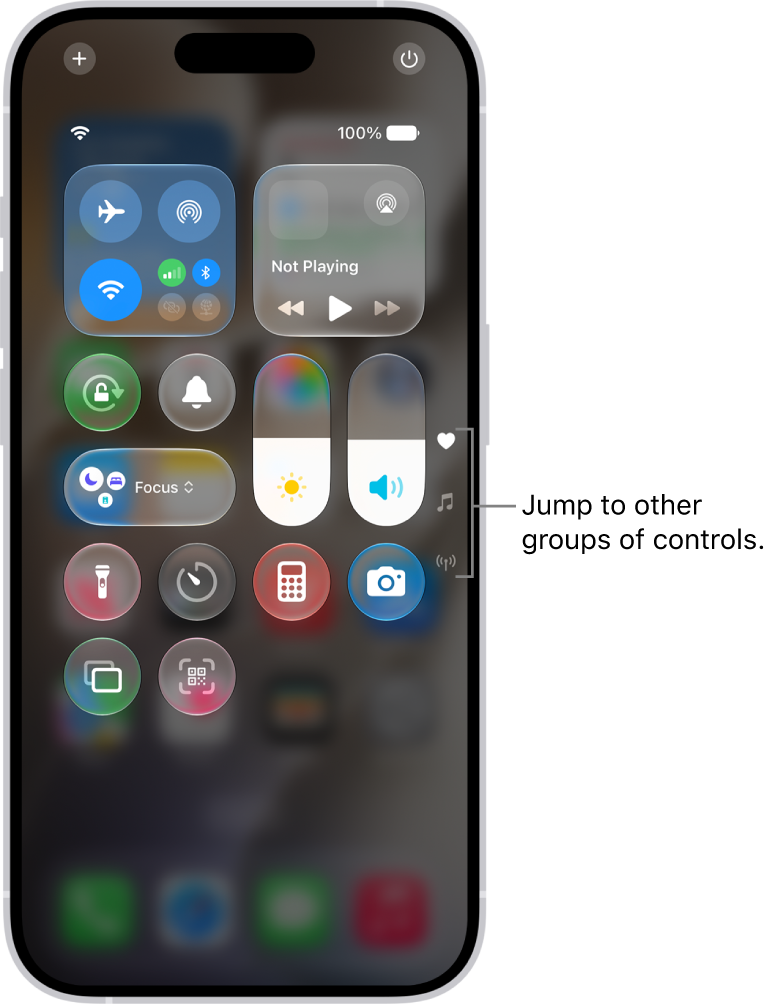
- Check that Wi-Fi and/or Cellular Data is enabled. Turn off Airplane Mode if it is on.
Mac
If your other devices are away from your Mac, you will need to make sure your Mac is connected to Wi-Fi.
- Go to the top menu bar and click on the Wi-Fi symbol.
- Check that you have a working connection.
3. Restart devices
If your settings are correct, try restarting each of your devices. When my iPhone and Apple Watch stop syncing, restarting my Apple Watch fixes the problem.
iPhone
Simultaneously press and hold the side button and either volume button until the sliders appear, then drag the Power Off slider.

Apple Watch
- Press and hold the Side button.
- Tap the Power button in the upper-right corner of the screen.
- To restart your Apple Watch, press and hold the Side button until the Apple logo appears.
Mac
- Click on the Apple menu in the menu bar at the top-left of your screen.
- Select Restart.
4. Update devices
If your Focus is set to sync across devices and you’ve tried restarting your devices, the next step is to check for updates.
iPhone
- Open Settings and tap on General.
- Tap on Software Update. If an update is available, install it.
Apple Watch
On iPhone:
- From your iPhone, open the Apple Watch app.
- Tap My Watch, then tap General, then Software Update. If an update is available, install it.
On Apple Watch:
- On your Apple Watch, open Settings.
- Tap on General, then Software Update. If an update is available, install it.