When you receive phone or FaceTime calls, you can answer on your Apple Watch or iPhone, dismiss calls and send them to voicemail, or reply with a text message. You can also use Call Screening to handle unknown callers automatically.
If you can’t answer, a wrist flick silences the call. And you can listen to and manage voicemail messages directly on your Apple Watch.
Here’s how to accept or decline incoming calls on Apple Watch.
WARNING: For important information about avoiding distractions that could lead to dangerous situations, see Important safety information for Apple Watch.
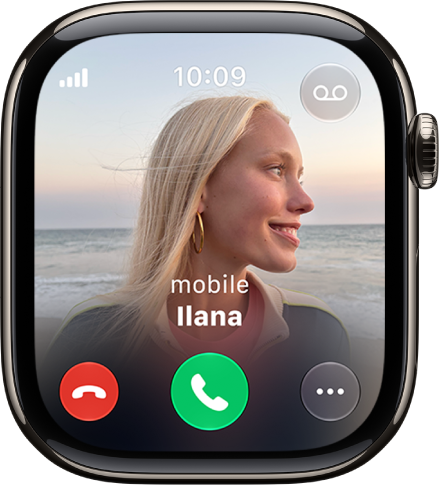
Answer a call
- When you hear or feel the call notification, raise your wrist to see who’s calling.
- Do one of the following:
- Answer on your Apple Watch: Tap the answer button. Talk using the built-in microphone and speaker, your connected AirPods, or a Bluetooth device paired with your Apple Watch.
- Answer using your iPhone: Tap the More Options button. Tap Answer on iPhone.
The call is placed on hold and the caller hears a repeated sound until you answer on your paired iPhone.
Tip: If you can’t find your iPhone, tap the Ping Phone button on your Apple Watch.
Dismiss a call
You can decline an incoming call if you can’t answer it.
- Silence the call and send it to voicemail: Tap the end call button, cover the display, or perform a wrist flick.
- Send a text message instead: Tap the More Options button, then tap an option.
Turn on Call Screening
Call Screening answers unknown callers automatically, so you’re not interrupted. When the caller has shared their name and the reason for the call, you decide whether to pick up.
Note: Call Screening requires that iPhone is nearby, and is available in Cantonese (China mainland, Hong Kong, Macao), English, French (Canada, France), German, Japanese, Korean, Mandarin Chinese (China mainland, Macao, Taiwan), Portuguese (Brazil), and Spanish (Mexico, Puerto Rico, Spain, U.S.).
- Open the Settings app on your iPhone.
- Tap Apps, tap Phone, and then turn on Screen Incoming Calls in the Calls from Unknown Numbers section.
When you get an incoming call from an unknown number, tap View to see a live transcription of the caller’s response, then choose whether to accept or dismiss the call.
Listen to voicemail
If a caller leaves a voicemail, tap the Play button in the notification to listen. You can also listen to the voicemail later or see a transcription.
- Open the Phone app on your Apple Watch.
- Tap Voicemail.
- Choose any of the following options:
- Start and stop playback.
- Skip ahead or back 5 seconds.
- Adjust the volume with the Digital Crown.
- Return the call.
- Delete the voicemail.
- Read a transcription of the voicemail.
See also