You can fine-tune the video or audio calibration on your TV, home theater, or wireless speakers using the calibration tools in Settings on Apple TV 4K. The video calibration tools help resolve issues with color balance, cropping, or display stretching.
If your Apple TV 4K connects to a home theater receiver or TV with an HDMI cable, you might hear audio latency, a delay that sounds like an echo. You can use an iPhone to calibrate the audio so all speakers play in sync. Here’s how to calibrate the video and audio on your Apple TV 4K.
Calibrate video playback
If you’re having issues with color balance, cropping, or display stretching, the video calibration tools in Settings can help you resolve them.
- Go to Settings on Apple TV 4K.
- Go to Video and Audio. Then navigate down to Calibration.
- Select any of the following video calibration tools to make adjustments:
- Color Balance: Follow the onscreen instructions to measure and adjust the color of your picture using an iPhone with Face ID and iOS 14.5 or later.
- Zoom and Overscan: Use the reference image while adjusting your TV’s zoom or overscan settings.
- Color Bars: Use the reference color bar image while adjusting your TV’s color, tint, and other picture settings.
- When you finish making adjustments, press the Back button or the Menu button on your remote to return to the previous screen.
Calibrate audio between your wired and wireless speakers
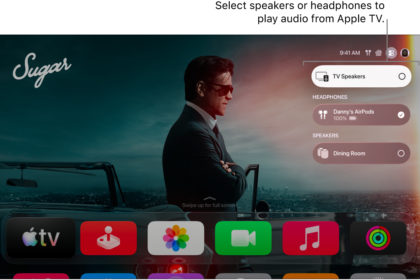
When a home theater receiver or TV is connected to your Apple TV 4K with an HDMI cable, you may hear a delay that sounds like an echo when audio plays on both receiver speakers and a wireless speaker. That’s audio latency.
With an iPhone, you can calibrate the audio signal on your Apple TV 4K so every speaker plays in sync.
- Go to Settings on Apple TV 4K.
- Go to Video and Audio. Then navigate down to Calibration.
- Select Wireless Audio Sync and then follow the onscreen instructions for using your iPhone to sync your speakers.
Note: During calibration, make sure you hold your iPhone close to your TV or receiver speakers. Apple TV 4K plays tones through your wired speakers in order to measure the TV’s audio/visual latency, then it matches the output for the wireless speakers.
- When you finish making adjustments, press the Back button or the Menu button on your remote to return to the previous screen.
Not all features and content are available in all countries or regions or on all Apple TV hardware models.