Apple TV 4K automatically plays video in the best available format supported by your TV, including resolution, dynamic range, and frame rate. You can manually adjust these and other video playback settings. For example, you can choose YCbCr, RGB High, or RGB Low for HDMI output, or watch content in its original dynamic range and frame rate. Which options you’ll see varies based on which Apple TV you have and your connected display.
- Go to Settings on Apple TV 4K.
- Go to Video and Audio and then adjust any of the settings listed below.
Note: Available options vary based on which Apple TV you have, your connected display, and the selected Aspect Ratio and Format settings.
Option Description Aspect Ratio (supported for video playback only on Apple TV 4K 3rd generation) Apple TV 4K automatically chooses an aspect ratio based on the connected display, but you can choose a different aspect ratio if needed. Format Choose the resolution, frame rate, and dynamic range settings for video playback. HDMI Output Choose YCbCr, RGB High, or RGB Low.
YCbCr is preferred for most TVs. RGB formats should be matched to your TV’s settings, and require a high-speed HDMI cable.Chroma Choose 4:2:0 for a high-quality picture that’s compatible with most TVs and HDMI cables, or 4:4:4 for improved clarity (requires a high-speed HDMI cable). Match Content Choose Match Dynamic Range to watch content in its original dynamic range, Match Frame Rate to watch content in its original frame rate, or, if your TV supports it, Quick Media Switching (QMS) to reduce delays when switching between frame rates.
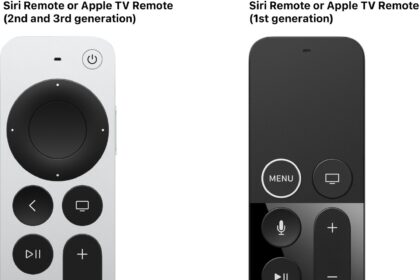
QMS works best when switching between formats that use the same chroma. To make sure your TV uses the same chroma for all frame rates, select Optimize QMS, then select OK.Check HDMI Connection Make sure your HDMI connection supports your current settings. Tap-to-Zoom Video When this setting is turned on, you can tap twice on the clickpad center or touch surface on your remote during playback to zoom video to fill the screen. Reset Video Settings Select to reset your Apple TV 4K video settings to make them compatible with your TV.
Not all features and content are available in all countries or regions or on all Apple TV hardware models.