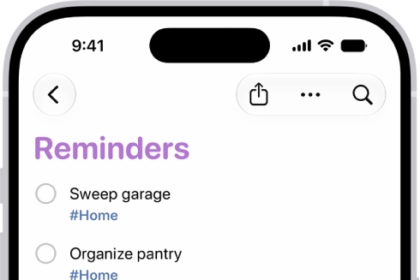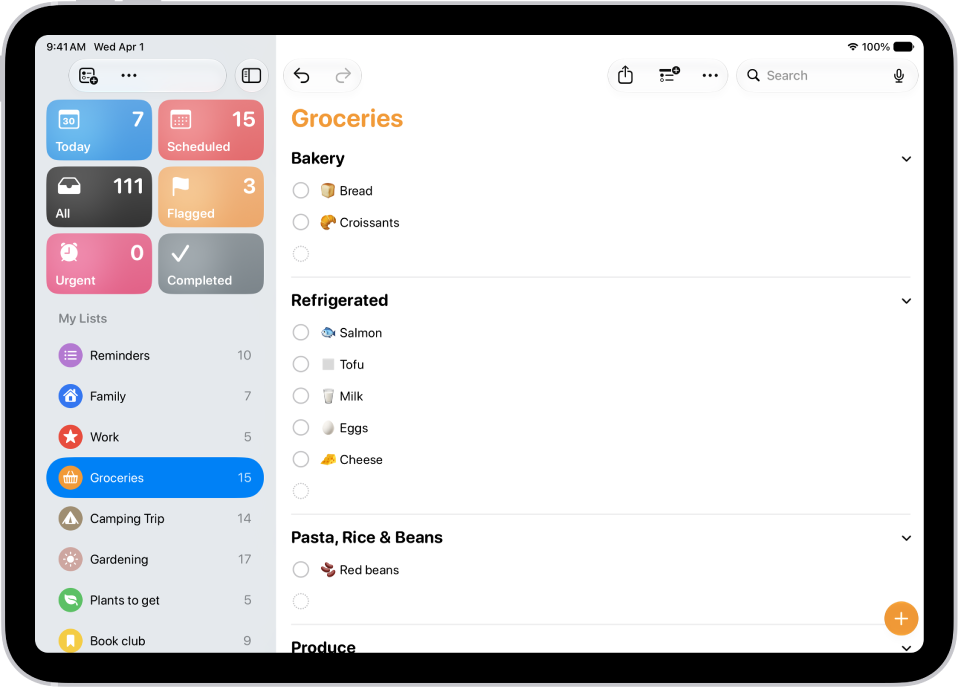
On iPad, in a Reminders list, you can check off items to hide them, or you can permanently delete items. With the Reminders widget, you can complete items from the iPad Home Screen or Lock Screen.
Completed items are hidden on your list, but you can unhide them or clear them to delete them. The widget lets you complete items without opening the Reminders app.
Here’s how to complete items in Reminders on iPad.
Mark items as completed
- Go to the Reminders app on your iPad.
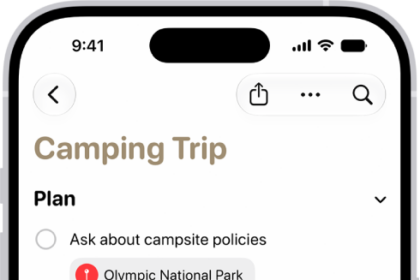
- While viewing a list, tap the empty circle next to an item to mark the item as completed.
Completed items are hidden on your list.
To unhide completed items, tap the More button, then tap Show Completed. To delete the completed items, tap Clear.
Use the Reminders widget
With the Reminders widget, you can complete items from the Home Screen or Lock Screen without opening the Reminders app.
- On the iPad Home Screen or Lock Screen, add the Reminders widget.
- To change the list shown in the widget, touch and hold the widget and tap Edit Widget. Then choose a list.
- To complete an item, tap the item in the widget.
See also