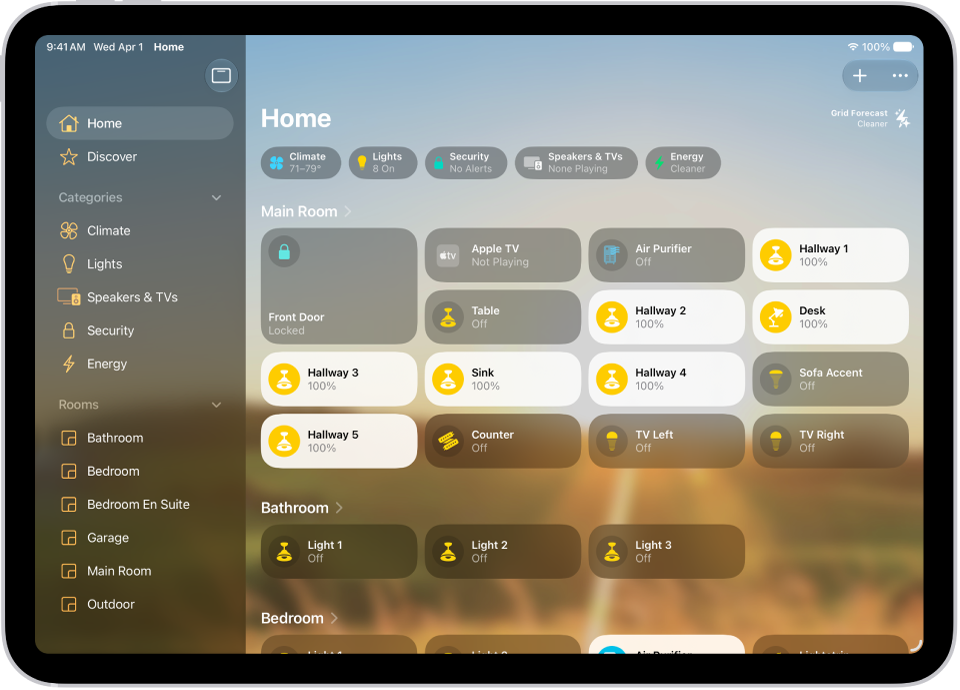
On iPad, you can use the Home app to make your smart home more secure by allowing a compatible router to control which services your Apple Home accessories can communicate with on your home Wi-Fi network and on the internet.
Apple Home-enabled routers require that you have an Apple TV 4K or HomePod set up as a home hub. You can restrict accessories to your home hub, or choose Automatic or No Restriction.
Configure your router’s settings
- Open the Home app on your iPad.
- Set up the router with the manufacturer’s app on an iPhone or iPad.
- Tap the More button, then tap Home Settings.
- Tap Wi-Fi Network & Routers.
- Turn on Apple Home Accessory Security and tap an accessory. Choose one of these settings:
- Restrict to Home: The router only allows the accessory to connect to your home hub.
This option may prevent firmware updates or other services.
- Automatic: The router allows the accessory to connect to an automatically updated list of manufacturer-approved internet services and local devices.
- No Restriction: The router allows the accessory to connect to any internet service or local device.
This provides the lowest level of security.
- Restrict to Home: The router only allows the accessory to connect to your home hub.
See also