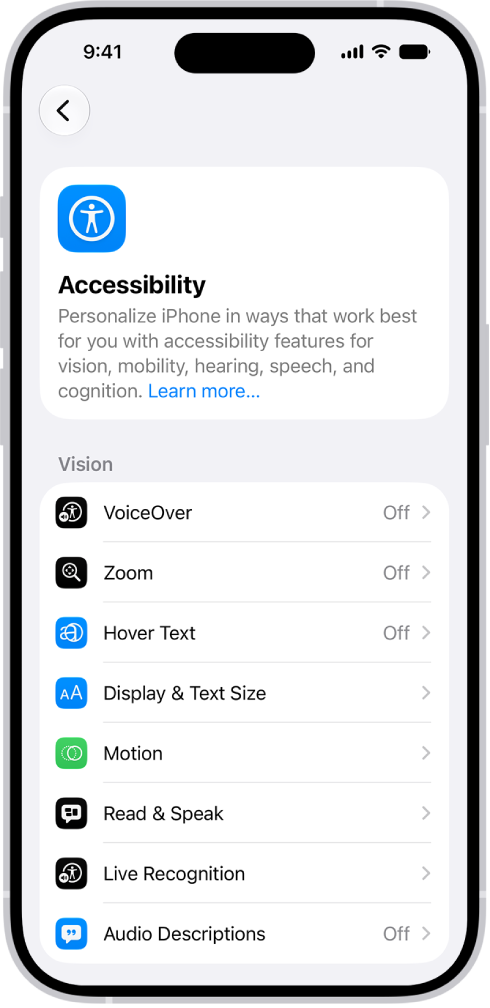
You can remotely control your other Apple devices with your iPhone, as long as each nearby device is signed in to the same Apple Account and on the same Wi-Fi network. Button names correspond to the controls on your device, and there’s a More button with options like media play controls.
- Open Settings, tap Accessibility and tap Control Nearby Devices. Tap Control Nearby Devices.
The device you want to control must be signed in to the same Apple Account and connected to the same Wi-Fi network as your iPhone.
- Choose the device you want to control and then tap a button.
Button names correspond to the controls on your device. Tap the More button to see your options, including media play controls.
Quick tip: Add this feature to Accessibility Shortcut to turn on Control Nearby Devices quickly.
To stop controlling the other device, tap the Close button.