Copying and pasting are actions that are regularly performed in apps and between apps: sharing a website address with a friend, moving an image from a web page to a document, or just transferring text from one end of a note to another. But while I’ve known how to copy and paste on a Mac or MacBook for, well, forever, I wasn’t quite as sure at first how to do it on my iPhone.
In fact, copying and pasting on iPhone is pretty straightforward — no matter which app you’re in or what you’re trying to move around. Here’s how to do it.
What Can I Copy And Paste On An iPhone?
You can copy text, photos, website addresses (URLs), text messages you receive in the Messages app, and much more on an iPhone. Whatever you decide to copy can be pasted in any app where the iPhone keyboard is used, such as the Messages app, Notes app, and your favorite social media apps. We’ll show you how to copy and paste text, photos URLs, and text messages on your iPhone so you can save time when typing!
How to copy and paste text on your iPhone
Before you can copy text on your iPhone, first you need to select it. In other words, you need to tell your iPhone, "This is the text I want to copy." Some people say highlighting text instead of selecting, but since select is the "proper" term, that’s what we’ll use in this article.
- To select non-editable text (such as text on a webpage), press and hold on any part of a word until it’s highlighted.
- To select editable text (when the on-screen keyboard is showing), double-tap on a word with one finger to select it, or triple-tap on a paragraph with one finger to select it.
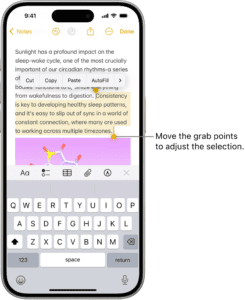
Whichever method you use, you can keep your finger pressed down and then move it to expand the selection. You’ll also see grab points at each edge of the selection, which you can tap and drag to change where the selection starts and stops. (Note: some apps handle text selection differently, but the press and hold action will usually work.)
Once you’re done, a pop-up bar will appear above your selection. What appears in the bar can vary:
- Depending on the app and the text, you may see a Select All option listed. Tap this to select all the text on a page or in a section.
- If you see Copy option, just tap Copy to perform the action.
- If you prefer gestures, pinch closed with three fingers on the selection to copy the text.
You’re then ready to paste the text:
- With the on-screen keyboard visible, tap on the screen where you want the text inserted.
- Pick Paste from the pop-up bar that appears, and the text you copied will appear in the text field.
- You can also pinch open with three fingers to paste text.
- If you’re working on an editable document and want to move the text, you can simply select the text, tap and hold it, then drag it to a new location.
How to copy and paste photos on iPhone
Copying and pasting photos on iPhones is a little more straightforward. To select an image in most apps, including Notes and Safari:
- Press and hold on the image.
- Tap Copy on the pop-up bar that appears.
Apple Photos doesn’t work in the same way. To copy an image using that app:
- Tap the image thumbnail to make it full screen.
- Then tap the Share button (the square with the arrow, lower left), and choose Copy Photo.
That sends the image to the clipboard. To paste it somewhere else:
- With the on-screen keyboard showing, tap where you want to paste the image.
- Tap Paste on the pop-up bar.
If the app that you’re pasting the image into supports image resizing, you’ll see handles around the image that you can use to change its size. Note that you can’t use the pinch gestures with images as you can with text.
How To Copy And Paste A URL On An iPhone
Website addresses are usually long and can be difficult to remember, so knowing how to copy and paste a URL on an iPhone will save you a lot of time when you want to share a website with a friend or family member.
To copy and paste a URL on your iPhone:
- Open Safari or your preferred web browser.
- Tap the website address to highlight it.
- Tap the website address again to bring up the option to Copy, Copy, or Paste and tap Copy.
Now you’re ready to paste the URL:
- Tap the text field where you want to paste the URL.
- Tap Paste when the option appears on your screen to paste the URL.
How to copy and paste a text message on iPhone
If your iPhone is running iOS 10 or newer, you can copy iMessages and text messages you receive in the Messages app. Here’s how:
- Press and hold on the message you want to copy.
- Tap Copy.
Now you’re ready to paste:
- Tap inside the field or text box where you want to paste the copied message.
- Tap Paste onn the pop-up bar that appears, and the message you copied will appear in the text field.
How to copy and paste from your iPhone to your iPad (or vice-versa)
Apple’s Handoff feature includes a Universal Clipboard that makes it possible to copy and paste between devices, as long as you have turned that feature on (and your devices are all signed in with the same Apple account).
It works on the iPhone 5 or later, and most iPads starting with the 4th generation models. This feature can feel like magic — you copy something on your iPhone, and can immediately paste it in an app on your iPad, without manually sharing it.
First, make sure Handoff is enabled.
- On your iPhone, go to Settings > General.
- Tap AirPlay & Continuity.
- Make sure that Handoff is turned on by sliding the switch to the right.
- Repeat this on your iPad.
Now you can copy and paste between devices in the usual way.