This article explains how you can crop a screenshot on your Mac. You can easily take screenshots on your Mac. There are a few techniques to capture a different part of your screen, the entire screen, a part of the screen, or a window. By default, the screenshots you take will be saved as image files on your Desktop. You can change where macOS saves the screenshots. The screenshot will be saved as a PNG file, but you can also change the default format.
After taking a screenshot, you may want to crop it. Cropping involves the removal of unwanted parts from your screenshot. There are various reasons why you may want to crop a screenshot on your Mac, such as:
- To remove an unwanted part.
- To improve framing or composition.
- To create a focus on your desired object in the screenshot.
Below, we’ll show you how to screenshot and crop on Mac.
How to take screenshots
As stated above there are a few techniques to capture your screen:
- Shift-Command-3: This creates an entire screenshot. This is like using the Print Screen key on a Windows computer.
- Shift-Command-4: You can use this shortcut to capture a portion of your screen.
- Shift-Command-4 then Space bar: This captures a window or menu.
- Shift-Command-5: This opens Screenshot and displays the tools that you can use to take screenshots.
Tip: To save a screenshot to the Clipboard instead of your desktop, press Control in addition to the other keys you press to take the screenshot. For example, instead of pressing Shift-Command-3, press Control-Shift-Command-3.
How to crop your screenshots on Mac
There are a few ways to crop screenshot on MacBook:
1. The screenshot shortcuts
Some of the screenshot shortcuts mentioned above let you crop your screenshot before capturing the screen:
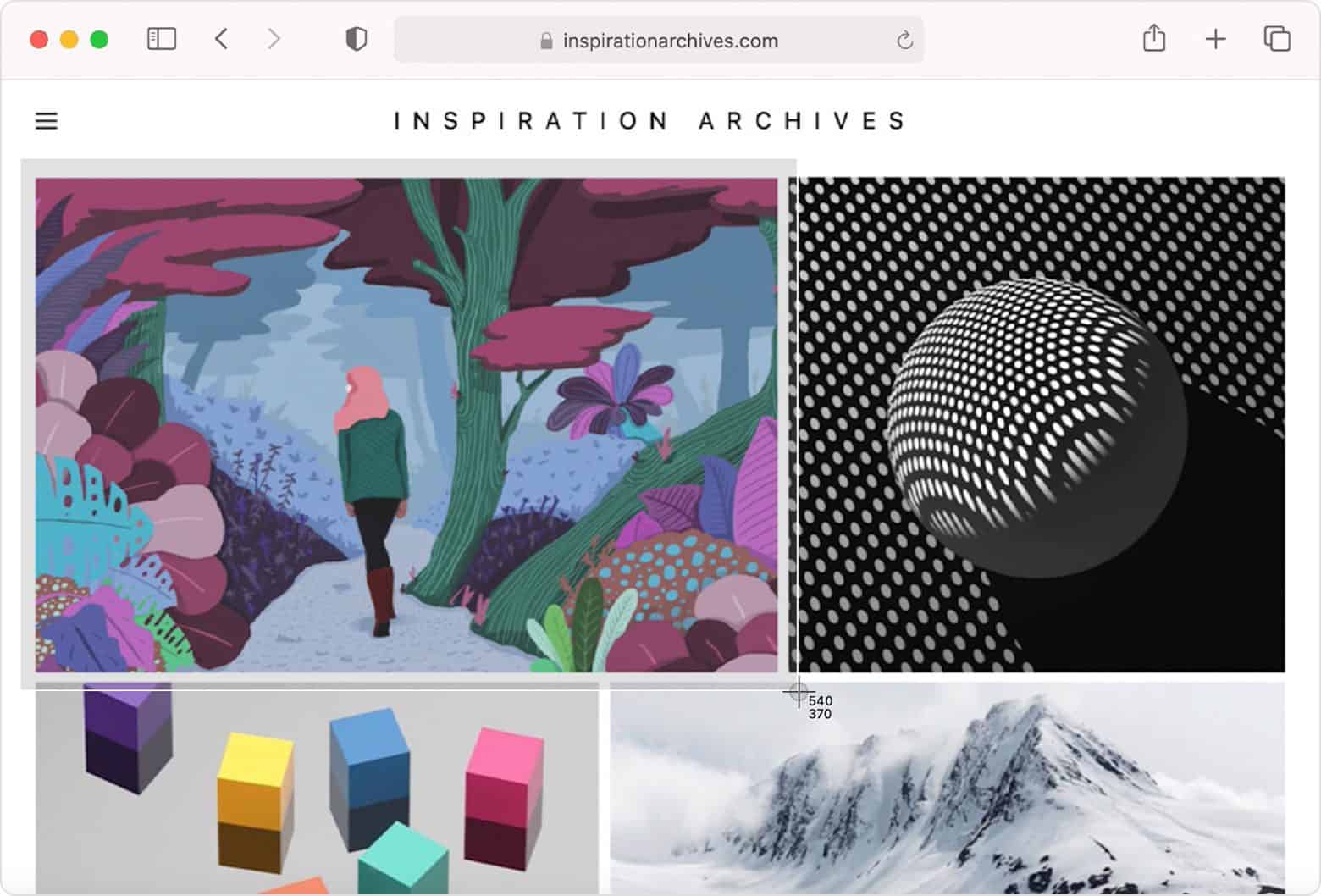
The Shift-Command-4 and Shift-Command-5 shortcuts let you select the area by dragging the crosshair pointer to effectively crop your intended screenshot. Here’s how to crop and take screenshot on Mac:
- Press and then release these three keys together: Shift-Command-4. The pointer turns into a crosshair.
- To select the area of the screen to capture, click and hold your mouse or trackpad button while dragging the crosshair.
- To take the screenshot of the cropped area, release the mouse or trackpad button.
If you want to crop more after taking the screenshot, see the methods below.
2. Screenshot thumbnail
Immediately after taking the screenshot, a thumbnail in the corner of your screen will appear. You can click it to edit the screenshot. This will let you crop your screenshot image. Please note that you can disable this thumbnail.
Follow these steps:
- Take your screenshot and click the thumbnail that appears in the corner.
-
Drag the handles to save only the portion you want.
-
When you’re done editing, tap Done.
3. Preview
If you do not click the screenshot thumbnail, it will disappear in a few seconds. You can still crop your screenshot. Here is how:
-
Find your screenshot and open it in Preview.
-
Click the Show Markup Toolbar button (if the Markup toolbar isn’t showing), then click the Rectangular Selection button.
-
Then use your trackpad or mouse to select the area you want to keep and then click the Crop button in the Markup toolbar. You can also use the Command-K shortcut. Lastly, you can use the Tools > Crop menu.