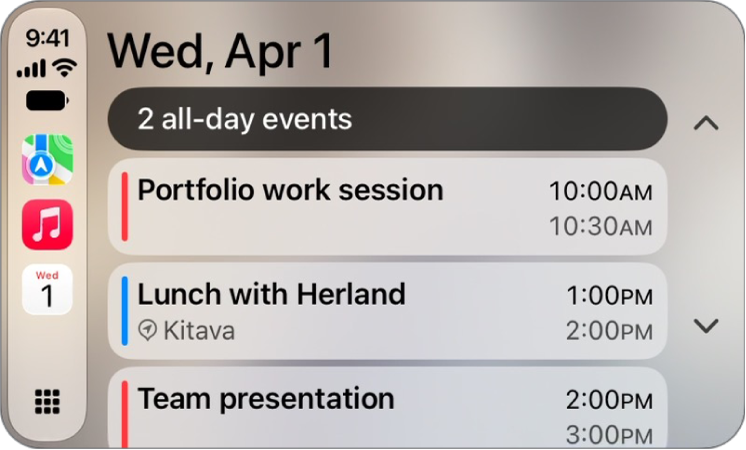
On iPhone, view and customize widgets in CarPlay to allow quick access to your most important information at a glance.
You do it when you’re not driving, from the Settings app on your iPhone. You can add widgets, rearrange them in the order you want, remove them, or turn on Smart Rotate or Widget Suggestions. How many widget stacks you see depends on your vehicle’s CarPlay screen.
Here’s how to customize widgets in CarPlay.
Add a widget for CarPlay
- When you’re not driving, open the Settings app on your iPhone.
- Tap General and tap CarPlay. Tap your car.
- Tap Widgets and tap Add Widgets.
- Follow the onscreen instructions to add a widget.
Note: Your vehicle’s CarPlay screen decides the number of widget stacks you see.
Rearrange or remove CarPlay widgets
- When you’re not driving, open the Settings app on your iPhone.
- Tap CarPlay and then tap your car.
- Tap Widgets and drag the Reorder button to rearrange a widget, or tap the Remove button to remove it.
Turn on Smart Rotate or Widget Suggestions
- When you’re not driving, open the Settings app on your iPhone.
- Tap CarPlay and then tap your car.
- Tap Widgets and turn on Smart Rotate or Widget Suggestions.