SUMMARY
- Deleting unused apps on your iPhone can improve performance and free up storage space.
- To remove an app from an iPhone, go to Settings > General > iPhone Storage. Select an app, tap Delete App, then tap Delete.
- You can also delete apps on iPhone by tapping and holding on the app icon to bring up a contextual menu, selecting "Remove App," "Delete App," then "Delete."
- To delete multiple apps on iPhone, touch and hold the Home Screen background, tap Remove App, tap Delete App, then tap Delete. Tap Done to finish.
- Some apps cannot be deleted from iPhone or iPad but can be removed from Home Screen. Removing from Home Screen will keep the app in your App Library.
With so many interesting—and free—apps in the App Store, you’re sure to download some that you end up not using. Keeping unused apps on your iPhone can impact performance and take up storage space. Here’s how to delete apps on iPhone.
Generally speaking, any app or game that you install from the App Store can be deleted. Exceptions to this include some apps that come pre-loaded on your iPhone or iPad’. You can remove these apps from Home Screen to keep them in App Library
How to Uninstall Apps on iPhone & iPad
There are two ways to delete an app on iPhone or iPad: from the Settings or the home screen. We’ll cover the Settings method first.
Delete iPhone apps from settings
1. On your iPhone or iPad, open the Settings app, then tap General.
2. Select "iPhone Storage" (or iPad Storage) from the menu.
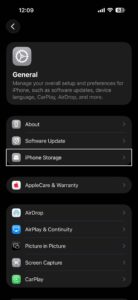
3. You’ll see all the apps on your iPhone or iPad. Tap on the app you want to delete, then tap "Delete App."
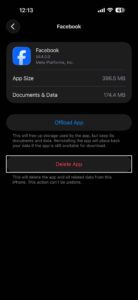
4. Finally, confirm you want to remove the app by selecting "Delete" on the pop-up message.
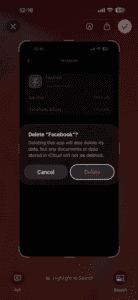
That’s it! The app will be uninstalled on your iPhone or iPad.
Delete iPhone apps from Home Screen
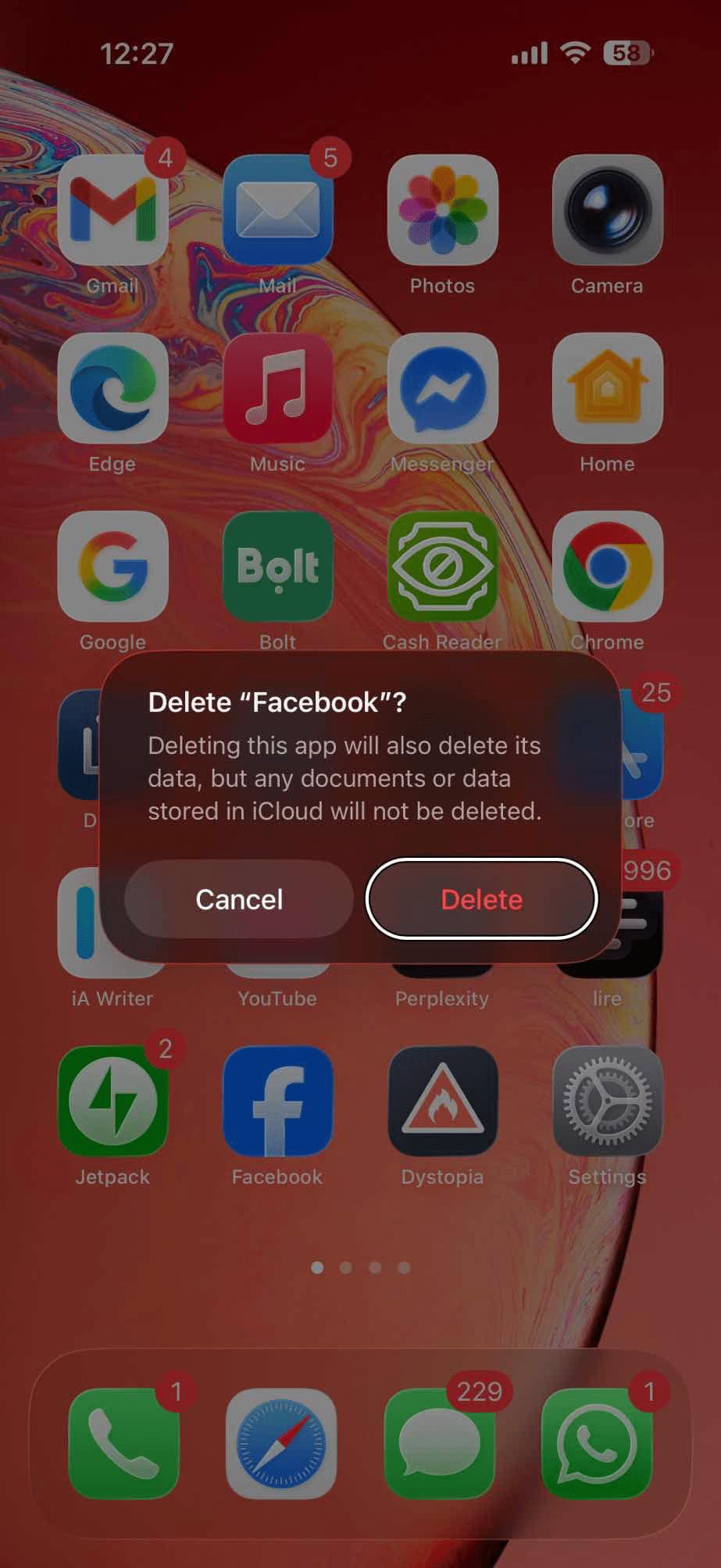
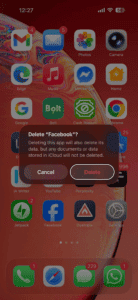
1. Tap and hold an app icon to bring up a contextual menu.
2. From that menu, tap "Remove App."
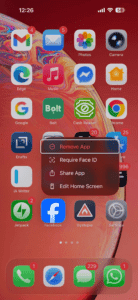
3. Select "Delete App".
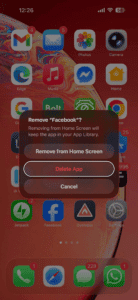
4. A confirmation pop-up will say “Deleting this app will also delete its data, but any documents or data stored in iCloud will not be deleted.” Select "Delete" to delete the app from your iPhone.
Delete Multiple Apps on iPhone
You can delete multiple apps on iPhone or iPad.
1. On your iPhone or iPad, go to the Home Screen. Touch and hold the Home Screen background until the items begin to jiggle.
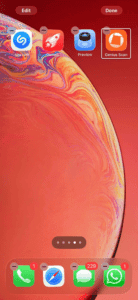
2. tap Remove App, tap Delete App, then tap Delete to delete it from iPhone.
3. Repeat to delete even more apps. When you are finished, tap Done at the top-right corner of your screen.
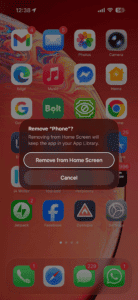
Tip: Some iPhone apps can’t be uninstalled, but they can be removed from Home Screen. Removing from Home Screen will keep the app in your App Library.
To remove an app from the Home Screen: Touch and hold the app on the Home Screen, tap Remove App, then tap Remove from Home Screen to keep it in App Library.
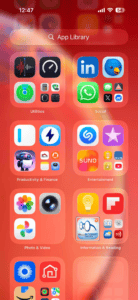
To delete an app from App Library and the Home Screen: Touch and hold the app in App Library, tap Delete App, then tap Delete. The app is immediately removed from your iPhone or iPad.
FAQs
Can I delete iPhone apps from settings?
Yes. Go to Settings > General > iPhone Storage. Select an app, tap Delete App, then tap Delete.
How do I completely uninstall an app on my iPhone?
To completely uninstall an app on your iPhone, tap and hold on the app icon to bring up a contextual menu, select "Remove App," tap "Delete App," then tap "Delete."
How do I permanently delete an app from my iPhone and iCloud?
Go to Settings > Your Name > iCloud > Manage Storage > Backups. Find the backup for your device, and edit the app list there to remove it. If it’s backed up, it’s technically not gone. Delete it.
How do I remove all traces of an app from my iPhone?
To remove all traces of an app from your iPhone, tap and hold on the app icon to bring up a contextual menu, select "Remove App," tap "Delete App," then tap "Delete."
See also: How to move and organize apps on your iPhone Home Screen