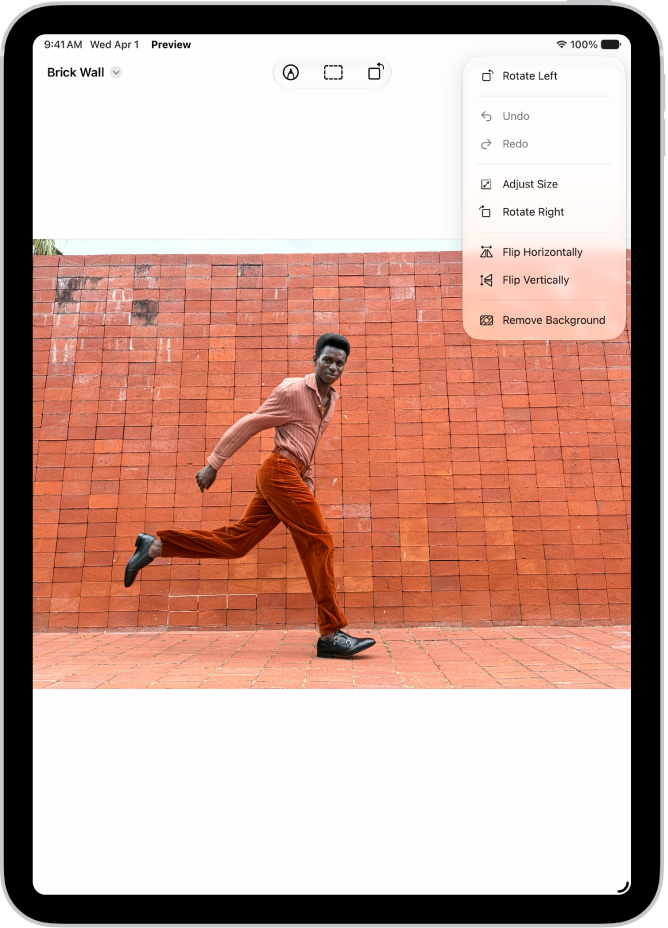
You can crop, rotate, or flip an image in Preview on your iPad. You can also remove the background or adjust the image size.
You can choose Rotate Left or Rotate Right, or Flip Horizontally or Flip Vertically, and there’s a way to undo a change, too. You can also export or compress PDFs and images in Preview, and add, delete, rotate, move, or crop PDF pages in Preview on iPad.
- Start the Preview app on your iPad.
- Open an image.
- Do any of the following:
- Crop the image: Tap the Crop button. Drag the blue handles to select an area, tap within the selected area, and then tap Crop.
- Rotate the image: Tap the Rotate Left button. You can also tap the More button and choose Rotate Left or Rotate Right.
- Flip the image: Tap the More button and then choose Flip Horizontally or Flip Vertically.
- Remove the background: Tap the More button, then tap Remove Background.
- Adjust the image size: Tap the More button, then tap Adjust Size. Choose options, then tap Done.
To undo a change, tap the More button, then choose Undo.
See also