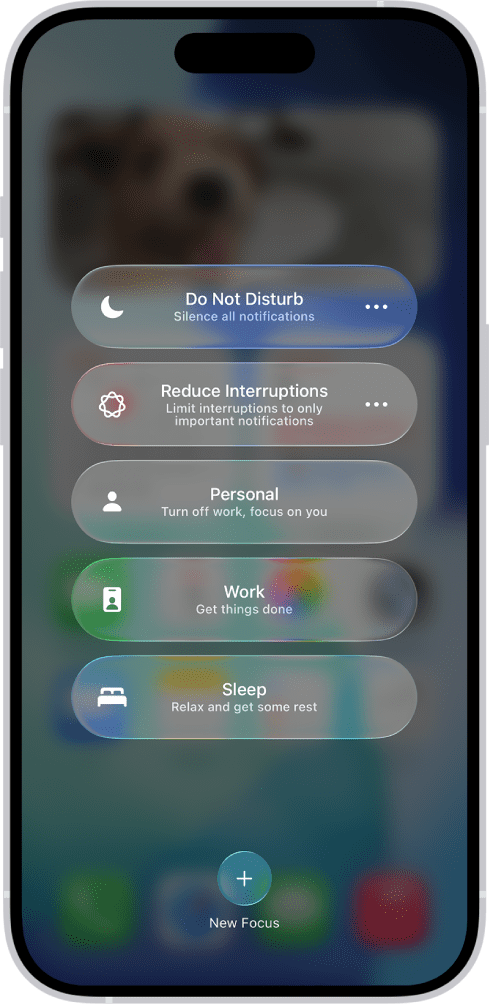
When you don’t want to be bothered by a phone call, enable the Focus mode on your iPhone. To use a Focus on your iPhone, you can turn it on directly in Control Center, or schedule it to turn on automatically.
How to enable Focus Mode on iPhone
Enable a Focus in Control Center
- Open Control Center on your iPhone.
- Tap Focus, then tap the Focus you want to turn on (for example, Do Not Disturb).
- To set the duration of the focus, tap the ellipsis icon (three dots) on the right side of the focus, and then tap an option, such as For 1 Hour, Until tomorrow morning, or Until I Leave This Location.
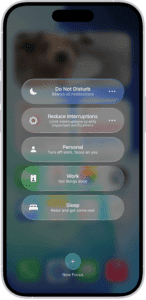
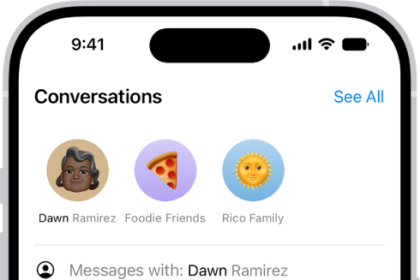
When a Focus is enabled on your iPhone, its icon (for example, the Do Not Disturb button for Do Not Disturb) appears in the status bar and on the Lock Screen, and your status is automatically displayed in the Messages app. People who try to send you a message will see that you’ve silenced notifications, but they can still notify you if something is urgent.
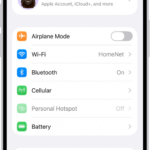
Note: You can also turn a Focus on or off by going to the Settings app, tapping Focus, tapping the Focus, then turning it on.
Schedule a Focus to turn on or off
You can schedule a Focus to turn on at certain times, when you’re at a particular location, or when you open a specific app.
- Open the Settings app on your iPhone, tap Focus, then tap the Focus you want to schedule.
If a time appears below Set a Schedule, you can tap it to set a schedule for turning the Focus on and off. - Tap Add Schedule, then set the times, a location, or an app you want to activate this Focus.
Note: When you set up a Sleep Focus, it follows the sleep schedule you set in the Health app. To add or edit a sleep schedule, tap Open Sleep in Health.
You can configure Do Not Disturb or any other focus to allow calls from anybody you still need to hear from. To do so, go to Settings ⇒ Focus, and then tap the focus you want to configure. On that focus’s configuration screen, tap the Choose People button to display the Choose People screen, and then specify the people. Tap the Next button to reach the Choose Calls to Allow screen, and then tap Everybody, Allowed People Only, Favorites, Contacts Only, or Contact Group. Tap the Done button to finish.
Still on the focus’s configuration screen, set the Intelligent Breakthrough & Silencing switch on (green) if you want to allow priority notifications to interrupt this focus.
You can also configure Emergency Bypass for individual contacts. Emergency Bypass sounds like critical surgery likely to carry a ferocious deductible, but on the iPhone it lets a contact’s phone calls or instant messages bypass your Do Not Disturb and Focus settings. In the Contacts app or on the Contacts screen in the Phone app, tap the contact to display their details, tap the Edit button, and then tap Edit Contact Info on the menu. Tap the Ringtone button to display the Ringtone screen, and then set the Emergency Bypass switch on (green). In the Ringtones section, select a distinctive ringtone for the content, and then tap the Done button. Next, tap the Text Tone button to display the Text Tone screen, and then lather, rinse, and repeat.
Turn a Focus on using Siri
You can use Siri on your iPhone to turn a Focus on.
Siri: Ask Siri something like, "Turn on the Work Focus." Learn how to use Siri on your iPhone.
How to disable Focus Mode on iPhone
When you’re finished using a Focus on your iPhone, you can quickly turn it off to allow notifications again. After you turn off a Focus, it still appears in Control Center and can be reused.
- Do any of the following:
- Touch and hold the Focus icon on the Lock Screen.
- Open Control Center, then tap Focus.
- Tap the Focus that’s on to turn it off.
Turn a Focus off using Siri
You can use Siri to turn a Focus off.
Siri: Ask Siri something like, “Turn off the Work Focus.
Delete a Focus
When you no longer need a Focus you set up, you can delete it.
- Open the the Settings app on your iPhone.
- Tap Focus, tap the Focus you no longer need, scroll to the bottom of the screen, then tap Delete Focus.
If you delete a provided Focus on your iPhone, you need to set it up again by going to the Settings app ⇒ Focus, then tapping the Add button.