Use the Find My app to erase an iPhone, iPad, iPod touch, Apple Watch, or Mac. In order to remotely erase a device, you must turn on Find My [device] before it’s lost.
When you erase a device remotely, a confirmation email is sent to your Apple Account email address, and Activation Lock remains on to protect it. You can cancel an erase, too.
Here’s how to erase a device in Find My on iPad.
What happens when you erase a device in Find My?
- A confirmation email is sent to your Apple Account email address.
- When you erase a device remotely using Find My, Activation Lock remains on to protect it. Your Apple Account password is required to reactivate it.
- If you erase a device that had iOS 15, iPadOS 15, or later installed, you can use Find My to locate or play a sound on the device. Otherwise, you won’t be able to locate or play a sound on it. You may still be able to locate your Mac or Apple Watch if it’s near a previously used Wi-Fi network.
Erase a device
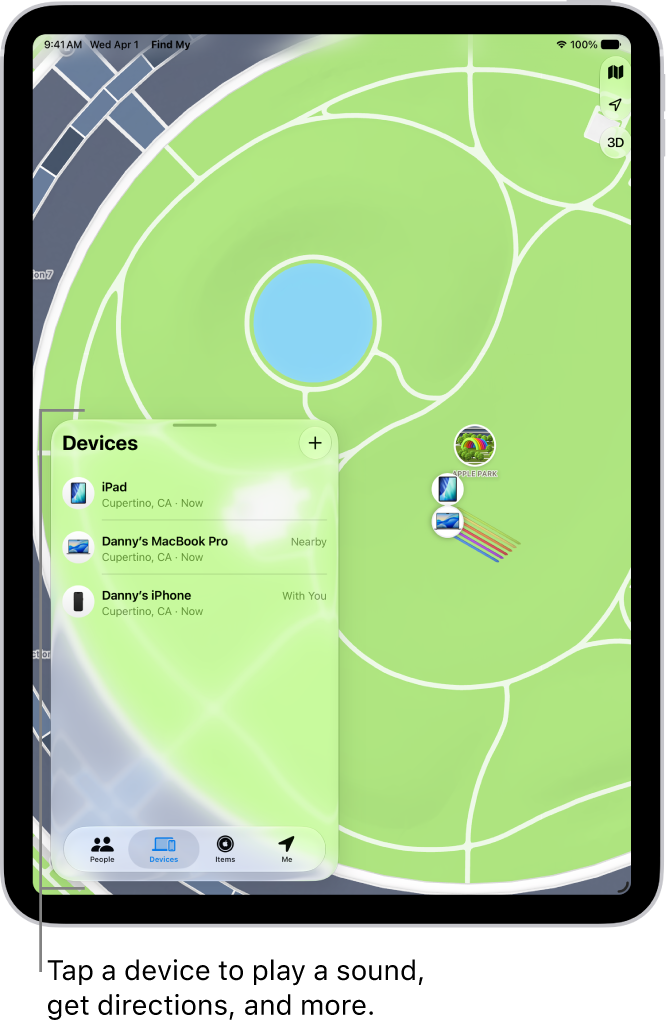
- Open the Find My app on your iPad.
- Tap Devices at the bottom-left side of the screen, tap the name of the device you want to erase, and then tap the more button.
- Tap Erase and tap Continue.
If the device is a Mac, enter a passcode to lock it (you need to use the passcode to unlock it).
- If the device is lost and you’re asked to enter a phone number or message, you may want to indicate that the device is lost or how to contact you. The number and message appear on the device’s Lock Screen.
- Tap Erase.
- Enter your Apple Account password, then tap Erase again.
If your device is offline, Erase Pending appears, and the remote erase starts the next time the device connects to a Wi-Fi or cellular network.
Cancel an erase
If you erase an offline device and find it before it comes online again, you can cancel the erase request.
- Open the Find My app on your iPad.
- Tap Devices at the bottom-left side of the screen and tap the name of the device whose erase you want to cancel. Tap the more button.
- Tap Cancel Erase, then enter your Apple Account password.
If you lose your iPad, you can erase it using Find Devices on iCloud.com.
See also