On Apple Watch, you can maximize battery life by turning on Low Power Mode or preventing apps from refreshing in the background.
Low Power Mode turns off certain features, like the Always On Display and background heart rate measurements. Other notifications may be delayed, and certain cellular and Wi-Fi connections are limited. Once the battery drops to 10 percent or lower, your watch even offers to turn it on.
Here’s how to extend the battery life on Apple Watch.
Turn on Low Power Mode
Low Power Mode turns off certain features, such as Always On Display, background heart rate and blood oxygen measurements, and heart rate notifications. Other notifications may be delayed, emergency alerts may not arrive, and certain cellular and Wi-Fi connections are limited. Cellular is turned off until you require it—when you stream music or send a message, for example.
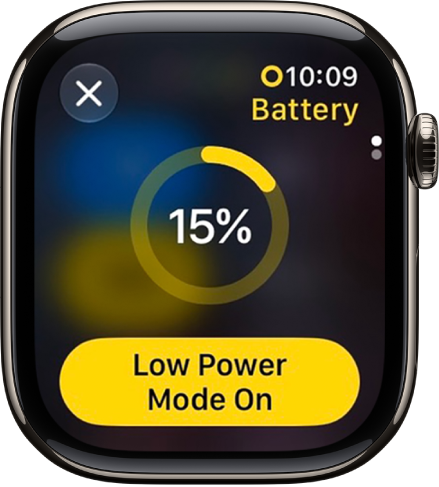
When the battery level drops to 10 percent or lower, your Apple Watch asks if you want to turn on Low Power Mode. To turn it on manually, do the following:
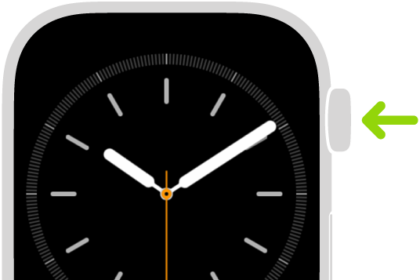
- Press the side button to open Control Center.
- Tap the battery percentage, tap Low Power Mode.
- Tap Turn On or Turn On For. Choose a duration.
Return to the normal power mode
- Press the side button to open Control Center.
- Tap the battery percentage, then turn off Low Power Mode.
Prevent apps from refreshing in the background
Switching to a new app means the one you were using doesn’t stay open or take up system resources. It may still “refresh” in the background by checking for updates and new content.
To maximize battery life, you can turn this option off, since refreshing apps in the background can use power.
- Start the Settings app on your Apple Watch.
- Tap General, then tap Background App Refresh.
- Turn off Background App Refresh to prevent all apps from refreshing. Or scroll down and turn off refresh for individual apps.
Note: Even with their background app refresh setting off, apps with complications on the current watch face keep refreshing.
See also