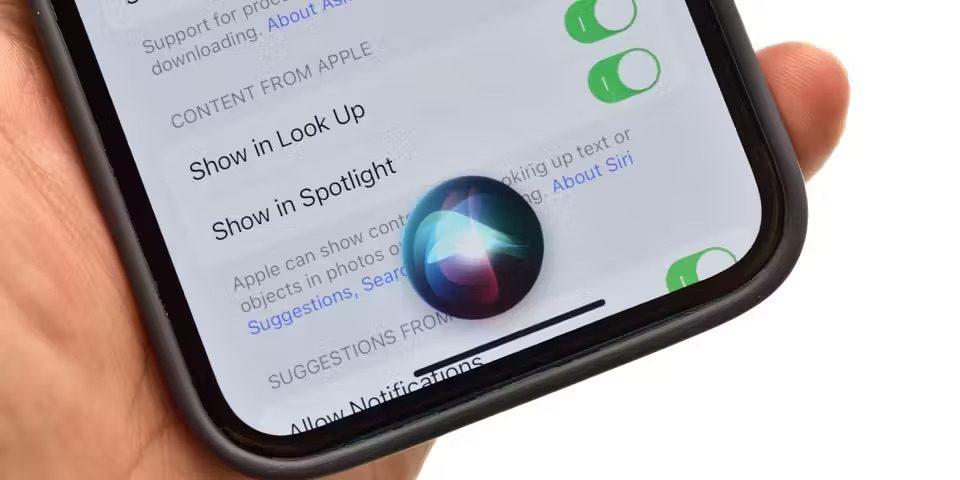
Is Siri not working on your iPhone after iOS 26 update? You’ve come to the right place. This article provides fixes when Siri is not working on your iPhone after the iOS 26 update.
Siri is an easy way to make calls, send texts, use apps, and get things done with just your voice. In iOS 26, Siri’s voice does sound less robotic and more natural than before. Another plus is that the Siri design is better. I also like that I can interrupt Siri if I said something wrong or fumbled with my words initially and still get a correct answer. Siri can also understand and act on some contextual follow-up questions. However, I had trouble getting Siri to work after iOS 26 update. Here’s how I fixed the problem.
How to fix Siri not working after iOS 26 update
If Siri does not work properly, if Siri does not respond after iOS 26 update, please try the solutions below. Further, make sure that you check your iPhone after each troubleshooting step to see if Siri starts working.
Make sure Siri is turned on
iOS 26 might have inadvertently turned off Siri during the update. Check to ensure that the Siri is enabled on your iPhone. If it is already on, turn it off and on again:
- On your iPhone, head to Settings.
- Tap Siri, or Apple Intelligence & Siri.
- Tap Talk to Siri.
- Under Talk to Siri, ensure that “Siri” or Hey Siri” or “Hey Siri” is selected.
Also make sure that the following settings are toggled on:
- Press Home for Siri or Press Side Button for Siri.
- Allow Siri When Locked.
Make sure Siri Language is correct
If Siri can’t understand you, ensure that your Siri language is correct. Here’s how to check:
- Head to Settings.
- Tap Siri, or Apple Intelligence & Siri.
- Tap Language.
- Choose your language from the list.
If you can’t hear Siri
- Head to Settings.
- Tap Siri, or Apple Intelligence & Siri.
- Tap Siri Responses.
- Choose Prefer Spoken Responses so that Siri can respond even when Silent Mode is on.
Make sure your iPhone has an Internet connection
For Siri to work properly, you need an active internet connection. Siri depends on this connection to function. So, ensure that the iPhone has a working Internet connection, either over cellular or Wi-Fi. Here are some steps to troubleshoot your internet connection:
- If you are using Siri over Wi-Fi connection:
- Make sure Wifi is turned on (Settings > Wi-Fi).
- ToggleWi-Fi off and back on (Settings > Wi-Fi).
- Ensure that you are close to the wireless router.
- Reboot your wireless router and try again (unplug the router from the power source. Wait a few minutes, then plug it back in).
- If you’re using Siri over cellular data
- Ensure that mobile data is enabled on your iPhone (Settings > Cellular).
- Toggle Cellular Data off and on (Settings > Cellular > Cellular Data).
- Make sure you have an active data plan.
- Ensure you’re in an area with good cellular coverage.
- Turn on Airplane Mode, wait a few seconds, and turn it off (Settings > Airplane Mode).
- If you are using a VPN, that may interfere with your Internet access and cause Siri issues. Further, some VPN profiles might not allow use of Siri. Simply turn off your VPN and try again (Settings > VPN).
- Reset Network Settings. This will erase all of your network-related settings, such as your Wi-Fi passwords. To do this, head to Settings > General > Transfer or Reset iPhone> Reset > Reset Network Settings.
Restart your iPhone
Simply restarting your iPhone my fix your iOS 26 Siri issues. Here’s how:
- Head to Settings.
- Tap on General.
- Scroll down and tap Shutdown.
- To turn on your phone, press the side button until you see the Apple logo on the screen.
If Siri can’t Hear You
If Siri isn’t responding to your voice commands, your iPhone’s microphone may be having some issues. For example, i had no problems with Siri responding to any of my commands before iOS 26. After iOS 26 I have to repeat all my commands 2 or 3 or 4 times. My iPhone’s microphone was having some issues. Make sure that your microphone is not covered. For instance, your phone case may prevent Siri from detecting your voice. You may want to test your microphone. To test your microphone’, record a video, and then watch your video. If you can detect your voice clearly, then Siri can hear you too. If your video recording sounds weak, Siri may not be able to hear you. Here’s what you can do:
- If you have a phone case, take it off then test again.
- Clean your iPhone’s microphone because your microphone openings may be blocked with dust and debris. You may clean the microphone using a soft toothbrush. You may also use a can of compressed air to clean it.
Disconnect your Bluetooth headphones or speakers
A lot of people often have their iOS devices set to automatically connect to one or more Bluetooth audio devices when one of them switches on. If a device has a microphone — like headphones, certain speakers, or even your car — Siri may start listening to it for input, which is obviously a problem when you’re trying to talk directly to your phone.
To make sure this is not the course of your problem, make sure any mic-equipped Bluetooth devices are turned off or disconnected if you’re not using them.
To forcibly disconnect Bluetooth devices from your iPhone:
- Open the Settings app on your iPhone.
- Tap Bluetooth.
- Tap the “i” (info) button next to a device you want to disconnect.
- Choose Disconnect for a temporary release, or Forget This Device if you want to prevent it from reconnecting. You’ll have to re-pair if you choose to forget.
Ensure that you have the latest version of iOS 26
Apple continuously releases iOS updates to fix bugs. Please check if you have the latest version of iOS 26. Here’s how:
- Head to Settings.
- Tap General.
- Tap Software Update.
- If an update is available, tap update now.
Is Siri down?
Siri may not be working on iOS 26 because Apple Servers are down. Make sure that Siri services are up are running. You can go to the Apple System Status page to check if this is the case. Find Siri in the list. If it is down, there will be a notification indicating what the problem is and when it will be fixed. If you see that Siri is down, the only thing you can do is to wait. Apple will fix it.
Retrain “Siri” or “Hey Siri”
If Siri isn’t responding when you say “Hey Siri”, you may want to retrain “Siri” or “Hey Siri” voice recognition. This step will also fix the problem if Siri activates when you press the side or Home button, but doesn’t activate when you say “Hey Siri.” Here’s how:
- Head to Settings.
- Tap Siri, or Apple Intelligence & Siri.
- Tap Talk to Siri, “Siri” or “Hey Siri”
- Under Talk to Siri, select Off and then choose “Siri” or “Hey Siri”
- You will see the “Hey Siri” setup screen. Tap on Continue.
- Using a normal speaking voice, say aloud each of the commands displayed on the screen.
- Tap Done when you see “‘Hey Siri’ Is Ready” screen.
Wait for a new iOS 26 Update
Sometimes, all you can do is wait. If you’ve tried all these steps and can’t get Siri to work, there’s a good chance Apple is already working on a fix. You can submit a report detailing your experience on the Apple Feedback website while you wait, and keep an eye on Settings > General > Software Update on your iPhone for new iOS 26 versions.
Hopefully, one of the steps above has fixed the Siri issue you have been experiencing after iOS 26 update.
See also: How to fix iPhone battery drain after iOS 26 update