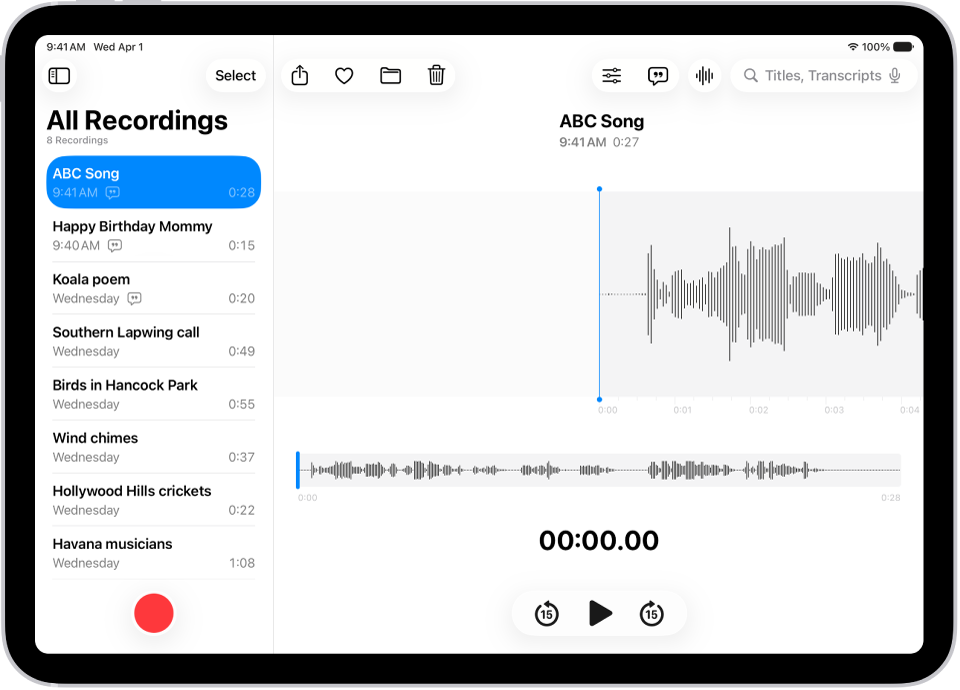
On iPad, you can work with layered recordings. On iPhone 16 Pro or later (except iPhone 16e), you can create a layered recording by adding a vocal layer on top of an instrumental recording. On an iPad with iPadOS 18.2 or later, where you’re signed in to the same Apple Account, you can see any layered recordings you created on a supported iPhone.
You can mix the two layers, or separate them to edit them or play them separately, and the two layers then appear as separate recordings. You can even import layered recordings into Logic Pro.
Note: Layered recordings use the QTA (QuickTime Audio) format, which means devices that have iOS 18.1, iPadOS 18.1, macOS 15.1, or earlier can’t show them. Once you separate the layers, each one is in .m4a format and appears on devices running iOS 18.1, iPadOS 18.1, macOS 15.1, or earlier.
Mix the layers
You can mix a layered recording’s two layers.
- Go to the Voice Memos app on your iPad.
- Tap the layered recording you want to mix.
- Tap the Options button.
- Drag the Layer Mix slider to mix the layers.
Separate the layers
Separating the two layers of a layered recording on your iPad means you can edit or play them separately.
- Open the Voice Memos app on your iPad.
- In the list of recordings, touch and hold the layered recording you want to separate and tap Separate Layers.
The two layers appear as separate recordings in the list. You can select them, edit them, and play them separately.
Note: The separated layers are in .m4a format and will appear on devices with iOS 18.1, iPadOS 18.1, macOS 15.1, or earlier.
Import layered recordings into Logic Pro
With Voice Memos turned on in iCloud settings, a layered recording from your iPhone opens on your iPad, as long as you’re signed in to the same Apple Account there, so you can export the recording to Files. From there, import it into Logic Pro for iPad for editing, and in Logic Pro 11.1.1 or later, the two layers automatically open as two distinct tracks.
See also