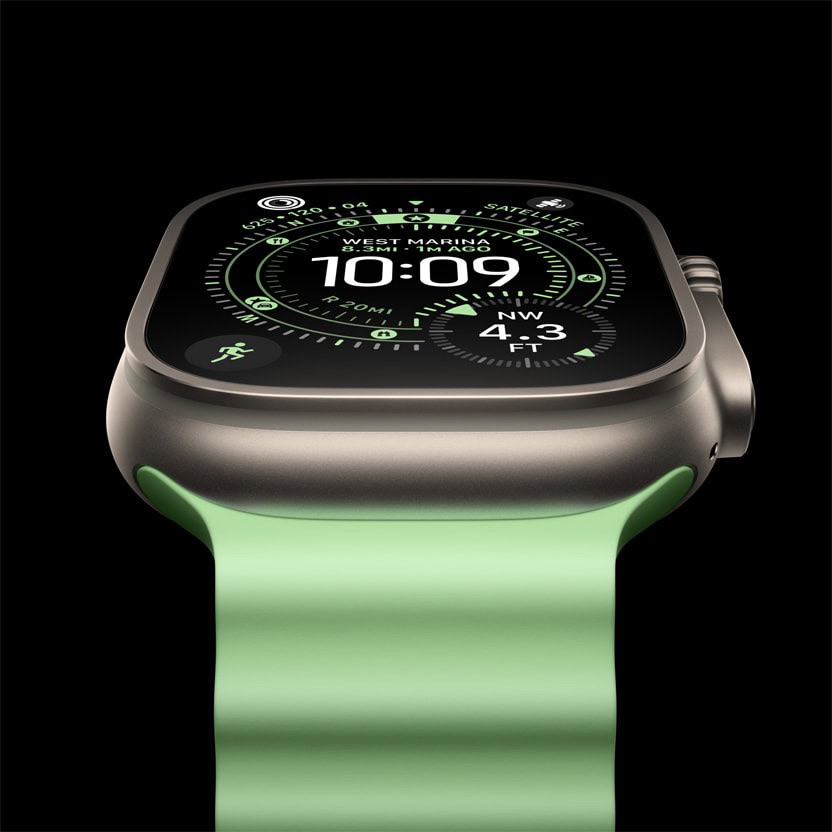
In this tutorial, we show you how to download and install watchOS 27 beta on your Apple Watch so you can be among the first to experience all the new features.
Apple announced watchOS 27 at its annual Worldwide Developers Conference (WWDC) on June 8th, 2026.
watchOS 27 will not support the Apple Watch Series 8, Apple Watch Ultra (first generation), or Apple Watch SE (second generation.
The only Apple Watch models compatible with watchOS 27 are the Apple Watch Series 9, Series 10, Series 11, Ultra 2, Ultra 3, and SE 3.
What you need to do first
- Update your iPhone to iOS 27 developer beta.
- You must have a Wi-Fi connection, as watchOS updates don’t download over the iPhone’s 5G or 4G connection, even after you instruct your iPhone to use more cellular data. Secondly, you can’t use Apple Watch’s own cellular data to download updates.
- Make sure you have at least 4 GB of free space on your Apple Watch.
- Get your Apple Watch charger, as you’ll need it to install the update.
Download and install watchOS 27 Beta on your Apple Watch
1) Open the Watch app on your companion iPhone running iOS 27 and tap General > Software Update.
2) Wait for the screen to load, and then tap Beta Updates.
3) Select watchOS 27 Developer Beta and tap the back button to return to the previous screen.
4) Wait a few seconds for the new watchOS 27 Beta to show up, then tap Download and Install to get it on your Apple Watch.
Pro-tip to install watchOS 27 quickly
After you follow the above steps, watchOS 27 will start downloading to your Apple Watch, but it piggybacks off your iPhone. Based on my own past experiences and what others have shared on social media, the update can sometimes take hours to download and install. So, to get a watchOS update quickly:
1) Follow the steps above to initiate the watchOS 27 developer beta update.
2) Then, go to Apple Watch Settings > General > Software Update, and make sure it says “watchOS 27 Beta.”
3) Now, navigate to Apple Watch Settings > Bluetooth, and turn off Bluetooth to disconnect your watch from your iPhone.
4) Restart your Apple Watch. Then, open Control Center by pressing the side button and ensure you see a tiny Wi-Fi icon at the top, indicating your watch is connected to Wi-Fi and not your iPhone.
5) Finally, go to Apple Watch Settings > General > Software Update and tap Download and Install. Your Apple Watch will download the new watchOS update directly over Wi-Fi, prepare it, and then install it (after you place it on the charger).
Check your watchOS 27 download progress
You can see the estimated time remaining right on the Software Update screen, but that doesn’t tell you how much of the update is downloaded. To get this information, go to Apple Watch Settings > General > Storage, and note the size of the watchOS 27 Beta update file that’s currently downloaded. Visit this storage page regularly to monitor your progress.
The watchOS 27 file size for my Apple Watch Series 10 is around 2.8 GB. This may vary depending on your model.
If watchOS 27 beta doesn’t start installing
- Wait for the watchOS 27 update to download and prepare.
- Your Apple Watch can download and prepare the new watchOS update even when it isn’t charging. However, you must put it on the charger to install the software update.
- Go to Apple Watch Settings > General > Software Update or iPhone’s Watch app > General > Software Update and tap Install Now if you see it.
- Restart your Apple Watch and try updating it again.
If you don’t see the watchOS 27 “Beta Updates” options
- Make sure your iPhone is running iOS 27 developer beta.
- Restart both your iPhone and your Apple Watch and retry.
- Wait a few hours and try again.