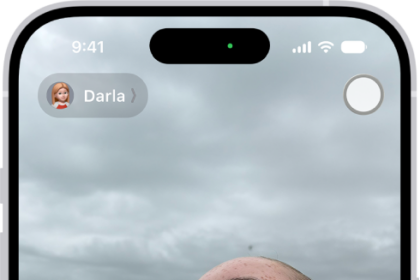
With AirPods 3, AirPods 4, AirPods 5, or AirPods Pro, you can make and answer calls, mute or unmute yourself, and decline an incoming call. You can answer a second call, too. If you’ve got AirPods 4, AirPods 5, AirPods Pro 2, or AirPods Pro 3, Voice Isolation can enhance voice quality and remove background noise for the listener.
Make and answer calls
- Wear your AirPods, and make sure they’re connected to your iPhone, iPad, or Apple Watch (with cellular or Wi-Fi).
- Do one of the following:
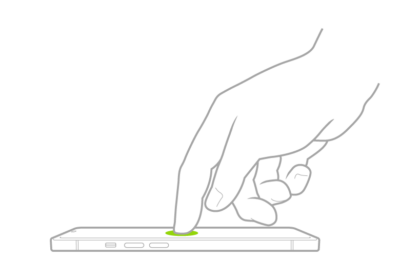
- Make a call: Say “Hey Siri,” or press and hold the force sensor or force sensor with volume swipe and then say something like, “Call Eliza’s mobile.” On an iPad without cellular, say something like, “Make a FaceTime call.”
You can also make a call on your device, such as in the FaceTime app or Phone app.
- Answer a call: Press the stem once on either of your AirPods.
If you have AirPods 4, AirPods 5, AirPods Pro 2, or AirPods Pro 3, you can nod your head up and down to answer a call, or shake your head side to side to decline a call. See Use controls and gestures with your AirPods.
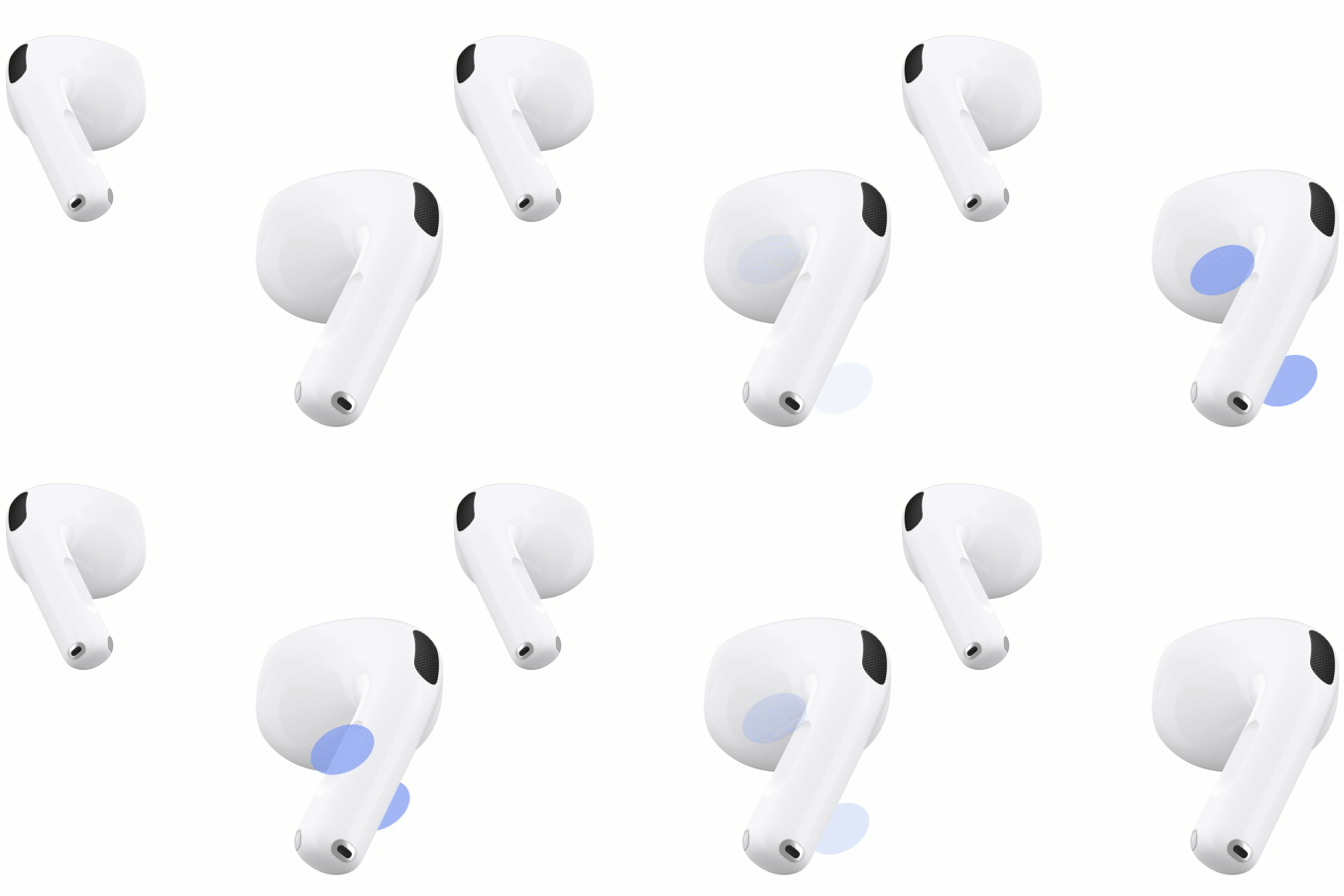
AirPods 4

AirPods Pro
- End a call: Double-press the stem on either of your AirPods.
- Make a call: Say “Hey Siri,” or press and hold the force sensor or force sensor with volume swipe and then say something like, “Call Eliza’s mobile.” On an iPad without cellular, say something like, “Make a FaceTime call.”
You can also answer or decline a call using your voice once you turn on Announce Calls.
Mute or unmute during a call
During a call, press the stem once on either of your AirPods.
In some apps, like FaceTime, you’ll hear a sound and see a message telling you if the microphone’s on or off.
Decline an incoming call
You can decline an incoming phone call and send it straight to voicemail when your AirPods are connected to an iPhone.
When you receive an incoming call, double-press the stem on either of your AirPods.
Shaking your head side to side declines a call on AirPods 4, AirPods 5, AirPods Pro 2, or AirPods Pro 3. For more head gestures, check out our article, Use controls and gestures with your AirPods.
Answer a second call
- When a second call comes in, press the stem to put the first call on hold and answer the new one.
- Do any of the following:
- To switch between calls, press the stem.
- To end the current call and switch to the one on hold, double-press the stem.
Filter out background sounds during calls with AirPods 4, AirPods 5, AirPods Pro 2, or AirPods Pro 3
During calls on your iPhone, iPad, or Mac, Voice Isolation on AirPods 4, AirPods 5, AirPods Pro 3, or AirPods Pro 2 enhances voice quality for the listener and removes background noise, such as wind.
While you’re on a call, you can do one of the following:
- iPhone or iPad: Swipe down from the top-right corner of your screen to open Control Center. Tap FaceTime Controls at the top of the screen, then select Voice Isolation.
- Mac: Click the Video icon or the Microphone icon in the menu bar (depending on the type of call), click Mic Mode, then select Voice Isolation.
You can switch the controls to end a call and mute or unmute. See Change how you end a call or mute yourself with AirPods 3, AirPods 4, or AirPods Pro or Change how you end a call and mute yourself with AirPods Max.
This guide is for iOS 27, iPadOS 27, macOS 27, tvOS 27, watchOS 27, or later.
See also