Facebook-f Twitter
GeeksChalk Logo GeeksChalk Logo
Notification
  • Home
  • iPhone
  • iPad
  • Mac
  • Apple Watch
  • Pages
    • About Us
    • Contact Us
    • Advertise With Us
  • 🤩 Trending:
  • 100 new iOS 26 features for iPhone
  • 10 Best iOS 26 Tips & Tricks
  • iPhone 16: Everything We Know
  • iPhone 16 Pro: Everything We Know

GeeksChalk is the leading source for all things iPhone, Mac, iPad, Apple Watch, Vision Pro, and more

GeeksChalkGeeksChalk
  • Home
  • iPhone
  • iPad
  • Mac
  • Apple Watch
Search

Popular Post

iPhone 15 Pro in black titanium, white titanium, blue titanium, and natural titanium finishes.
iPhone

Apple CarPlay GPS Not Working, Showing Wrong Location: Fix

iPhone 14 Pro and iPhone 14 Pro Max are shown in gold.
iPhone

How to Fix iPhone not sending text messages to Android

Connect an iPhone to car Bluetooth
Troubleshooting

How to fix Bluetooth not working on iPhone after iOS 26 update

iPhone outline with an Apple logo
iPhone

Need to restore an iPhone backup? Here’s how

Follow US
Copyright © 2026 www.GeeksChalk.com
The Account Recovery Contact screen with information about the feature. The Add Recovery Contact button is at the bottom
GeeksChalk > iPad > How to keep your Apple Account secure on iPad

How to keep your Apple Account secure on iPad

You can keep your Apple Account secure on iPad with best practices, Account Recovery Contacts, and Family Sharing instead of shared accounts.

Last updated: October 18, 2026 9:50 am
By Tom Griffin - Executive Editor
Share
2 Min Read

On iPad, your Apple Account is the account you use to access Apple services like the App Store, Apple Music, iCloud, iMessage, and FaceTime. It includes the email address and password you sign in with, plus the contact, payment, and security details you use across Apple services. Apple uses industry-standard practices to safeguard it, and there’s more you can do, too.

You can use two-factor authentication, keep your password, verification codes, and recovery key to yourself, and avoid using your password with other online accounts.

Best practices for maximizing the security of your Apple Account

  • Don’t let others use your Apple Account, even family members.

    To share purchases, subscriptions, a family calendar, and more without sharing Apple Accounts, set up Family Sharing.

  • Use two-factor authentication. If you created your Apple Account on a device with iOS 13.4, iPadOS 13.4, macOS 10.15.4, or later, your account automatically uses two-factor authentication. If you previously created an Apple Account without two-factor authentication, turn on two-factor authentication now.
  • Never provide your password, security questions, verification codes, recovery key, or any other account security details to anyone else. Apple will never ask you for this information.
  • When accessing your Apple Account page in Safari or another web browser, look for the Lock icon in the address field to verify that your session is encrypted and secure.
  • When using a public computer, always sign out when your session is complete to prevent other people from accessing your account.
  • Avoid phishing scams. Don’t click links in suspicious email or text messages and never provide personal information on any website you aren’t certain is legitimate.
  • Don’t use your password with other online accounts.
  • If one of your devices is lost or stolen, turn on Lost Mode as soon as possible for that device. (You can do this on a friend’s device and don’t need to use your own.)

Add Account Recovery Contacts

If you forget your password or get locked out, Account Recovery Contacts, people you trust and choose, can help you get back into your account and reset your Apple Account password.

Go to Settings > [your name] > Sign-In & Security > Recovery Contacts, tap Add Recovery Contact, then follow the onscreen instructions.
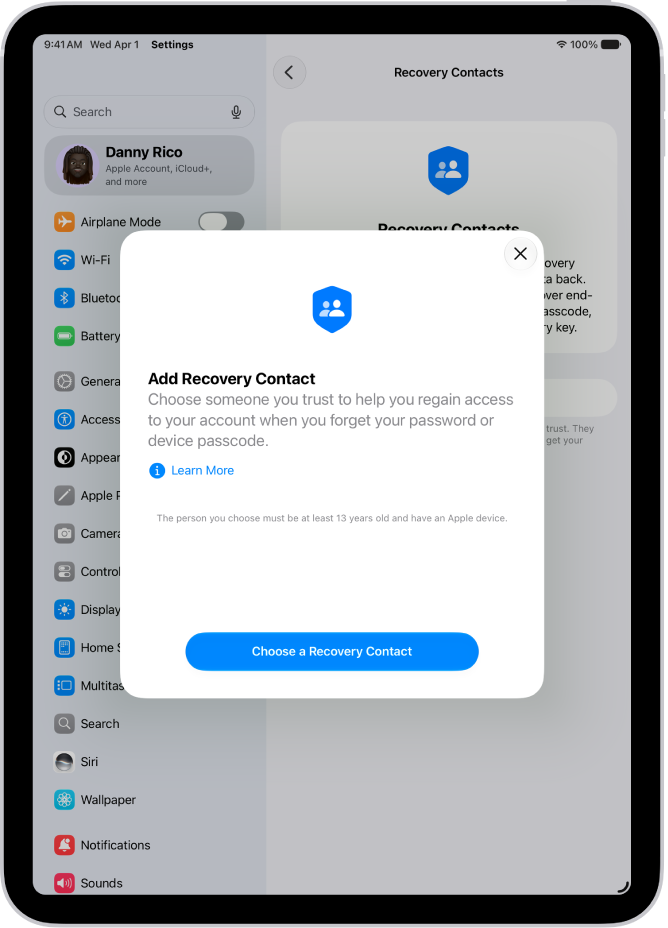
The Account Recovery Contact screen with information about the feature. The Add Recovery Contact button is at the bottom

For more information, go to Settings > [your name] > Sign-In & Security, then tap “Learn more” below Add Recovery Contact.

Add Legacy Contacts

With the Digital Legacy program, people you designate as Legacy Contacts can access your Apple Account in the event of your death.

Go to Settings > [your name] > Sign-In & Security > Legacy Contact, tap Add Legacy Contact, then follow the onscreen instructions.
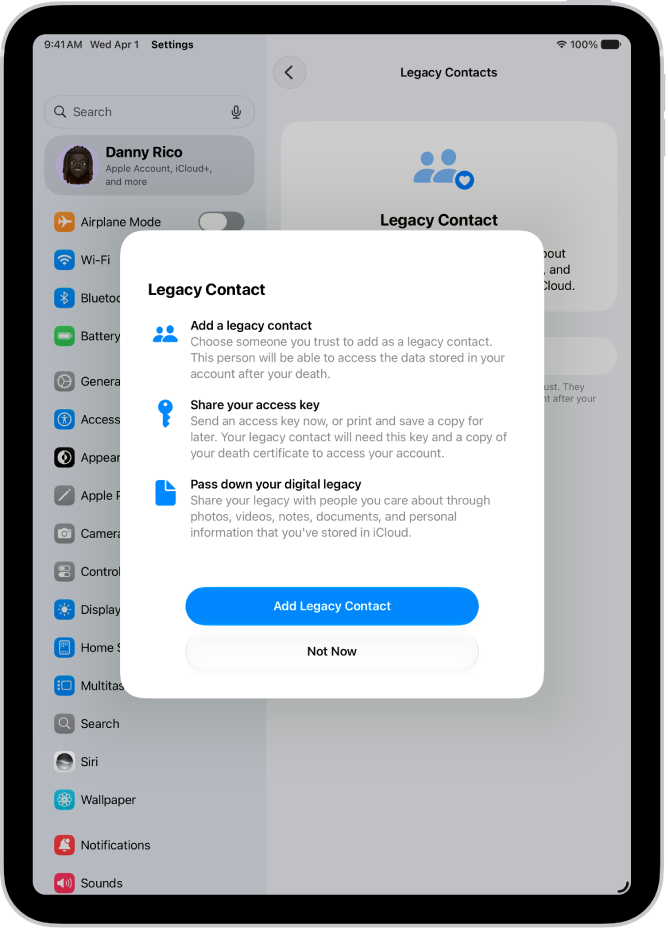
The Legacy Contact screen with information about the feature. The Add Legacy Contact button is at the bottom.

Generate a recovery key for your account

For additional control over your account security, you can generate a recovery key that helps you reset your account password or regain access to your Apple Account. A recovery key is a randomly generated 28-character code that you should keep in a safe place. You can reset your account password by either entering your recovery key or using another device already signed in to your Apple Account. To ensure you have access to your account, you are personally responsible for maintaining access to the recovery key and your trusted devices.
TAGGED:Apple Account
ByTom Griffin
Executive Editor
Follow:
Tom Griffin is the editor-in-chief at GeeksChalk where he oversees all of site’s evergreen content to ensure it’s up to date with the latest information. Hailing from London in the UK, he has over seven years of experience in the tech journalism space and holds a degree in English Literature. In his spare time, Tom can found checking out the latest video games, immersing himself in his favorite sporting pastime of football, and petting every dog he comes across in the outside world.
Leave a Comment Leave a Comment

Leave a Reply Cancel reply

Your email address will not be published. Required fields are marked *

Recent News Flash

The Home tab in the Music app showing the sidebar on the left and the Home section at the right. The Home tab shows Top Picks at the top. Recently Played music appears below, showing four album covers. The MiniPlayer is at the bottom.

How to see what friends are listening to in Music on iPad

The Home tab in the Music app showing the sidebar on the left and the Home section at the right. The Home tab shows Top Picks at the top. Recently Played music appears below, showing four album covers. The MiniPlayer is at the bottom.

How to create an Apple Music profile on iPad

The Music app open on iPad with the sidebar on the left and the list of playlists on the right. At the top are buttons to create a new playlist or create a new folder. A blue arrow is pointing to a playlist folder named Roadtrips.

How to share music with friends on iPad

The Home tab in the Music app showing the sidebar on the left and the Home section at the right. The Home tab shows Top Picks at the top. Recently Played music appears below, showing four album covers. The MiniPlayer is at the bottom.

How to get personalized recommendations in Music on iPad

Trending Now

A screen in the Health app showing results of a mental health questionnaire.

How to take a mental health assessment in Health on iPad

The My Home screen in the Home app.

How to use Grid Forecast to plan energy use in Home on iPhone (U.S. only)

A recording is being edited, with the yellow trim handles enclosing a portion of the audio waveform at the bottom of the screen. To the left of the Playback controls are the Trim button (for deleting the part of the recording outside the handles) and the Delete button (for deleting the part of the recording outside the handles).

How to edit or delete a recording in Voice Memos on iPad

Explore More

Recommended For You

The Content and Privacy Restrictions screen in Screen Time, showing different Feature and Content Restrictions.

How to change game-related settings on iPad

A screenshot showing an example of an iPad Home Screen.

How to connect with friends in the Apple Games app on iPad

The information page for an app in the App Store. The page shows the Get button, ratings, age ratings, the developer, screenshots, and more. At the top center, from left to right, are the following buttons: Today, Games, Apps, Arcade, and Search.

How to get started with the Apple Games app on iPad

The information page for an app in the App Store. The page shows the Get button, ratings, age ratings, the developer, screenshots, and more. At the top center, from left to right, are the following buttons: Today, Games, Apps, Arcade, and Search.

How to view and manage your game library in the Apple Games app on iPad

GeeksChalk Logo GeeksChalk Logo
  • Home
  • Contact Us
  • Advertise
  • Our Staff
  • Editorial Guidelines
  • Terms
  • Privacy
  • Accessibility
  • Copyright
  • About Us
  • Fact Checking Policy
  • Correction Policy
  • Ethics Policy
  • Ownership Policy
Copyright © 2026 www.GeeksChalk.com
Welcome Back!

Sign in to your account

Username or Email Address
Password

Lost your password?