You can read and share News stories on iPhone.
While viewing a story, you can read the next story or the previous story, and tell News what stories you prefer with Suggest More or Suggest Less, so your feedback is taken into account. You can also read stories shared with you, and share a story with others in the News app. Apple News and Apple News+ aren’t offered in all countries or regions, though.
Note: Apple News and Apple News+ aren’t available in all countries or regions.
Read a story
- Start the News app on your iPhone.
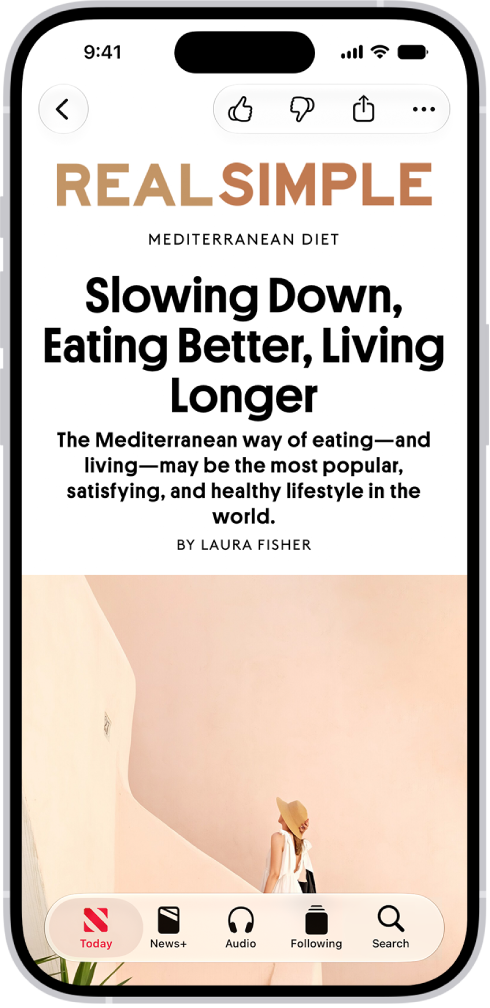
- Tap a story to read it. While viewing a story, do any of the following:
- Read the next story: Swipe left.
- Read the previous story: Swipe right.
- Return to the list of stories: Tap the Back button.
- Tell News what stories you prefer: Tap the Suggest More button or the Suggest Less button. Your feedback is taken into account for future recommendations.
- Change the text size: Tap the More button and tap Text Size. Then tap the smaller or larger letter to change the text size in the story and all other stories in the channel. (Not available in all channels.)
- Share a story: Tap the More button. Choose a sharing option, such as Messages or Mail.
- Report a concern: If you believe that a story you’re viewing is mislabeled, inappropriate, offensive, or doesn’t display properly, tap the More button, tap Report a Concern and then follow the onscreen instructions.
The Report a Concern, Save Story, Suggest More, and Suggest Less options aren’t available in Apple News+ issues in PDF format.
Read stories shared with you
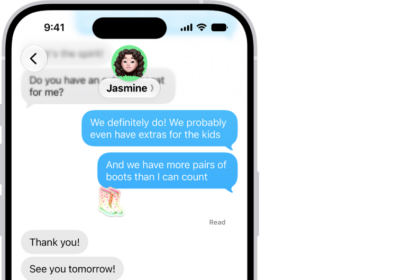
When a friend shares stories with you using the Messages app, you can easily find them in the Shared with You section in Apple News. (Your friend must be in your contacts list in Contacts.)
- Start the Settings app on your iPhone.
- Tap Apps, then tap Messages.
- Tap Shared with You and then make sure News is turned on.
- Start the News app on your iPhone.
- Tap Following and tap Shared with You. Do any of the following:
- Tap a shared story to read it in News.
- Tap the name of the person who shared a story to reply to them in the Messages app. To reply while reading the story, tap the name shown below the channel’s logo.