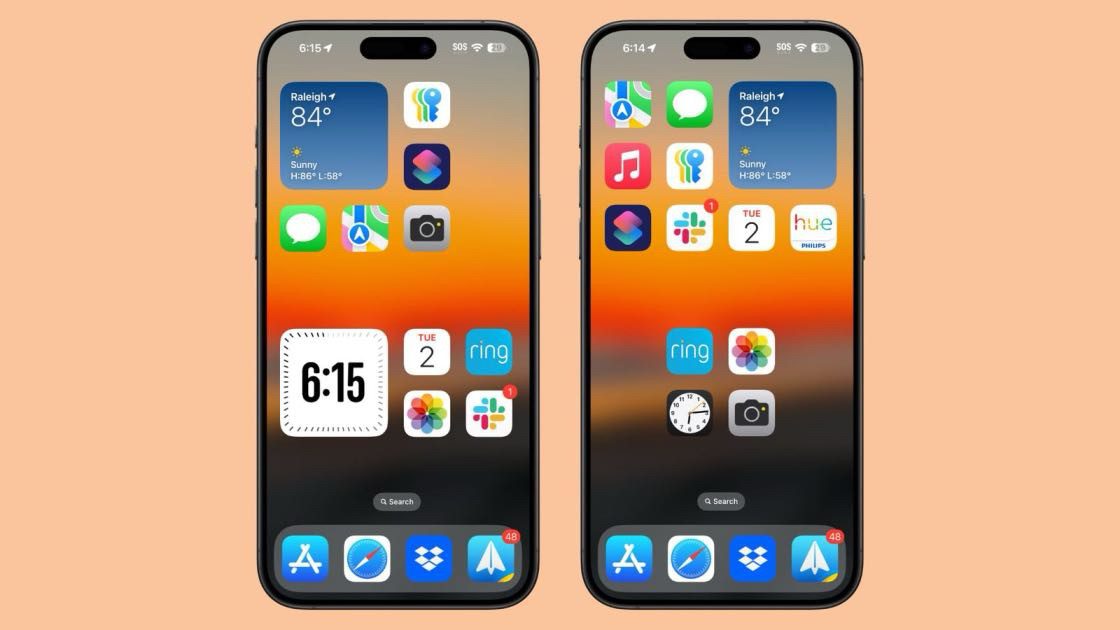
Many iPhone apps will show a red dot on them from time to time. This red circle (with numbers inside) is a notification badge that tells you how many unread notifications you have for that app. They’re useful for getting a quick overview of how many notifications you need to look through. Apps that often get these red dot badges are phone, messaging and email apps. Usually, the dot lets you know about things like a new message or a missed phone call. You will also see a red dot on the Settings app when you have an available software update.
Although these notification badges serve a purpose, you may feel like you don’t need them, or you just feel like they are giving you anxiety, especially if you’ve got hundreds of notifications that you never plan to read. After all, you may find yourself sometimes having to open an app and look at something just to make the red dot go away. For example:
- The Phone app will show a red dot if you have a voicemail you haven’t listened to.
- The Messages app will show a red dot even if you have already read the message in the notification banner that shows up when you get a message.
- The Mail app will show a red badge with a (possibly large) number inside.
The good news is that you can get rid of these red dots on your iPhone apps.
How to get rid of the red dot notification on an app
Here’s how to Disable Red Number Badges on an iPhone:
- Launch the Settings app on your iPhone.
- Go into Notifications.
- Scroll down a bit, and you will see your apps under the Notification Style section.
- Tap on an app, like Phone, Messages, Mail, etc., where you would see one of the red notification dots.
- Under the Alerts section, you will see Badges. Within each app, you will see a list of options. Toggle the Badges option off to disable the red notification badges for that app. The red dot should disappear immediately.
You can repeat this process for all other apps that have been bugging you with these badges. Turning off Badges gets rid of the annoying red notification badge while still allowing apps to send notifications on Notification Center.
Once you’ve done this, remember that you won’t have any indicator to remind you about unread notifications. If you miss a notification banner, you’ll have to open the app to see whether you’ve missed any messages.