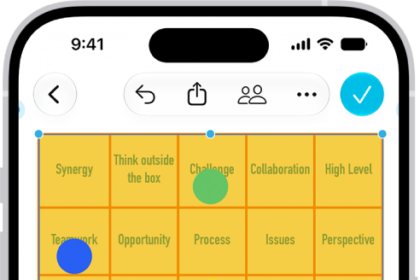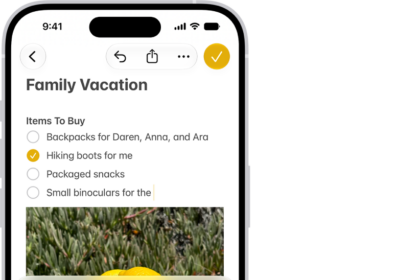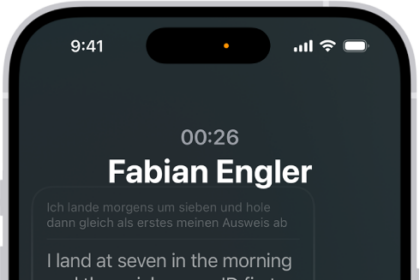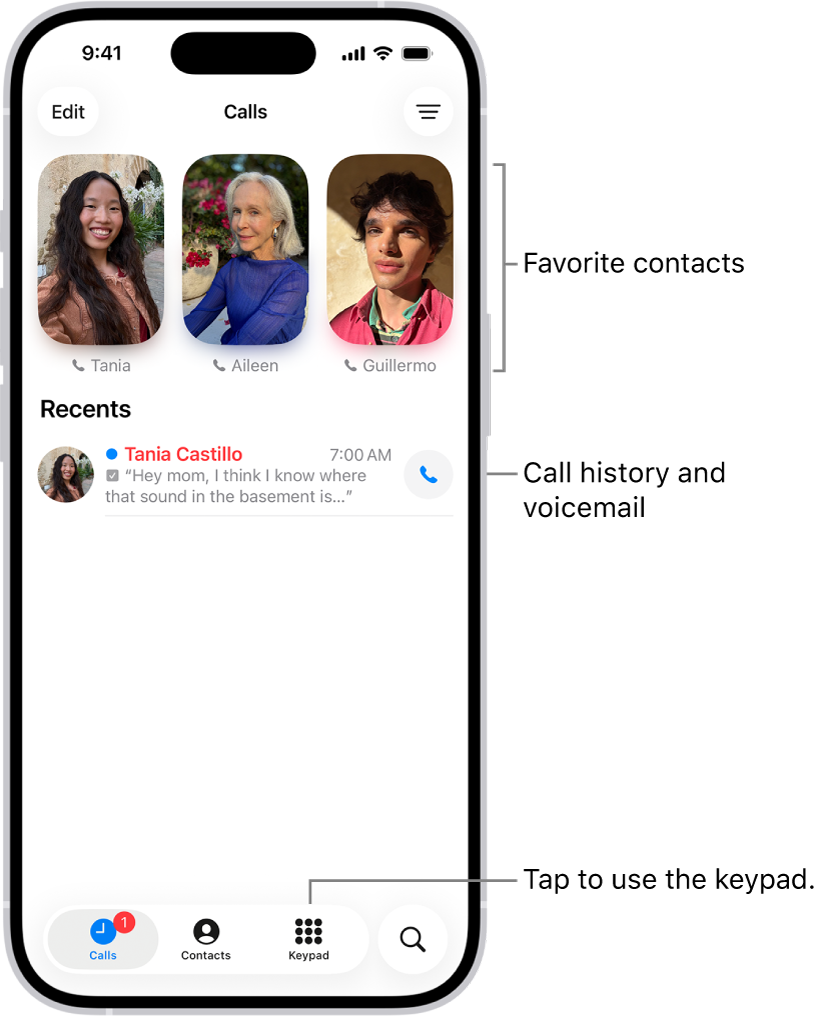
During a one-to-one phone call on iPhone, you can remotely control someone else’s screen or allow a trusted person to remotely control yours. The person controlling the screen can help with an issue or demonstrate how to use an app.
It works with an iPhone screen that’s being shared with you. You can accept or decline a remote control request, or stop remote control whenever you want.
Here’s how to request or give remote control in a Phone call on iPhone.
Note: Remote control is not currently available in the European Union.
Request remote control
You can ask for control of an iPhone screen that’s being shared with you.
Note: You need iOS 26 or later. So does the other participant.
- Open the Phone app on your iPhone.
- During a call, tap the window showing the shared screen. Then tap the Remote Control button.
If the other participant accepts your request, you can tap or swipe to interact with the shared screen. You can also use the onscreen keyboard within apps.
Accept a remote control request
A participant can remotely control your screen if they’re saved in your contacts and using an iPhone with iOS 26 or later. To help protect your data and privacy, additional restrictions may apply to remote control requests. When you receive a remote control request notification in the Phone app on your iPhone, tap Allow.
WARNING: The person remotely controlling the screen can perform tasks on your iPhone such as opening and closing apps, changing settings, deleting items, or sending messages. Only approve remote control requests from people you trust. The person remotely controlling the screen may be restricted from tasks such as changing your Apple Account or Face ID settings, making payments, or erasing your device. Your Face ID and Touch ID will be disabled during a remote control session. You can still tap, swipe, or type while your screen is remotely controlled—your actions take priority over remote actions.
Decline a remote control request
When you receive a remote control request notification in the Phone app on your iPhone, tap Don’t Allow. Screen sharing continues, and the other participant can still tap, draw, or write on your screen to highlight important areas.
Stop remote control
To end remote control at any time, do one of the following:
- If you’re allowing someone to control your screen: Tap Stop at the bottom of the screen sharing window.
- If you’re controlling someone’s screen: Tap the Remote Control button at the bottom of the screen sharing window.
Ending a call ends remote control and screen sharing, too.