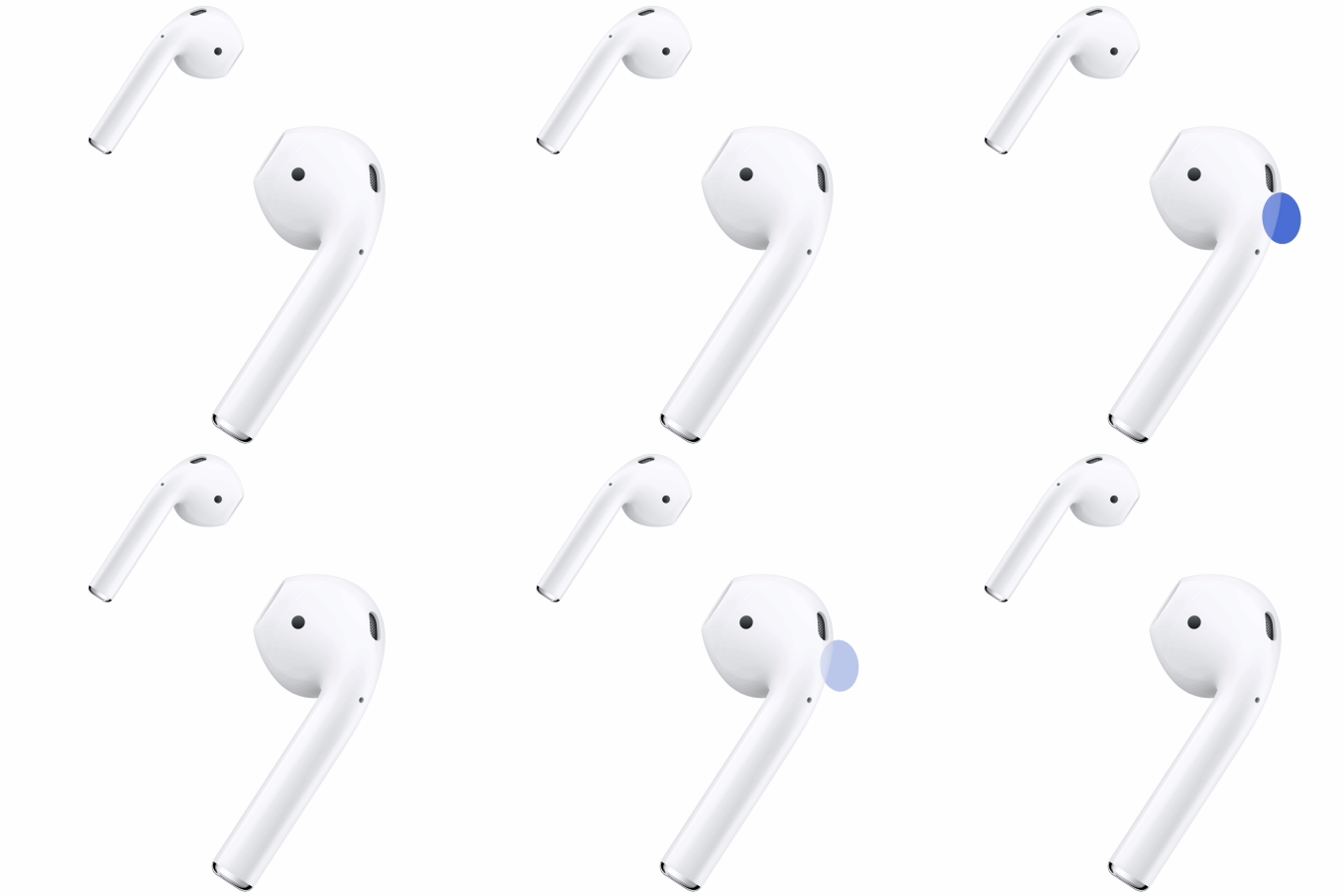
If your AirPods aren’t working right, first make sure the device they’re paired with is up to date. Then try restarting, unpairing, or resetting them, in that order.
Unpairing takes your AirPods off every device where you’re signed in to the same Apple Account, so you’ll have to pair them again before you use them. If they still aren’t working correctly after you restart or unpair them, you can reset them to their factory settings.
Restart AirPods
If your AirPods aren’t working right, try restarting them.
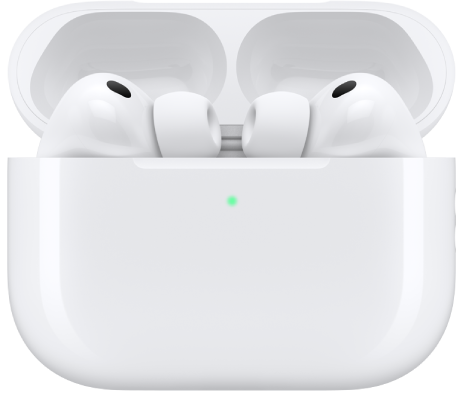
- AirPods or AirPods Pro: Put the AirPods in their case, then close the lid for a minimum of 10 seconds.
- AirPods Max: On the right headphone, press and hold the Digital Crown and the listening mode button at the same time until the status light next to the charging port flashes amber (around 10 seconds), then immediately release the buttons.
Important: If you hold the buttons longer than around 10 seconds, AirPods Max are reset to factory settings.
Unpair AirPods
- iPhone or iPad: Go to the Settings app, tap the name of your AirPods near the top of the screen, then tap Forget This Device. (You may need to scroll down.) This removes the AirPods from all the devices where you’re signed in to the same Apple Account.
- Mac: Go to the System Settings app, click the name of your AirPods in the sidebar (you may need to scroll down), then click Forget This Device.
- Apple Watch: Go to the Settings app, tap Bluetooth, tap the Info button, then tap Forget Device to remove AirPods from all devices where you’re signed in to the same Apple Account.
- Apple TV 4K or Apple TV HD: Go to the Settings app, then select Remotes and Devices. Select Bluetooth, select your AirPods, then select Forget This Device.
Note: To use your AirPods again after removing them, you must pair them with a device that’s associated with your Apple Account.
Reset AirPods to factory settings
Resetting your AirPods to their factory settings is something you can try if they aren’t working correctly after you restart or unpair them.
- AirPods 1, 2, or 3, or AirPods Pro 1 or 2: Put the AirPods in their case, close the lid, then wait 30 seconds. Open the lid, then press and hold the setup button on the back of the case for about 15 seconds, until the status light flashes amber, then white.
- AirPods 4 or 5, or AirPods Pro 3: Put the AirPods in their case, close the lid, then wait 30 seconds. Open the lid, then double-tap the front of the case three times.
When you successfully reset your AirPods, the status light flashes amber, then white.
- AirPods Max: On the right headphone, press and hold the Digital Crown and the listening mode button at the same time, until the status light next to the charging port changes from flashing amber to flashing white (around 15 seconds).
This guide is for iOS 27, iPadOS 27, macOS 27, tvOS 27, watchOS 27, or later.
See also