What you need to know
- To mirror your iPhone to a TV or Mac wirelessly, tap Screen Mirroring in Control Center.
- Another way to mirror your iPhone to a TV is by using a cable. HDMI works best, but it depends on your TV’s ports.
- You can also use third-party apps to cast content to your TV or mirror everything.
- This article provides instructions for how to mirror your iPhone to a television or computer. It includes both wired and wireless options.
Want to mirror your iPhone’s screen to a smart TV or Mac? If the device supports AirPlay 2, you can do so wirelessly by tapping the Screen Mirroring tile in Control Center. If your TV doesn’t support AirPlay, you can connect a streaming device with a mirroring cast app, like Roku, Chromecast, or Amazon Fire, or use a cable and adapter. This article will teach you four simple ways to use screen mirroring on your iPhone.
How to Mirror an iPhone to a TV or Mac Wirelessly
You can mirror your iPhone to a smart TV, Apple TV, or Mac wirelessly for free using AirPlay or screen mirroring.
How to Mirror your iPhone to a TV or Mac using AIRPLAY
- Make sure your iPhone is connected to the same Wi-Fi network as your Apple TV, AirPlay-compatible smart TV, or Mac.
- Find the video that you want to stream.
- Tap the AirPlay button.
 In some apps, you might need to tap a different button first.1 For example, in the Photos app, tap the Share button, then tap the AirPlay button.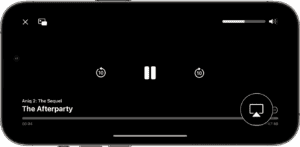
- Choose your TV or Mac from the list.
- To stop streaming, tap the AirPlay button in the app that you’re streaming from, then tap your iPhone from the list.
Tip: If your TV is displaying your phone’s screen in portrait mode, but you prefer the wider landscape view, simply rotate your phone to landscape mode. If your iPhone’s rotation lock is enabled, you’ll need to disable it for this to take effect. You can disable the rotation lock by swiping down from the top-right corner of the screen to open Control Center, then tap the "Rotation Lock" button to turn it off.
Depending on your AirPlay & Handoff settings, your iPhone can suggest or automatically connect to devices you regularly use with AirPlay.
To adjust your AirPlay & Handoff settings:
- Go to Settings on your iPhone with the latest version of iOS.
- Tap General.
- Tap AirPlay & Continuity, then tap Automatically AirPlay.
- Choose a setting.
- Never: Manually choose a device for AirPlay.
- Ask: Get suggested AirPlay connection notifications. Tap the suggested AirPlay connection notification to make the connection, or dismiss or ignore it and manually choose a different device for AirPlay.
- Automatic: Get suggested and automatic AirPlay connection notifications. Dismiss or ignore the automatic AirPlay connection notification, then tap play in the app you are using to use the connection. Or tap the undo button to quickly disconnect and manually choose a different device for AirPlay.
Your iPhone and your AirPlay-enabled device must be on the same Wi-Fi network before you can get automatic and suggested AirPlay connections. To get automatic and suggested AirPlay connections to your Apple TV.
How to Screen Mirror Your iPhone to a TV or Mac using Screen Mirroring

You can easily mirror iPhone to your TV or Mac by using the screen mirroring feature.
- Make sure your iPhone is connected to the same Wi-Fi network as your Apple TV, AirPlay-compatible smart TV, or Mac.
- Open Control Center:
- On iPhone X or later: Swipe down from the top-right corner of the screen.
- On iPhone 8 or earlier: Swipe up from the bottom edge of the screen.
- Tap the Screen Mirroring button.
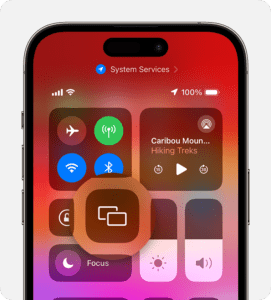
- Select your TV or Mac from the list.
- If an AirPlay passcode appears on your TV screen or Mac, enter the passcode on your iPhone.
- To stop mirroring your iPhone, open Control Center, tap Screen Mirroring, then tap Stop Mirroring. Or press the Menu button on your Apple TV Remote.
Using an Adapter to mirror your iPhone screen to a TV
If you don’t have a Smart TV or an Apple TV, another method of mirroring your iPhone screen to a TV is by using a cable. This is a physical connection, so you’ll sit near your TV for this to work.
You’ll need a cable and an adapter since your iPhone and TV don’t use the same ports. The specific adapter you need depends on your iPhone model and the ports available on your TV. Most TVs support HDMI and some also have a VGA connection.
Apple recommends any of the following adapters, depending on your specific phone model: Lightning Digital AV Adapter, Lightning to VGA Adapter, USB-C Display AV Adapter, or USB-C VGA Multi-port Adapter.
Once you have the appropriate cable and adapter attached to your iPhone, all you need to do is plug the cable into the TV and switch to the correct video source using your TV’s menu or remote.
When using this method, you will get an exact duplicate of your iPhone screen on your television, so if you’re trying to watch a movie from your iPhone on your TV, the image might not fill the whole screen.
Using an App to mirror Your iPhone screen to a TV
Various streaming devices let you mirror your iPhone screen to a TV. For example, you can cast your iPhone to Roku with the standard Roku app. Options are also available for Chromecast and Amazon Fire devices.
To cast from your iPhone to Chromecast, you’ll use the Google Home app to link the two. It’ll work similarly to AirPlay: You’ll choose the Cast icon from a compatible app, like YouTube, and then select your Chromecast as the destination.
Amazon Fire devices require a separate app to let you cast your iPhone. One popular option is AirScreen, which you’ll need to download to your Fire Stick. AirScreen works with a variety of platforms, including Chromecast and AirPlay, so it’s a good option if you aren’t getting the results you want from the standard apps.
FAQ
How do I mirror my iPhone to my Samsung TV?
If your Samsung Smart TV was manufactured in 2018 or later, you’ll likely be able to use AirPlay to mirror your iPhone screen to your TV. Tap Screen Mirroring from your iPhone’s Control Center to mirror your entire iPhone screen to your Samsung TV. From some apps, you can tap the AirPlay icon to mirror content from your iPhone to your TV. Or, connect your iPhone to your Samsung TV via an HDMI cable.
Can you mirror your iPhone to Roku TV?
Yes. To mirror your iPhone to a Roku TV, go to your iPhone’s Control Center and tap Screen Mirroring. Tap your Roku device from the list of options; you’ll see a code on your TV. Enter this code into your iPhone as prompted, then tap OK.
How can I mirror my iPhone to my LG TV?
If you have an LG smart TV, download the LG TV Screen Mirroring Cast app from the App Store onto your iPhone, then launch the app. The app will search for and find your LG TV. Select your TV, then tap Start Mirroring. Next, select Mirror LG TV > Start Broadcast, and your TV will display your iPhone’s content.
Can I mirror my iPhone to my TV without Wi-Fi?
Yes. To mirror your iPhone to your TV without Wi-Fi, you’ll need an adapter, such as Apple’s Lightning or USB-C connector. You can purchase a Lightning Digital AV Adapter directly from Apple for $49. You’ll use this adapter to connect your iPhone to an HDMI cable. Connect the HDMI cable to your TV, then connect the other end of the HDMI cable to the Lightning Digital AV Adapter. Your iPhone screen will instantly be cast to the TV.
Can you mirror an iPhone to a VIZIO TV?
Yes. To mirror an iPhone to a Vizio smart TV, download the VIZIO Mobile appfrom the App Store onto your iPhone, then launch the app. When the app finds your Vizio TV, select it, then tap Pairon the Bluetooth Pairing Request pop-up. When the pairing is complete, you’ll be able to cast your iPhone’s contents to your Vizio TV.