For better security, set a passcode that needs to be entered to unlock iPad when you turn it on or wake it. Setting a passcode also turns on data protection, which encrypts your iPad data with 256-bit AES encryption (some apps may opt out).
The most secure options are in Passcode Options. After you set one, you can use Face ID or Touch ID to unlock iPad on supported models.
Set or change the passcode
- Open Settings. Then depending on your model, tap one of the following:
- Face ID & Passcode
- Touch ID & Passcode
- Tap Turn Passcode On or Change Passcode.
To view options for creating a passcode, tap Passcode Options. The most secure options are Custom Alphanumeric Code and Custom Numeric Code.
After you set a passcode, on supported models you can use Face ID or Touch ID to unlock iPad (depending on your model). For additional security, however, you must always enter your passcode to unlock your iPad under the following conditions:
- You turn on or restart your iPad.
- You haven’t unlocked your iPad for more than 48 hours.
- You haven’t unlocked your iPad with the passcode in the last 6.5 days, and you haven’t unlocked it with Face ID or Touch ID in the last 4 hours.
- Your iPad receives a remote lock command.
- There are five unsuccessful attempts to unlock your iPad with Face ID or Touch ID.
Change when iPad automatically locks
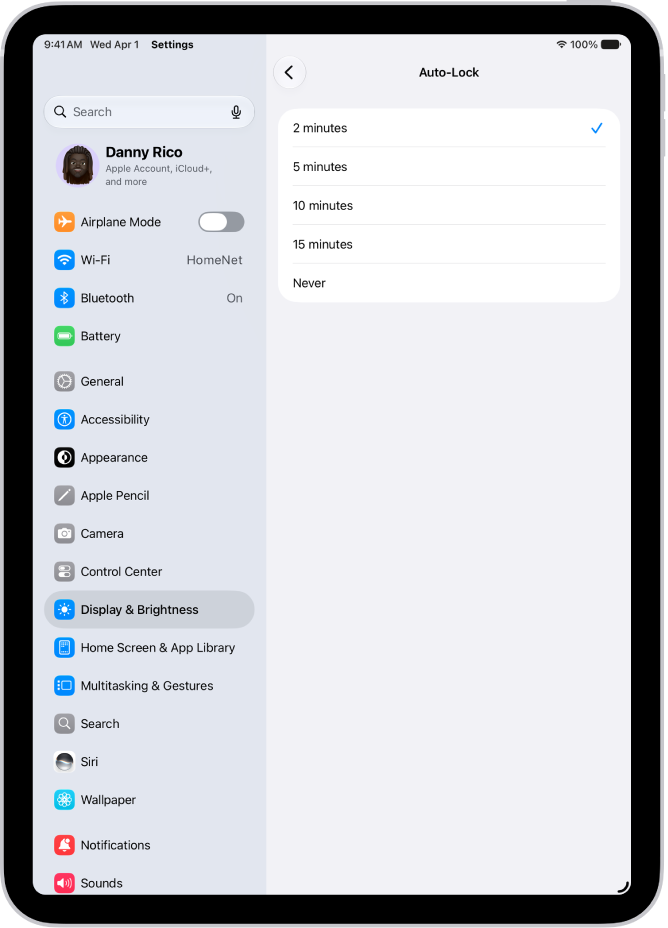
Go to Settings > Display & Brightness > Auto-Lock, then set a length of time.
Erase data after 10 failed passcodes
You can set iPad to erase all your information, media, and personal settings after 10 consecutive failed passcode attempts.
- Open Settings. Then depending on your model, tap one of the following:
- Face ID & Passcode
- Touch ID & Passcode
- Passcode
- Turn on Erase Data.
Note: If you keep your iPad on the Home Screen and don’t take any action, your Auto-Lock time is reduced by half.
With all data erased, you must restore iPad from a backup, or, if you didn’t back up your iPad, set it up again as new.
Turn off the passcode
- Open Settings. Then depending on your model, tap one of the following:
- Face ID & Passcode
- Touch ID & Passcode
- Passcode
- Tap Turn Passcode Off.
Reset the passcode
Entering the wrong passcode four times in a row locks you out of your device, and you’ll see a message that says iPad is disabled. Can’t remember your passcode? Erase your iPad with a computer or with recovery mode, and then set a new passcode.
Note: You can restore your data and settings from an iCloud or computer backup, as long as you made it before you forgot your passcode.
See also