On an iPad with a Home button, iPad (10th generation and later), iPad Air (4th generation and later), iPad mini (6th generation), or iPad mini (A17 Pro), you can use Touch ID to securely and conveniently unlock iPad, authorize purchases and payments, and sign in to many third-party apps.
Touch ID can also fill in passwords automatically and open password-protected apps. You can choose when to use Touch ID, add a fingerprint, and name or delete one.
To use Touch ID, you must set a passcode on your iPad.
Turn on Touch ID
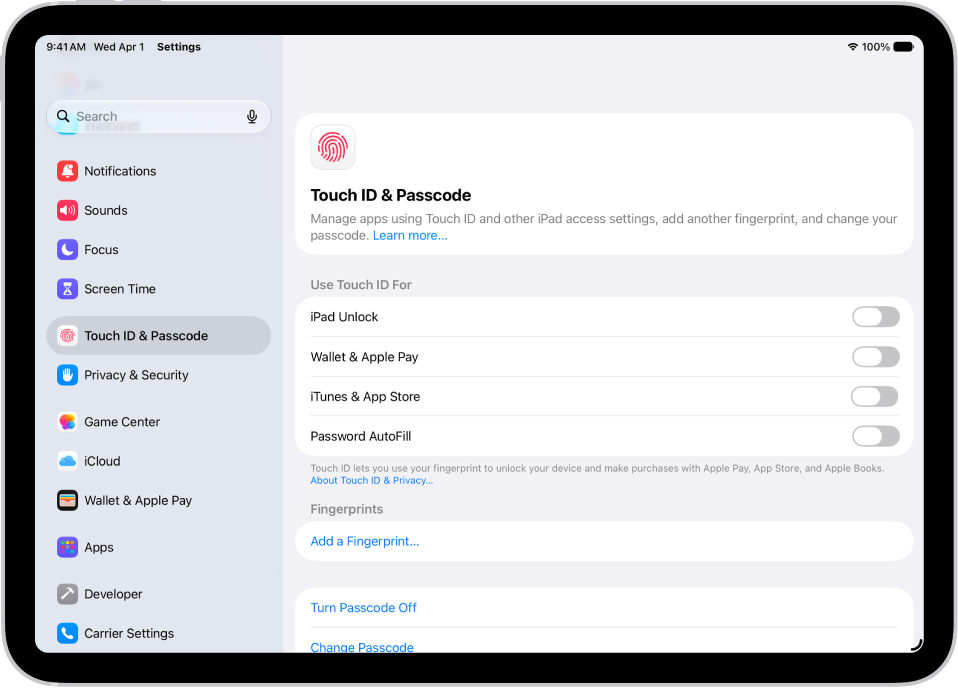
- Open Settings and then tap Touch ID & Passcode.
- Turn on any of the options below Use Touch ID For. Then follow the onscreen instructions.
With iTunes & App Store turned on, your first App Store, Apple Books, or iTunes Store purchase asks for your Apple Account password. For later purchases, you’re asked to use Touch ID.
Choose when to use Touch ID
With Touch ID, you can open password-protected apps, unlock your iPad, authorize payments, and automatically fill in passwords.
Go to Settings > Touch ID & Passcode, then turn on options below Use Touch ID For.
Add a fingerprint
You can add multiple fingerprints, for example both of your thumbs and forefingers.
- Open Settings and then tap Touch ID & Passcode.
- Tap Add a Fingerprint.
- Follow the onscreen instructions.
Name or delete a fingerprint
- Open Settings and then tap Touch ID & Passcode.
If you added more than one fingerprint, do one of the following to identify its print:
- On an iPad with a Home button: Rest a finger on the Home button.
- On iPad (10th generation and later), iPad mini (6th generation), iPad mini (A17 Pro), and iPad Air (4th generation and later): Rest a finger on the top button.
- Tap the fingerprint and enter a name (such as “Thumb”) or tap Delete Fingerprint.
Turn off Touch ID
Go to Settings > Touch ID & Passcode, then turn off one or more of the options.
See also