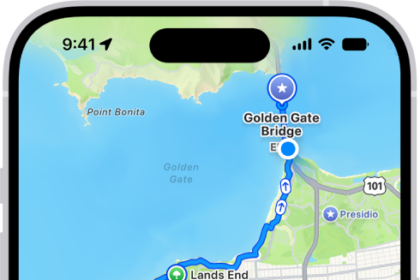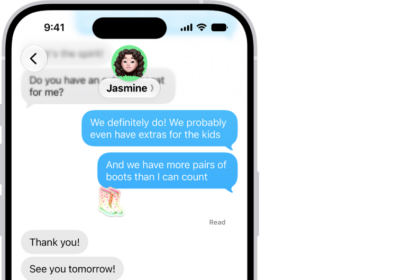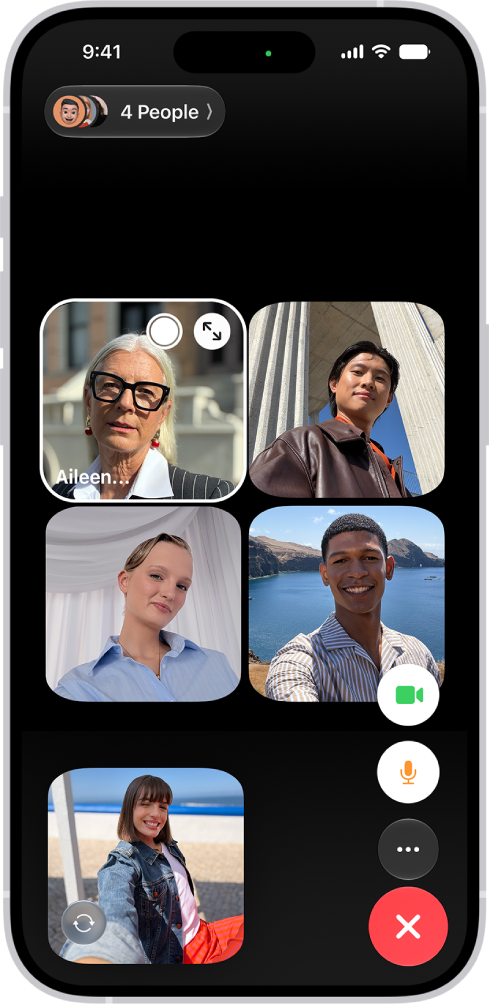
On iPhone, in the FaceTime app, on a device that meets the minimum system requirements, you can share your screen to bring apps, webpages, and more into the conversation.
You can also ask someone to share their screen with you.
Here’s how to share your screen in a FaceTime call on iPhone.
Note: FaceTime, FaceTime audio, Group FaceTime, some FaceTime features, and other Apple features or services may not be available in all countries or regions.
Share your screen
- During a call in the FaceTime app on your iPhone, tap the screen to show the FaceTime controls (if they aren’t visible). Tap the More button.
- Tap Screen Sharing, then tap Share My Screen.
Screen sharing begins after a countdown from 3 to 1 at the bottom of the screen.
Quick tip: On a one-to-one FaceTime call, the other participant can tap, draw, or write on your screen from an iPhone or iPad to call your attention to a specific area, and whatever they add disappears after a few seconds. For more help, allow the other participant to control your screen.
To stop sharing your screen, tap the More button, then tap Stop next to Screen Sharing. Ending a FaceTime call also ends screen sharing.
Ask someone to share their screen
- During a call in the FaceTime app on your iPhone, tap the screen to show the FaceTime controls (if they aren’t visible). Tap the More button.
- Tap Screen Sharing and then tap Ask to Share Screen.